
Change or Reset a Password
Changing Your Password
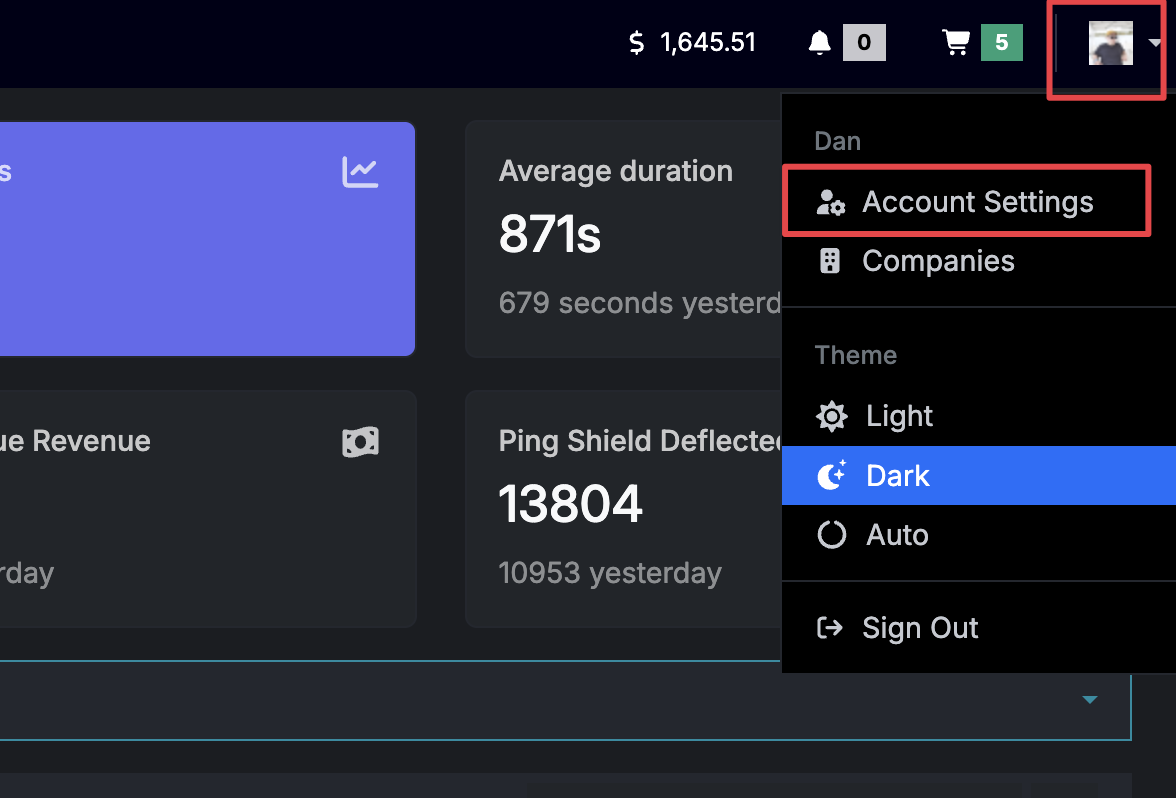
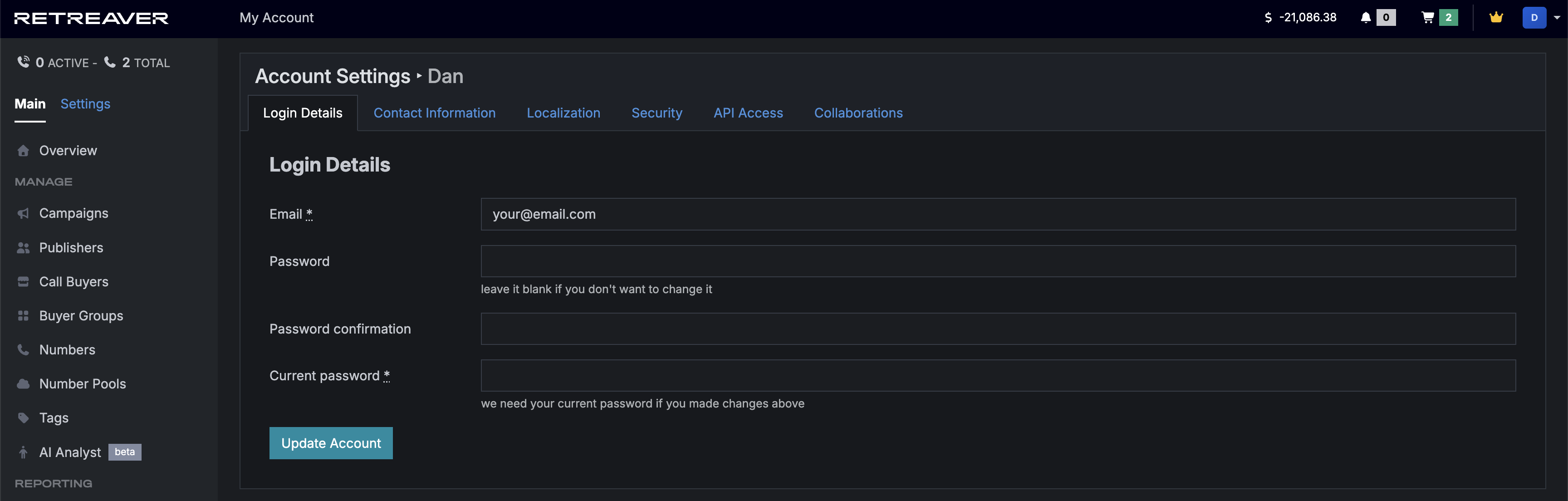
If you wish to change your password, start by clicking your avatar on the top right, click on “Account Settings”. You can input a new password, finally click “Update Account” on the bottom of the “My Account” page to process your changes.
Password Requirements
Your new password must meet all of the following requirements:
- At least 12 characters
- At least 1 uppercase letter
- At least 1 lowercase letter
- At least 1 number
- At least 1 special character
Can’t Log In? Reset Your Password
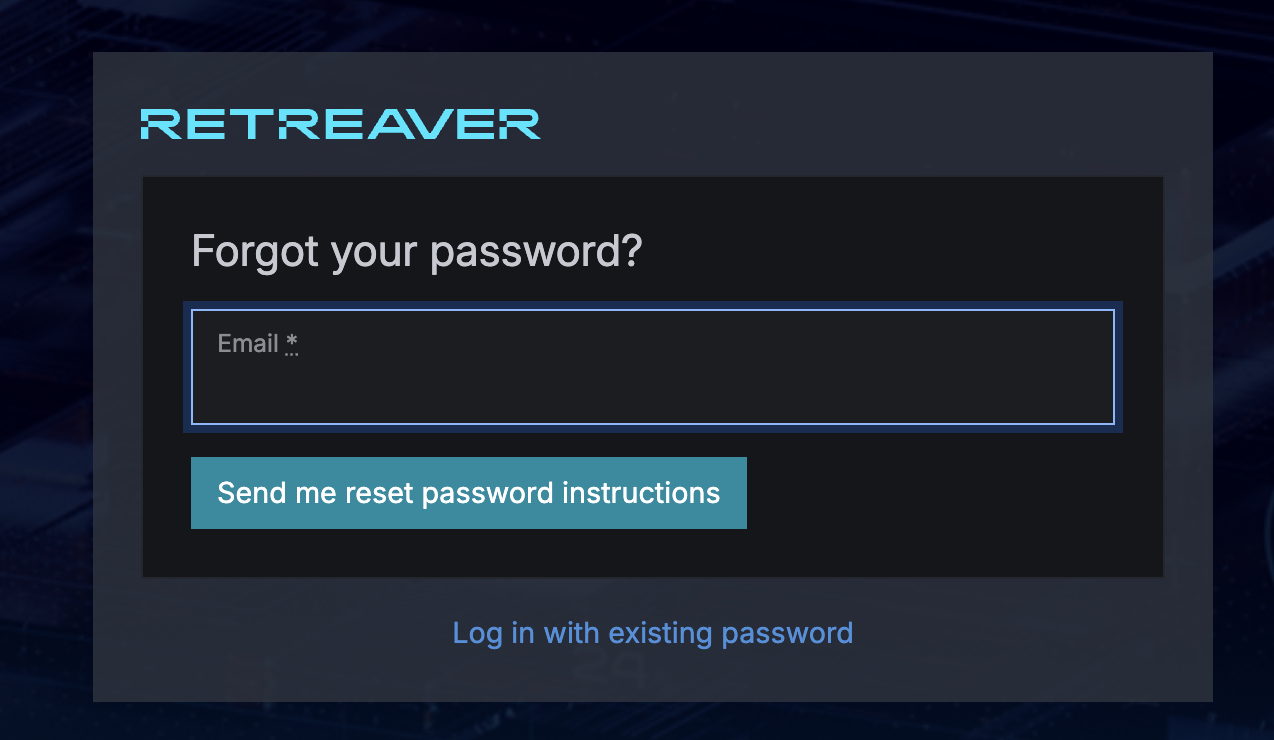
If you can’t log in to Retreaver, you can usually regain access by resetting your password:
- Go to the Retreaver login page.
- Click Forgot your Password?
- Enter the email address associated with your Retreaver account.
- Open the password reset email and click the reset link.
- Enter a new password that meets the requirements above and confirm it.
- Submit the form, then return to the login page and sign in.
If the Reset Page Rejects Your Password
If you enter a new password and the page simply returns to the reset form, the password may not meet the required complexity rules.
Try the following:
- Make sure your password meets all requirements listed above
- Re-enter the password carefully in both fields
- Avoid using an old password
- Try copying and pasting the password into both fields to ensure they match exactly
- Try again in a private/incognito window
- Try a different browser
If the Reset Email Doesn’t Arrive
If you requested a reset but never received the email:
- Check your Spam/Junk folder
- Confirm you entered the correct email address
- Try requesting the reset again
- Make sure you are using the email tied to an active Retreaver user account
If Retreaver does not recognize your email, you may be using a different address than the one on file.
If You Are Asked for a One-Time Password (2FA)
If login asks for a one-time password, your account has two-factor authentication (2FA) enabled. Open the authenticator app (e.g. Google Authenticator) that was used when 2FA was set up and enter the current 6-digit code.
If you can’t find the code:
- Check all authenticator apps on your phone
- Confirm whether someone else set up the account or enabled 2FA for you
- Contact Retreaver Support to request a 2FA reset
If Your Account Is Temporarily Blocked
Retreaver may temporarily halt access if a login attempt is flagged as suspicious. Try signing in again carefully, reset your password, and consider setting up 2FA after regaining access.
If You Were Invited to an Account
If you received an invitation to join a Retreaver account, you must log in with the same email address that received the invite. Creating a new account with a different email address or alias will not connect you to that invitation.
If You Still Can’t Log In
If resetting your password still doesn’t work, contact Retreaver Support. In some cases, support may need to:
- Re-verify your account internally
- Help confirm the correct email address on the account
- Manually assist with access recovery
When contacting support, include:
- The email address you’re trying to use
- A description of what happens after you submit the reset form
- Whether you’ve already tried another browser or incognito mode
Tip
If your account has been inactive for a long time, a password reset may still work, but support may need to re-verify the account before you can complete the process successfully.
Change your login email
You can change the email used to sign-in to your account on the Account Settings page
Sign Out
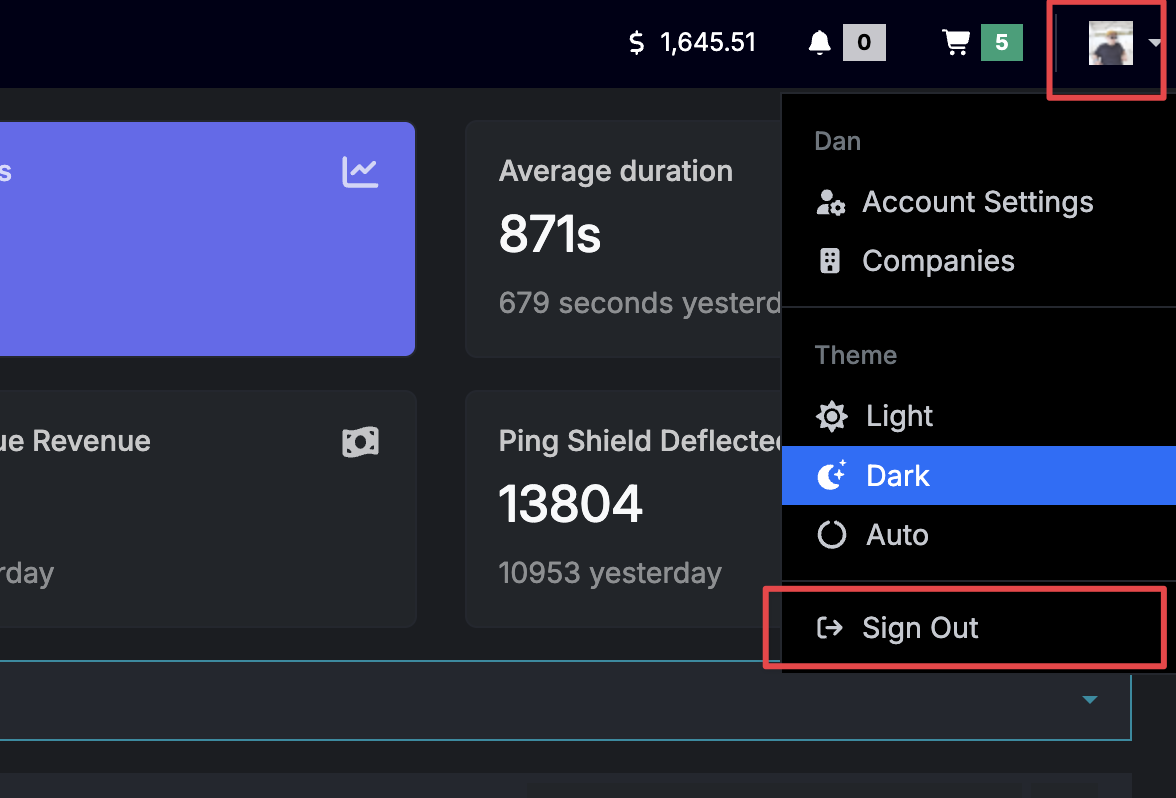
How to log out of Retreaver: click your avatar -> click “Sign Out”.
Help us improve this article or request new support guides.