
Payments, Billing, and Credit Cards
Where are payments and credit cards configued?
The payments page can be found by clicking on the dollar amount in the top right-hand corner of the Retreaver layout.
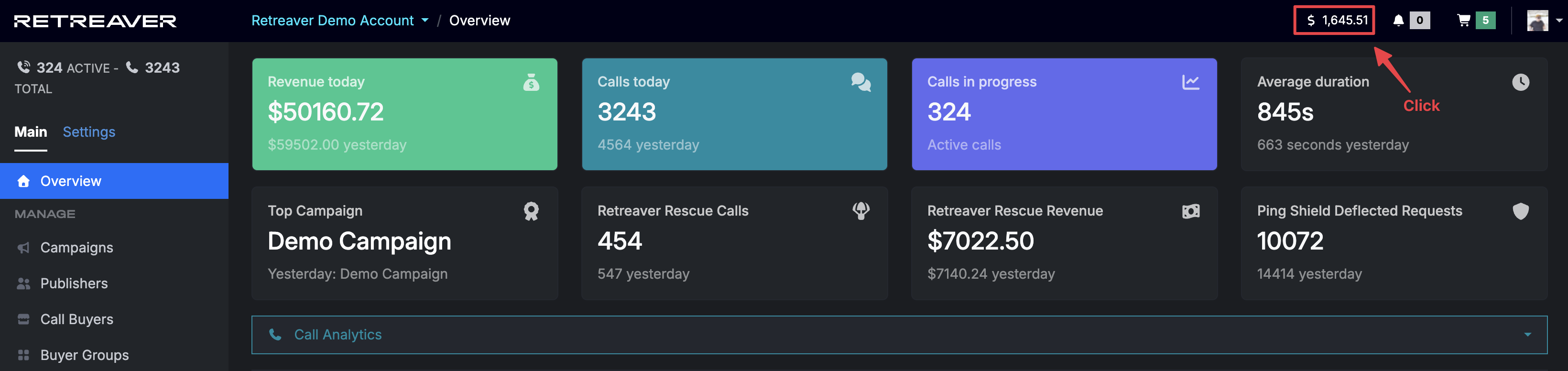
Or in the sidebar click “Settings” -> “Payments”
Payments Overview
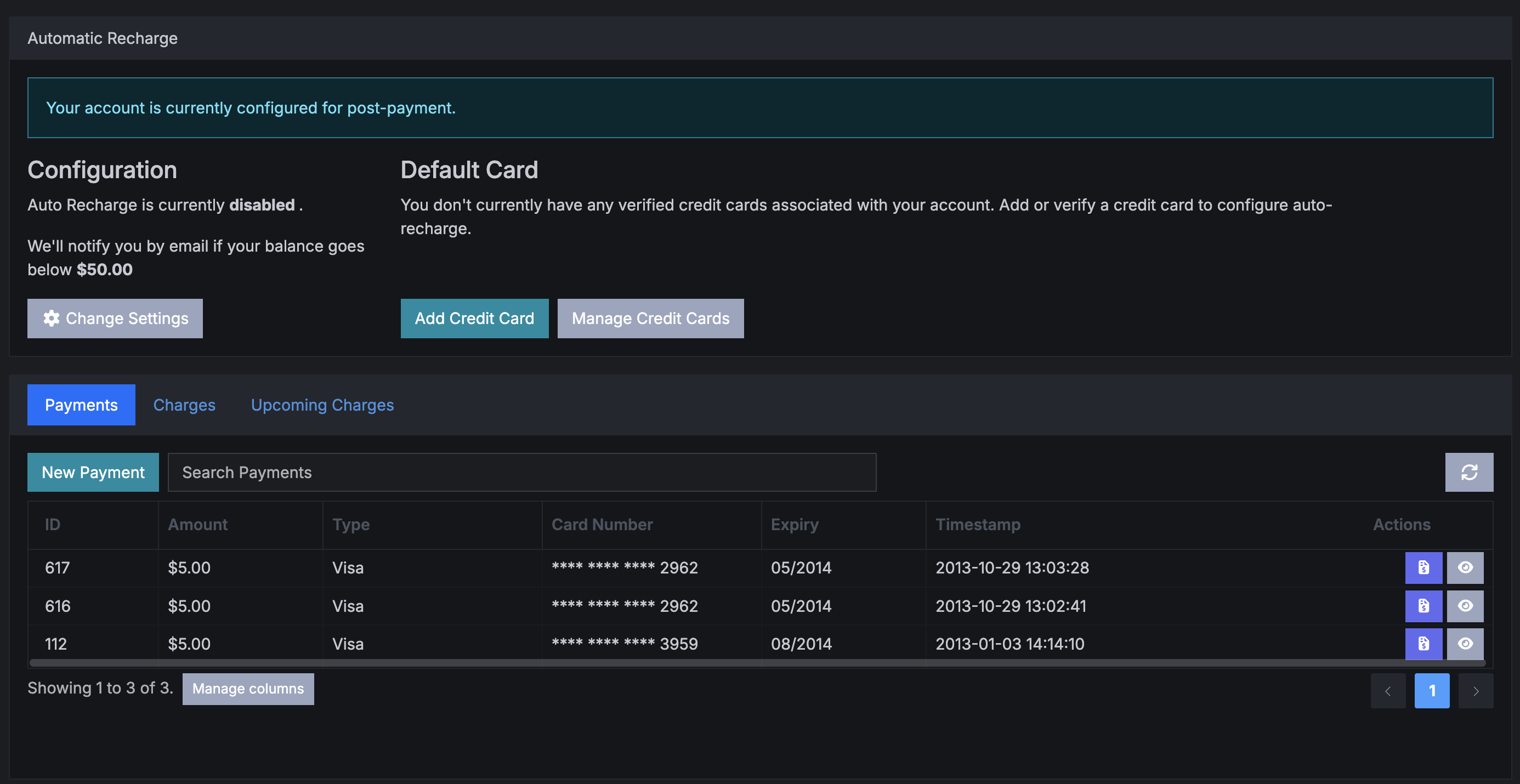
The Payments page allows users to perform a number of actions:
- Add a credit card for an automatic recharge,
- View your per minute rate
- View previous charges
- The dollar value will display how much money you have remaining (Non Recurring Charge) or the amount of money owed (Monthly Recurring Charge)
Automatic Recharge
If you are set up for a post-paid account, you will be notified of it here.
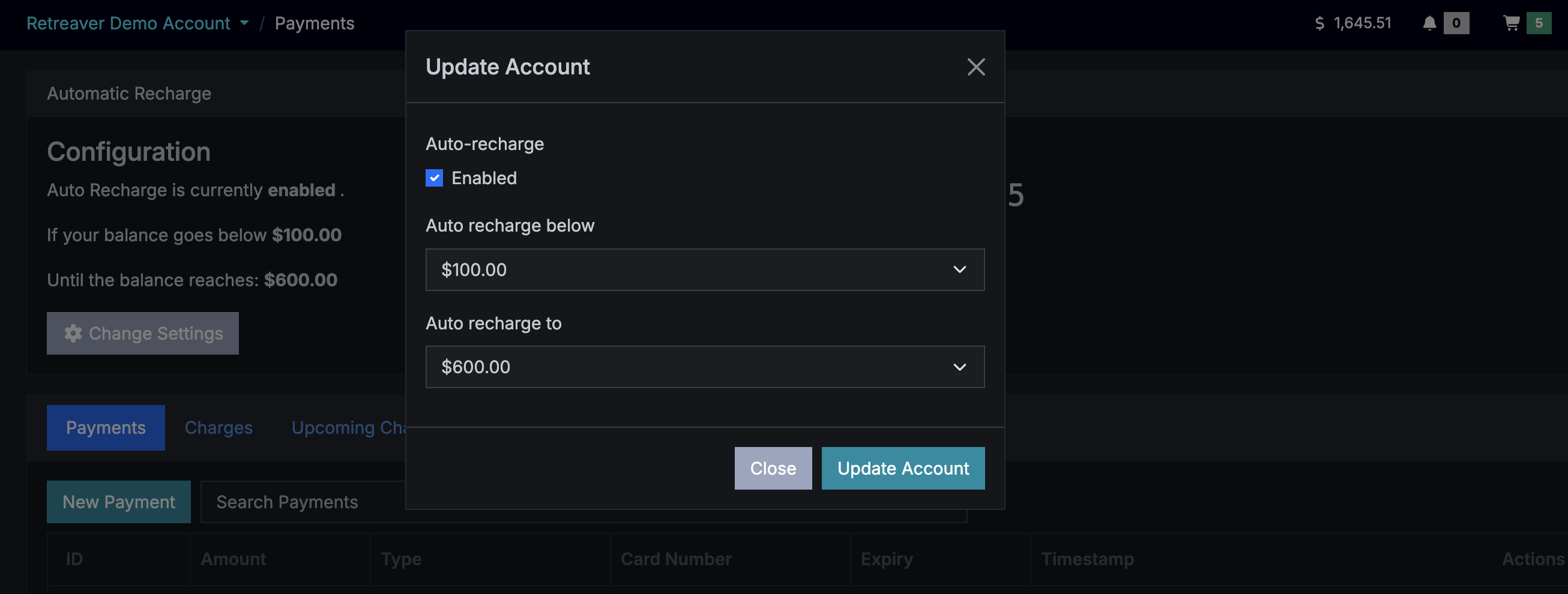
Configure Payment Settings
Here you will be provided with a summary of your current payment configuration.
- Auto Recharge will be enabled or disabled - If enabled, the credit card you have on file will be used to auto recharge your account.
- When will your balance be automatically topped up? Your account will be topped up when it gets to the amount that you have selected. Set this amount by clicking on the Change Settings button.
- How much should your account be topped up to? We will charge the credit card you have on file with the amount that you enter. Set this amount by clicking on the Change Settings button.
Here you will be shown the credit card that you have on file. It will provide you with the first digit and last four digits of the credit card. You will also see the expiry date.
Add Credit Card
Use this option in the case that you have not yet added a default credit card, or if you want to add an additional card.
Credit Card Verification
Warning
When adding a credit card, a verification process by the Retreaver team is required before the card can be used for billing. See our Credit Card Verification article
After uploading a card, you will need to submit the following verification documents:
- Completed Credit Card Authorization Form
- A copy of the credit card showing only the last four digits
- A government-issued photo ID belonging to the cardholder
Once the documents are submitted, a member of the Retreaver team will review the request and approve the card for use on your account.
Manage Credit Cards
When clicking on Manage Credit Cards, you will be presented with the following options, please see an explanation of all fields below:
| Field | Description |
|---|---|
| Type | This references the type of card that you are using |
| Number | You will be provided the first and the last four digits of your credit card here. The intent is for you to identify which cards are in use. |
| Expiry | Makes reference to the expiry date of the credit card |
| Default | If there is more than one credit card on file, you will be advised here which is the default card being used. This is the card that will be used when recharging your account. |
| Last Charge | The last date that your credit card was charged |
| Created On | This is the date that your credit card was registered with Retreaver |
| Verification | If we have verified your credit card, you will be notified here |
Actions
| Action | Description |
|---|---|
| View | Will allow you to download and submit our verification form. |
| Make Default | Will allow you to change which card is being used by the system |
| Remove | Gives you the ability to remove the credit card from the database. |
Payments Tab
This page provides you with a quick snapshot of all of the charges that have taken place since you have created your account.
New Payment
Use this option if you would like to make a one-time payment. You will be provided with a new window which will allow you to select a credit card that you have previously registered (Credit Card Details) and also the amount that you would like to charge (Payment Details)
Charges Tab
This section provides you with specific pricing details. Please see an explanation below:
| Field | Description |
|---|---|
| Phone Number MRC | If you are set up for post-paid billing, your per minute rate will be displayed here. |
| Phone Number NRC | If you are set up for pre-paid billing, your per minute rate will be displayed here. |
| Phone Number Porting | Whether you would like to port numbers to or from Retreaver, you will find the rate here. |
| Calls - Per Minute Rates | Inbound / Outbound and Live Call Control Surcharges will be displayed here. |
Below the pricing section you will find all of the charges that have ever taken place when it comes to your account.
The following will be identified on this page (Please note that you have the ability to filter these charges by Campaign, Number, Type & Date.)
| Field | Description |
|---|---|
| Transaction ID | This is the unique ID that makes reference to this specific charge |
| Campaign | This makes reference to the campaign that the charge originated from |
| Number | Purchased Retreaver number |
| Call | UUID associated with the call |
| Amount | Total amount charged |
| Per Number | How much you are charged per number |
| Per Minute | Your per minute rate |
| Billing Direction | This makes reference the path of the call |
| From / To | These fields state who the call came from and who it was intended for |
| Charged On | The date the charge took place |
| Company ID | The company ID makes reference to the account that was used for the specific charge. |
If you would like to configure your results, you can select the amount of results that are displayed, change the time zone, search for specific charges using the search bar or manage which columns are displayed by clicking manage columns.
Upcoming Charges Tab
Upon visiting this page you will be greeted with the next three upcoming charges to take place. The date and amount will be provided.
Below this, you will see the following columns:
| Field | Description |
|---|---|
| Number | This is the Retreaver purchased number. It is editable from this page. |
| Campaign | Clickable link to the campaign associated with the upcoming charge |
| Publisher | Clickable link to the publisher associated with this charge |
| SubID | Sub-Affiliate ID |
| Amount | This is the amount that will be charged for this specific transaction |
| Number Created | Date when the number was created |
| Number Last Called | Date the last interaction took place with this number |
| Charges | Date of upcoming charge |
| Actions | When selecting the box in the first column, you will be able to perform any action stated here. “Release” will release the number associated with the campaign mentioned. |
Help us improve this article or request new support guides.
Previous
Click-to-Call: Programmatic Call Initiation
Next
How to Set Up Your First Call Tracking Campaign