
Buyer Caps
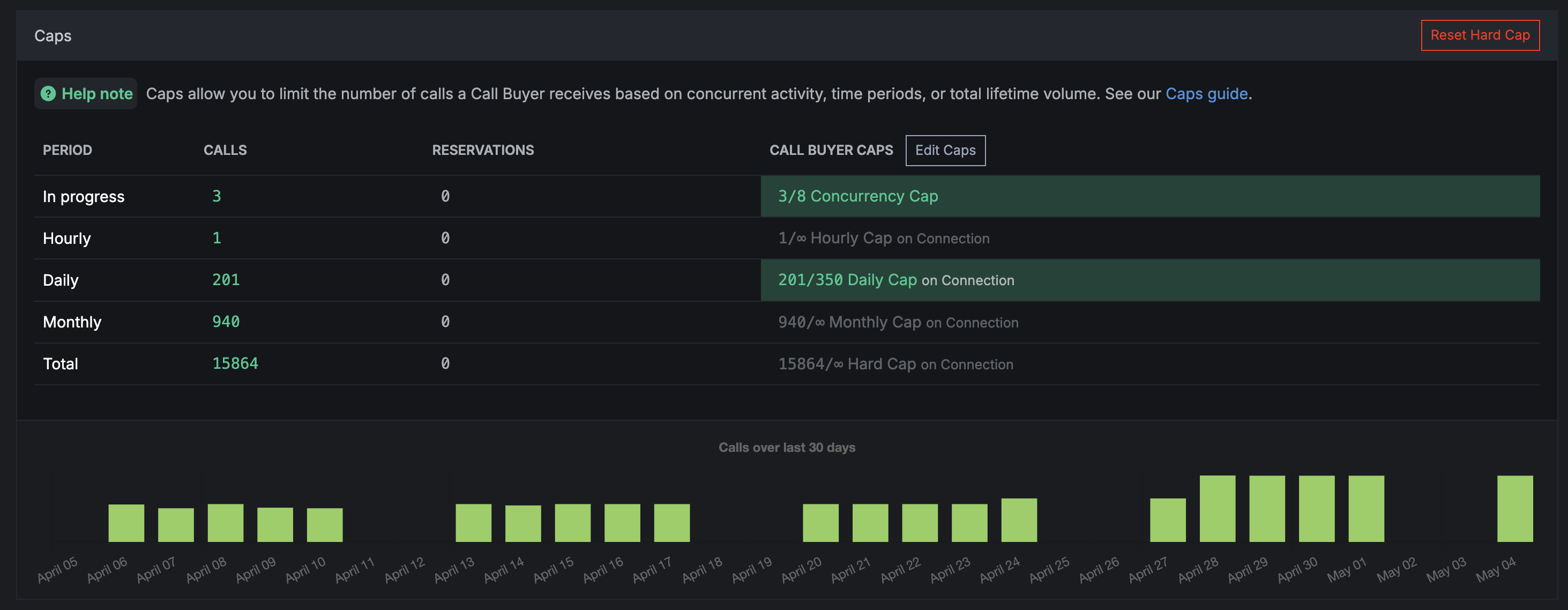
Caps allow you to control the volume of calls routed to individual Buyers (aka Call Endpoints). By setting caps, you can limit the number of calls a Buyer receives based on concurrent activity, time periods, or total lifetime volume.
Whenever a call is routed to a Buyer, it counts toward the relevant caps for that Buyer. Once a cap is reached, the Buyer is automatically skipped during call routing until the cap resets or is manually cleared.
You can also set more granular Caps on a Number-level using Business Hours, see our Number Caps guide.
Cap Types
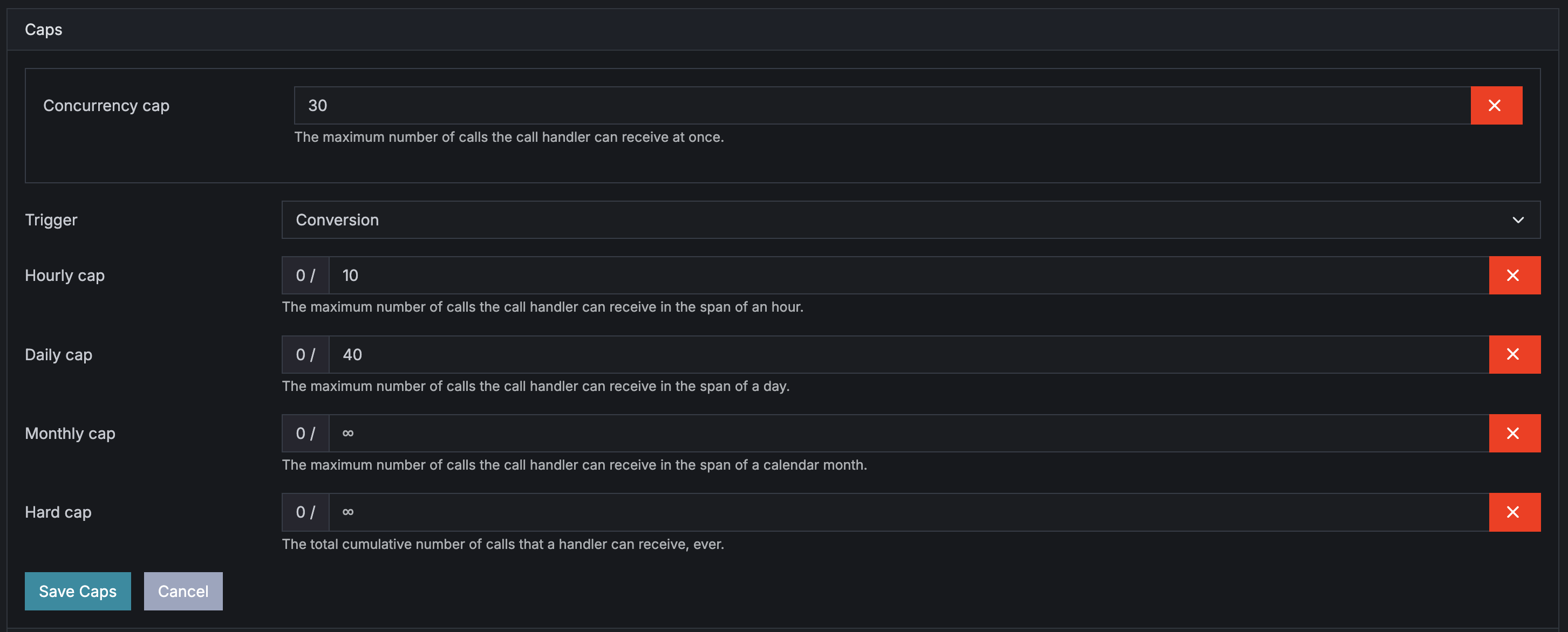
There are 5 types of Caps available for Buyers on Retreaver:
- Concurrency cap: The maximum number of calls the call handler can receive at once.
- Hard cap: The total cumulative number of calls that a handler can receive, ever.
- Hourly cap: The maximum number of calls the call handler can receive in the span of an hour.
- Daily cap: The maximum number of calls the call handler can receive in the span of a day.
- Monthly cap: The maximum number of calls the call handler can receive in the span of a calendar month.
Plus a “trigger” option which determines when a cap is updated.
Concurrency Cap
The maximum number of calls a Buyer can receive at the same time. This limits simultaneous, active calls rather than totals.
For example, if the concurrency cap is set to 5, the Buyer can handle up to 5 calls at once. A 6th incoming call will be routed to the next available Buyer instead.
The concurrency cap is checked in real time during call routing. Once an active call ends, that slot opens up immediately.
Cap Trigger
The cap trigger determines when a call counts toward the Buyer’s caps. There are two options:
- Connection (default: off) - The call counts toward caps as soon as it is connected to the Buyer, regardless of outcome.
- Conversion (default) - The call only counts toward caps once it meets conversion criteria (e.g., revenue is generated, a conversion event fires, or a postback is received).
This setting applies to all period-based caps (hard, hourly, daily, monthly) on the Buyer.
Hard Cap
The total cumulative number of calls the Buyer can receive. This cap does not reset automatically - it counts all qualifying calls since the last manual reset.
Use hard caps when you need to limit a Buyer to a fixed total number of calls (e.g., “only send 1,000 calls to this Buyer total”). You can manually reset the hard cap counter at any time from the Buyer’s detail page.
Hourly Cap
The maximum number of calls the Buyer can receive within a single clock hour. The cap resets at the top of each hour in the Buyer’s configured timezone.
For example, with an hourly cap of 10, the Buyer can receive up to 10 calls between 2:00 PM and 3:00 PM, then the counter resets at 3:00 PM.
Daily Cap
The maximum number of calls the Buyer can receive within a single calendar day. The cap resets at midnight (00:00) in the Buyer’s configured timezone.
Monthly Cap
The maximum number of calls the Buyer can receive within a calendar month. The cap resets on the 1st of each month at midnight in the Buyer’s configured timezone.
How Caps Are Displayed
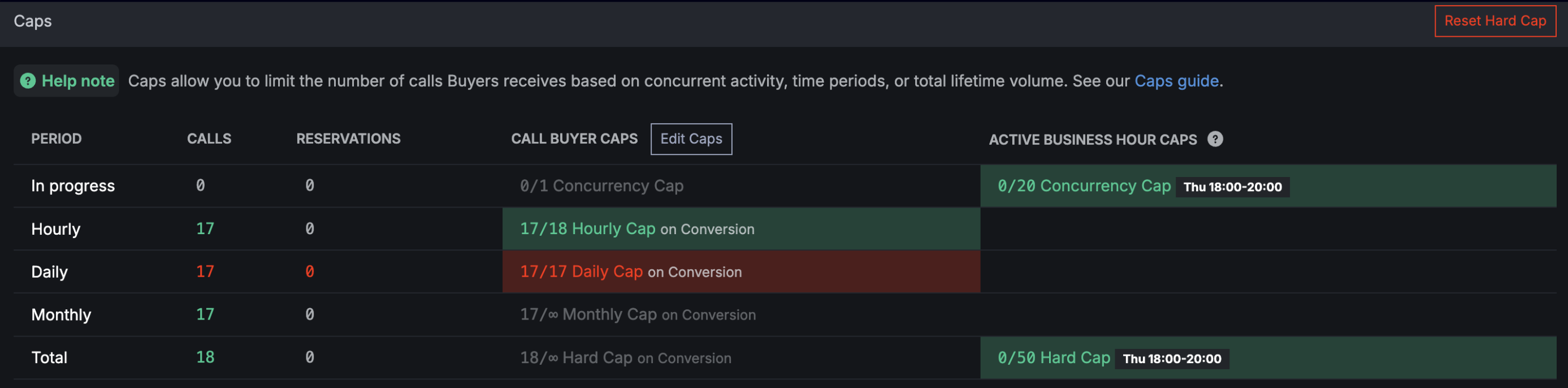
On the Buyer detail page each cap shows the current count versus the cap limit. For example:
Daily cap: Calls: 7 / 20
- Counts shown in green indicate the Buyer is below the cap and still accepting calls.
- Counts shown in red indicate the Buyer has reached or exceeded the cap and is no longer receiving calls.
- An empty cap value will show an infinity symbol, meaning no limit is set for that cap type.
How to Add Caps to a Buyer
- Navigate to Buyers in the left menu.
- Click New Buyer or click an existing Buyer and choose Edit.
- Scroll to the Caps section.
- Enter the desired limits for any combination of cap types (concurrency, hard, hourly, daily, monthly).
- Set the Cap Trigger to either Connection or Conversion depending on when you want calls to count.
- Click Update Buyer.
How to Remove Caps from a Buyer
- Navigate to the Buyer’s Edit page.
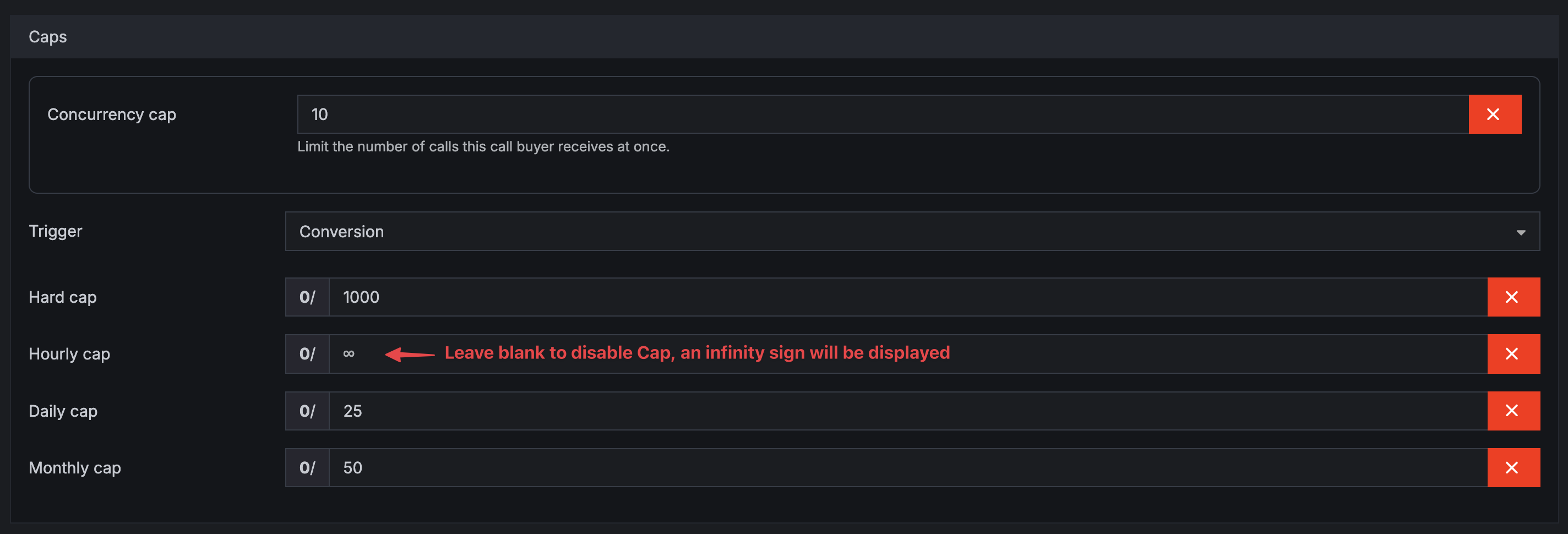
- Clear the number from any cap field you want to remove. Leaving a cap field blank sets it back to unlimited.
- Click Update Buyer.
RTB Reservation Caps
What Are RTB Reservations?
When RTB is enabled, Buyers can be reserved for incoming calls before the call is actually connected. A reservation temporarily holds a slot on the Buyer so that the call can be routed to them once it arrives.
See our guide on Retreaver RTB
How Reservations Count Toward Caps
When a reservation is made, it is immediately counted toward the Buyer’s caps alongside actual connected calls. This prevents a Buyer from being over-allocated when multiple reservations are made simultaneously.
For example, if a Buyer has a daily cap of 20 and currently has 15 completed calls and 4 active reservations, the Buyer shows:
Daily cap: Calls: 15 / 20, Reservations: 19 / 20
The filled counts include both connected calls and pending reservations combined. This ensures a Buyer is not over-committed by multiple concurrent bid requests.
How It Works
- Reservations are tracked separately from completed calls and expire automatically when their TTL runs out.
- When the system checks whether a Buyer has capacity, it adds the reservation count to the call count and compares against the cap limit.
- If adding a reservation would exceed any cap, the reservation is rejected entirely. Reservations are all-or-nothing across cap types to prevent partial over-allocation.
- Reservation counts appear on the Buyer detail page next to each cap type when RTB is enabled.
Requirements for Reservation Caps
- RTB must be enabled on your account
- Cap trigger must be set to Connection. Reservation caps only apply when the cap trigger is set to “Connection.” If the trigger is set to “Conversion,” reservations are not counted toward caps because a reservation has not yet had the opportunity to convert.
Where Reservations Appear
When RTB is enabled and the cap trigger is set to Connection, each cap row on the Buyer detail page shows an additional Reservations counter:
Hard cap: Calls: 42 / 100, Reservations: 45 / 100 Daily cap: Calls: 7 / 20, Reservations: 9 / 20 Hourly cap: Calls: 2 / 5, Reservations: 3 / 5
The Reservations count reflects the combined total of connected calls plus pending reservations. The Calls count reflects only connected/converted calls.
For the Concurrency cap, reservations always appear when RTB is enabled (regardless of cap trigger), since concurrent reservations must always be tracked to prevent simultaneous over-allocation:
Concurrent calls: Calls: 3 / 5, Reservations: 4 / 5
Help us improve this article or request new support guides.