
Test Fire Webhooks

The Test Fire Webhook feature allows you to simulate webhooks just as they are fired during a Call or a Real-Time Bidding (RTB). Allowing you to test sending Webhook requests directly from Retreaver without needing a live call.
Testing Webhooks for RTB
This tool will reproduce the same webhook firing process used during RTB routing so you can verify that a buyer’s endpoint is configured correctly before sending production traffic.
It allows you to:
- Simulate a buyer RTB ping request
- Select a publisher to mimic a real traffic source
- Send additional request data using key:value tags
- Inspect the request and response payload
- Diagnose timeouts, errors, or incorrect response formatting
The Test Webhook tool provides a quick way to validate RTB integrations and ensure buyer endpoints respond correctly before activating campaigns.
How to Test Webhooks
The Test Webhook tool is available directly within any webhook configuration.
It allows you to reproduce the same webhook request that Retreaver would send when a real call triggers an RTB ping.
NOTE:
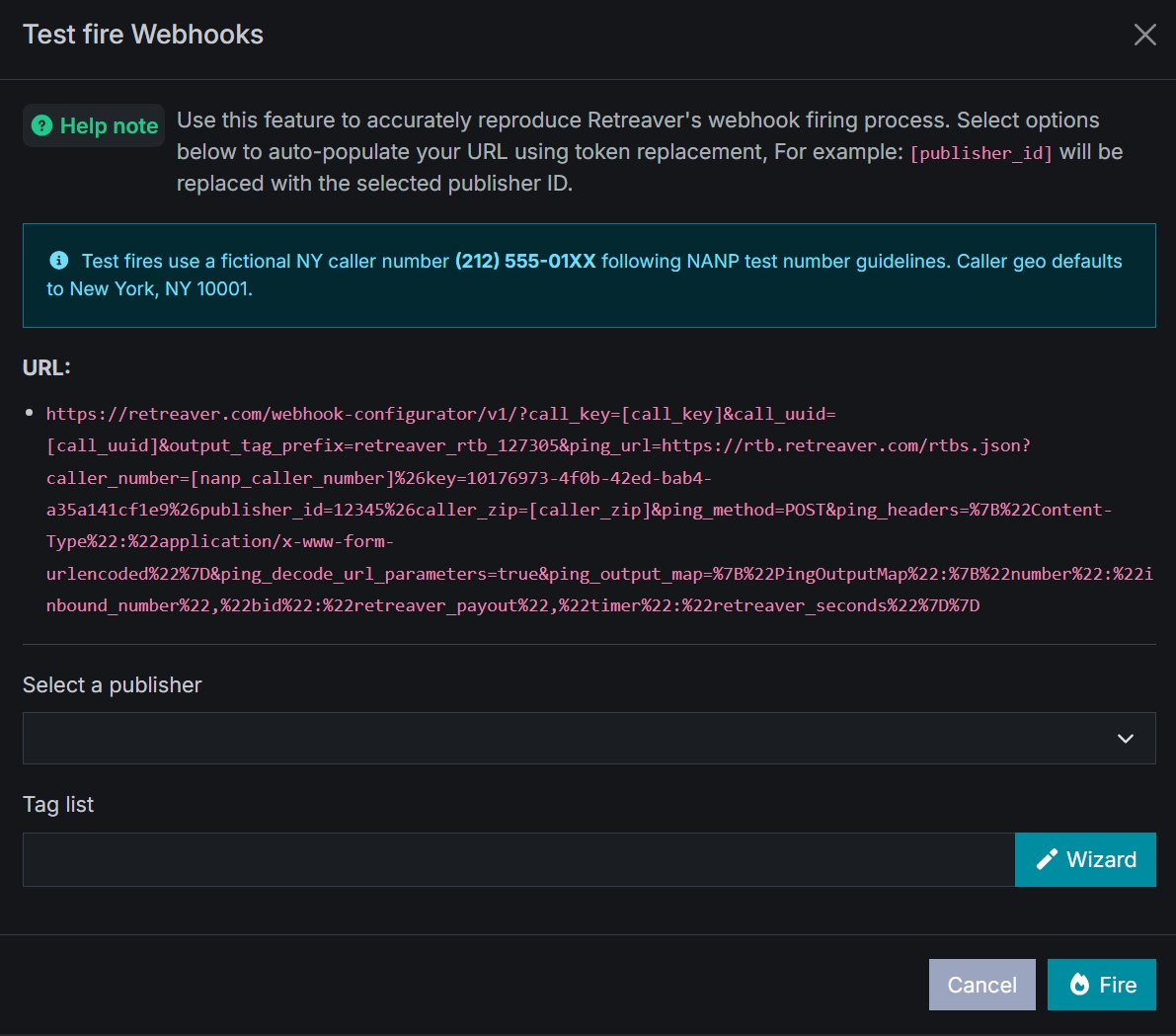
Test fires use a fictional New York caller number (212‑555‑01XX) following NANP test number guidelines. Caller geo defaults to New York, NY 10001.
Running a Test Webhook
You can simulate a buyer ping request using the Test Fire Webhook tool.
- Navigate to The Webhook You Want To Test
- Click Test Fire Webhook
- Select the publisher you want to simulate
- Optionally add tags in key:value format
- Click Fire
Retreaver will send the webhook request and display the response returned by the API endpoint.
This allows you to confirm that the integration is working correctly before sending real traffic.
Selecting a Publisher
When running a test webhook, you can select which publisher the request should simulate.
If your webhook URL includes tokens such as:
[publisher_id]
The selected publisher ID will automatically replace the token when the request is executed.
This allows you to test how buyer logic behaves for different traffic sources.
Sending Additional Data Using Tags
The Test Webhook tool allows you to include additional request data using tag parameters.
Tags are entered using the key:value format and can be used to simulate campaign conditions.
Example:
campaign:medicare
state:fl
device:mobile
source:facebook
These tags are included in the webhook request and can be processed by the buyer endpoint for routing logic or bid adjustments.
Example Response
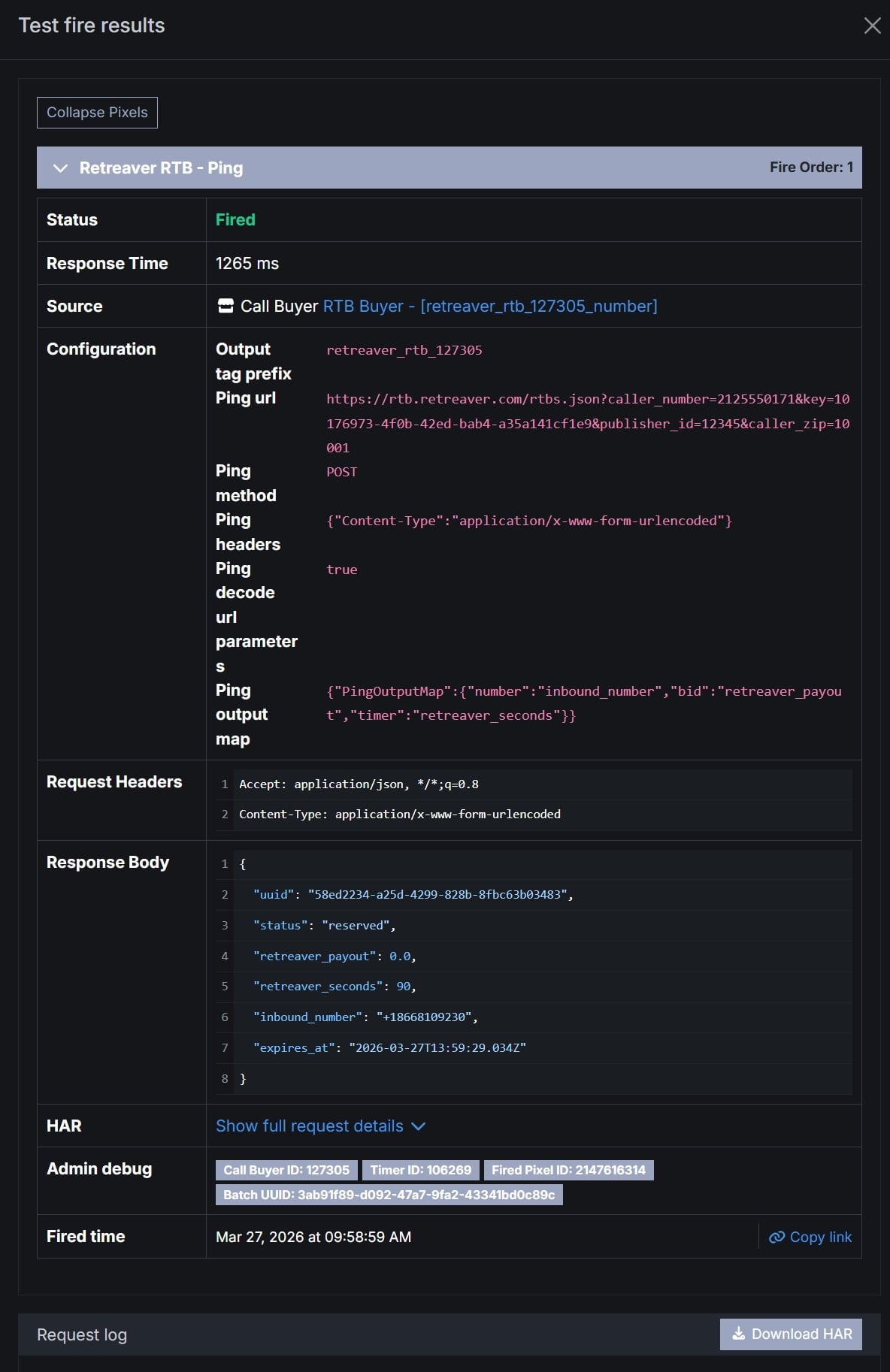
A valid RTB response may look like this:
{
  "uuid": "998c31e6-8be0-4147-8be1-67442b1ef30d",
  "status": "reserved",
  "retreaver_payout": 0.0,
  "retreaver_seconds": 90,
  "inbound_number": "+18773674525",
  "expires_at": "2026-03-27T13:24:18.491Z"
}These fields are interpreted by Retreaver using the Ping Output Map, which maps buyer response values to routing instructions.
Example:
{
 "PingOutputMap":{
   "number":"inbound_number",
   "bid":"retreaver_payout",
   "timer":"retreaver_seconds"
 }
}
Understanding Test Results
Once the webhook is fired, Retreaver will display detailed information about the request and response.
The results panel includes:
- Response status
- Response time
- Request headers
- Response body
- Admin debug information
- Request timeline
This information helps confirm that the buyer endpoint responded correctly and that the response values are being interpreted properly.
Error Responses
If the webhook request fails, the Test Webhook tool will display the error returned by the buyer endpoint.
Understanding these responses can help diagnose integration problems.
Timeout Responses
The most common issue when testing RTB webhooks is a timeout.
The Test Webhook tool uses a default timeout of 5 seconds.
If the buyer endpoint does not return a response within this time window, the request will fail.
Timeouts can occur when:
- The endpoint processing time is too slow
- External APIs delay the response
- The buyer server is overloaded
- The endpoint fails to return a response
To prevent timeouts, buyer endpoints should return responses as quickly as possible.
Invalid JSON Response
If the buyer endpoint returns improperly formatted JSON, Retreaver will not be able to parse the response.
Common causes include:
- Missing commas
- Incorrect brackets
- Invalid field formatting
Ensure your endpoint returns properly structured JSON.
Missing Required Fields
If the buyer response does not include the required fields defined in the Ping Output Map, Retreaver will not be able to complete routing.
For example, if the response does not include:
inbound_number
Retreaver will not know which phone number to route the call to.
HTTP Error Responses
Buyer endpoints may also return standard HTTP error codes.
| Code | Meaning |
|---|---|
| 400 | Bad request |
| 401 | Authentication failure |
| 403 | Access denied |
| 404 | Endpoint not found |
| 500 | Server error |
These responses typically indicate an issue with the API configuration.
Best Practices
To ensure reliable RTB integrations, Retreaver recommends the following:
Test before sending live traffic
Always validate buyer webhook integrations using the Test Webhook tool before activating campaigns.
Keep response times fast
Buyer endpoints should ideally respond within 1 second.
Validate JSON responses
Ensure responses match the fields expected in your Ping Output Map.
Log webhook requests
Logging requests helps diagnose integration issues quickly.
Use tags to simulate scenarios
Tags allow you to test different campaign conditions without modifying the webhook URL.
Help us improve this article or request new support guides.