
Waiting Room
Overview
The Waiting Room feature keeps callers on the line when no available buyer is found right away — instead of dropping the call or sending it to a “no match” outcome immediately.
Think of it like a hold queue at a call center: the caller hears hold music while the system quietly checks for available buyers in the background, every few seconds. If someone becomes available before the timer runs out, the call connects. If not, the call is handled according to your “No Buyer Matched” routing — just like it would without the Waiting Room.
The result: fewer lost calls when your buyers are temporarily busy.
How the Waiting Room Works
When a call comes in and no buyer is matched, the Waiting Room steps in:
- The caller is placed on hold (they hear hold music)
- Every 5 seconds, the system re-checks all your configured webhooks to see if a buyer has become available
- The moment a buyer becomes available and picks up, the call connects normally
- If no buyer is found within your configured time limit, the call moves on to your No Buyer Matched routing
This process runs entirely in the background — the caller simply experiences being on hold, with no indication they are being re-routed.
Enabling the Waiting Room
The Waiting Room is an account-level feature that must be turned on before you can use it on any campaign.
To enable it:
- Go to your Account Settings
- Open the Features section
- Find Waiting Room and enable it
Once enabled at the account level, you can configure it on individual campaigns.
Note
If you don’t see the Waiting Room feature in your account, contact support to have it enabled.
Configuring the Waiting Room Duration
Once the Waiting Room is enabled for your account, you set how long callers are held on a per-campaign basis:
- Open the Campaign you want to configure
- Click on Edit
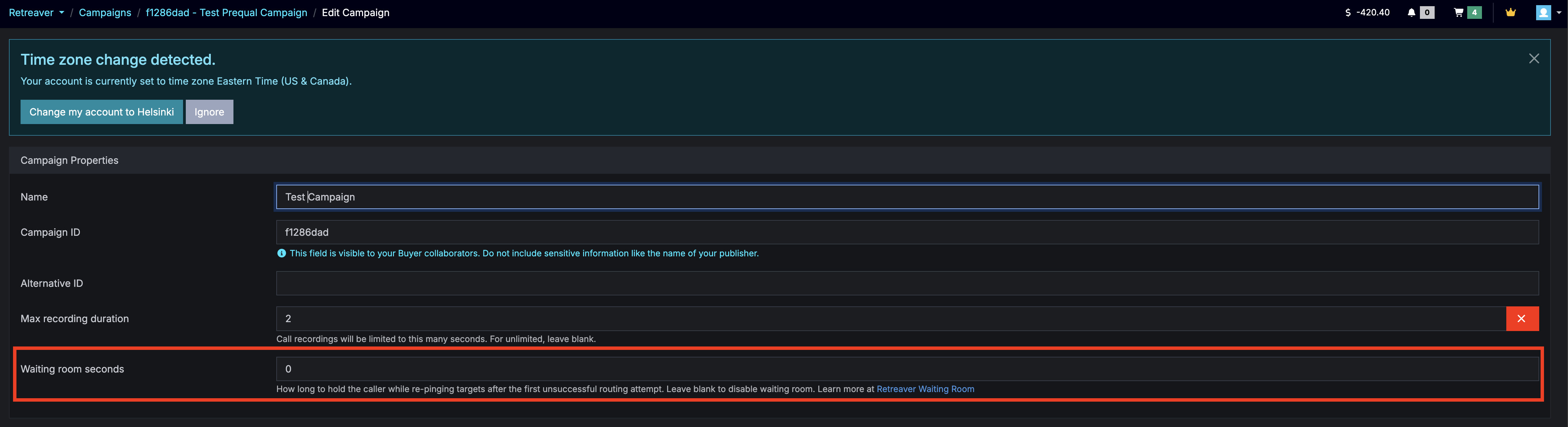
- Find the Waiting Room field in the campaign settings
- Enter the number of seconds you want callers to be held (for example,
30for 30 seconds) - Save your campaign
Note
Leave the field blank to disable the Waiting Room seconds-based expiration.
Configuring Waiting Room Attempts
In addition to (or instead of) a time limit, you can cap the Waiting Room by attempts — how many times Retreaver will re-try routing a call from the Waiting Room after the first unsuccessful routing attempt.
This is useful when you want to avoid re-checking buyers indefinitely, or you want a predictable maximum number of retries regardless of hold duration.
To configure attempts:
- Open the Campaign you want to configure
- Click on Edit
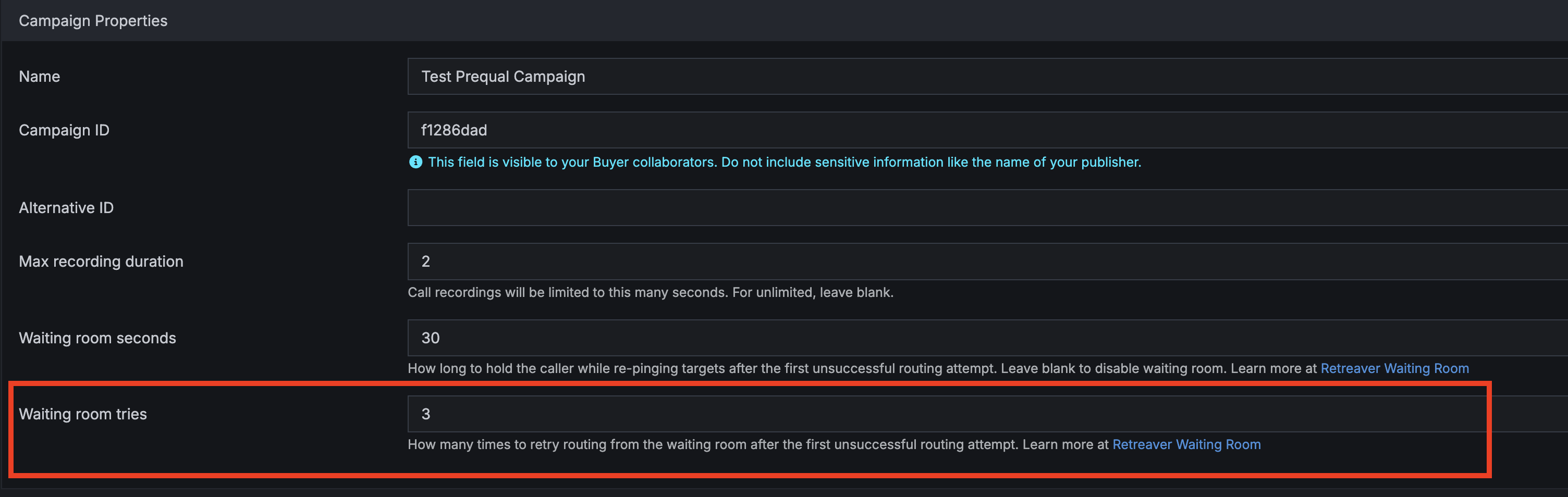
- Find the Waiting Room Attempts field in the campaign settings
- Enter the number of attempts you want (for example,
3) - Save your campaign
Note
- Leave the field blank to disable attempts-based expiration.
- If you set both a duration and an attempts limit, the Waiting Room will expire when either limit is reached first.
- An “attempt” is counted when the call enters the Waiting Room (i.e., after routing has run and no buyer was matched for that attempt), and Retreaver is about to re-try routing again.
Marking Webhooks as Re-Fireable
During the Waiting Room hold period, the system only re-fires webhooks that are marked as Re-fireable. This prevents duplicate data — only the webhooks that make sense to re-check for availability will fire during the hold.
When setting up your webhooks (Timers), you can toggle the Re-fireable option on each webhook that has a trigger of:
- Data-Appending ping
- Passthrough ping
- When a call comes in
Note
Webhooks that have a trigger of When a buyer is selected and have Hold caller until completion enabled are re-fireable by default.
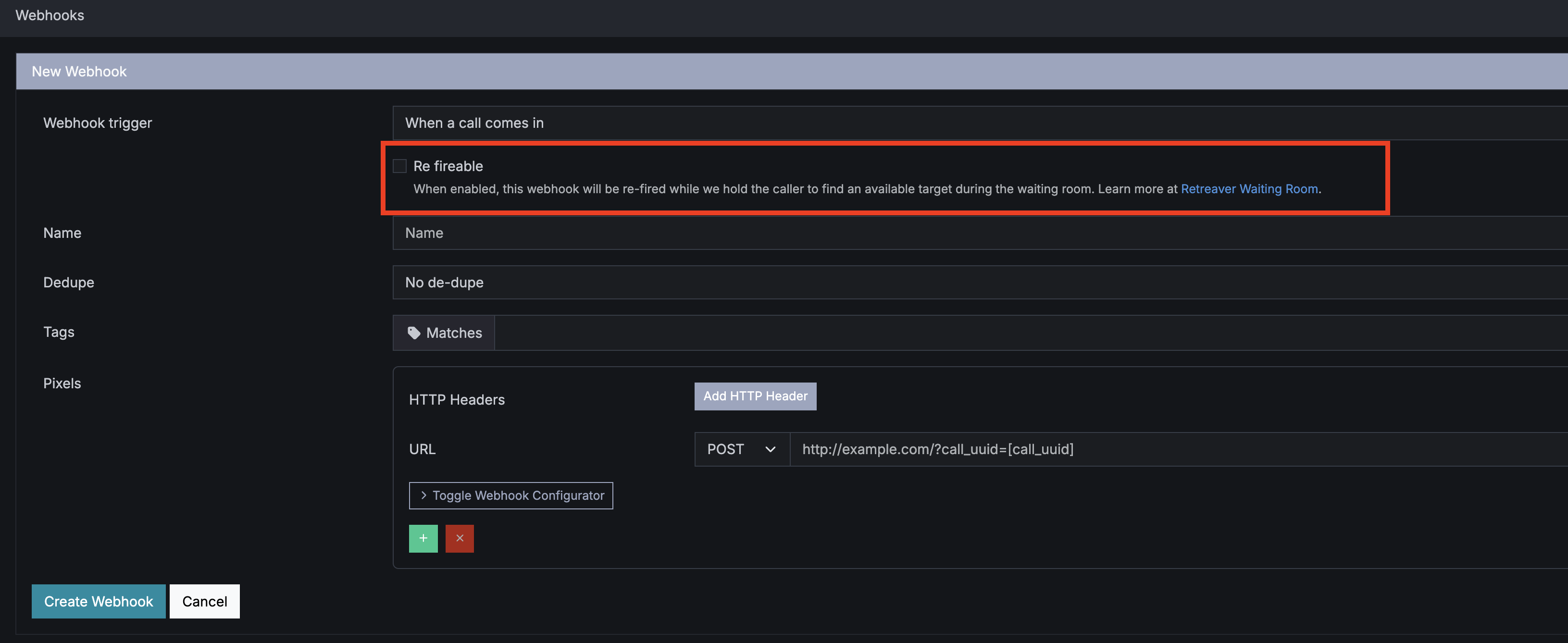
- Re-fireable ON — this webhook will be sent again on every re-check during the Waiting Room
- Re-fireable OFF — this webhook will only fire once, at the start of the call
For ping-post availability checks, enable Re-fireable so the system can keep polling your buyers for an open slot while the caller waits.
What Happens When the Waiting Room Expires
When the hold time runs out:
- If the call is already connected — nothing changes. The call continues normally and the system will not interrupt an active conversation.
- If no buyer was found — the call moves on to your No Buyer Matched routing, exactly as if the Waiting Room had never been involved. You can route these to voicemail, a fallback number, or any other option you have configured.
Viewing Waiting Room Activity
Every call that enters the Waiting Room is logged step-by-step in the Call Debug Log. You will see entries such as:
- “Holding caller until a buyer becomes available” — the call has entered the Waiting Room
- “Waiting room expired” — the time limit was reached without a match
This makes it easy to audit calls and understand exactly how many callers waited, and whether they eventually connected or were routed elsewhere.
Use Cases
Below are two high-impact ways Retreaver users can use the Waiting Room today.
Pay-Per-Call / Performance Marketing
In performance marketing, buyers often have real-time availability windows. A buyer might be free to take calls one moment and at capacity the next.
The Waiting Room helps performance marketers:
- Reduce wasted calls when buyers are momentarily busy
- Improve connection rates without changing your routing setup
- Give buyers a short window to free up before a call is marked as unmatched
Call Centers with Fluctuating Agent Availability
During busy periods, agents go in and out of availability quickly. Rather than dropping a call the moment all agents are busy, a short hold window can dramatically improve your answer rate.
The Waiting Room helps call centers:
- Recover calls that would otherwise be lost during peak times
- Avoid routing callers to voicemail unnecessarily
- Keep callers on the line while an agent wraps up a previous call
Pricing
You will be charged double your standard per-minute call rate, for the time a caller has spent in the Waiting Room.
- Time spent in the waiting room is rounded up to the next minute. Meaning that if a user has spent 30 seconds in the Waiting Room, you will be charged for the whole minute.
- You are only charged for the actual time a caller spends in the Waiting Room — from when they are placed on hold until they connect, the call ends, or the timer expires
- Charges appear in your billing as “Waiting Room”
Help us improve this article or request new support guides.