
How to Check if Retreaver Is Down?
Retreaver publishes live service health at status.retreaver.com.
That page is the single source of truth for whether Retreaver is down, degraded, or running normally. We try to update this within 15 minutes of any detected issues with our site, historically we have often detected issues before our telecom providers update their own status pages.
You can also see the current status at a glance in the bottom-left of this documentation site: a green dot means all systems are operational.

Or on the Retreaver portal itself:
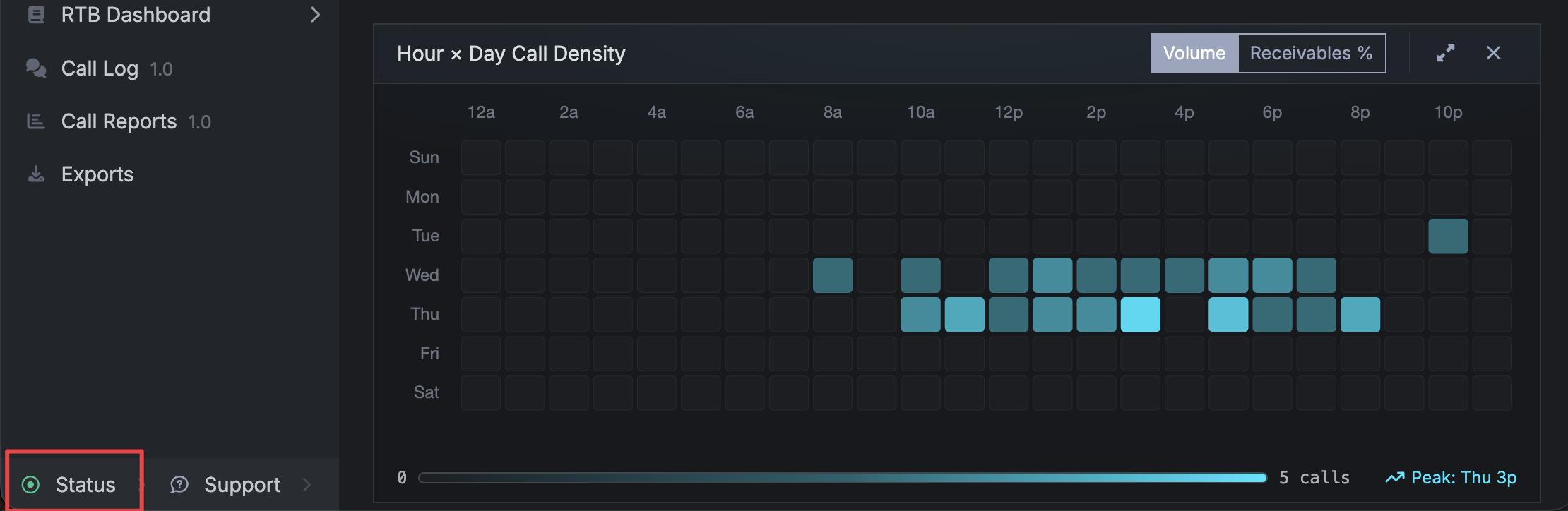
Check the status page first
Open status.retreaver.com. The banner at the top tells you the overall state:
- All Systems Operational - Retreaver is running normally. If calls are still not arriving, the cause may in your configuration. See below.
- Degraded Performance / Partial Outage / Major Outage - something is genuinely wrong on our side or with one of our telecom providers. The affected components are listed underneath the banner.
- Under Maintenance - planned work is in progress. The scheduled window is shown on the page.
Any open incident appears on the same page with a short description, the components it affects, and a running log of updates as we work through it.
What each component covers
The status page breaks Retreaver into components, so you can tell whether the problem touches the part you are using:
| Component | What it covers |
|---|---|
| Call Handling | Routing and connecting live calls. Check this first if calls are not arriving. |
| Twilio Incoming Phone Calls | Inbound calls over the phone network. |
| Twilio Incoming SIP Calls | Inbound calls over SIP. |
| Twilio Outgoing Phone Calls | Outbound calls over the phone network. |
| Twilio Outgoing SIP Calls | Outbound calls over SIP. |
| Real Time Bidding | RTB ping and bid requests. |
| API | The Retreaver API. |
| Webhooks | Pixel fires and callbacks, including Google Analytics. |
| Background Jobs | Queued and scheduled processing. |
| Reporting | Reports and dashboards. |
| Site/Account Portal | The Retreaver web app itself. |
| Stripe Payments | Billing and payments. |
| AI features | Retreaver’s AI functionality. |
Get notified during an incident
Rather than checking the page repeatedly, subscribe to updates from status.retreaver.com using the Subscribe to Updates button.
You will be notified when an incident opens, when it is updated, and when it is resolved. This is the fastest way to find out about a problem.
Is it an outage, or is it your setup?
“I’m not receiving calls”, “calls stopped coming in”, or “nothing is showing in my call log” may not always be an outage. When the status page shows all systems operational, work through these in order:
- Reset your Call Log filters. A narrow date range is the single most common reason calls look “missing”. Clear all filters, expand the date range, confirm the time zone, and search by number or call UUID. See Confirm your call log filters.
- Using RTB? Compare the RTB Log against the Call Log. Activity in the RTB Log but nothing in the Call Log points at routing rather than delivery. See RTB Log vs Call Log.
- Check your campaign and number configuration business hours, buyer availability, and caps all stop calls from connecting while every Retreaver component stays green.
- Check the status page to rule out our side, using the component table above.
- Contact support with the call UUID or the number you dialed if the calls are still unaccounted for.
During a confirmed outage
If the status page shows an open incident affecting your component, that means our engineering team is working on it. Subscribe to the incident for updates. The incident log is updated faster than support can reply, and it will tell you the moment the issue is resolved.
Help us improve this article or request new support guides.