
Numbers
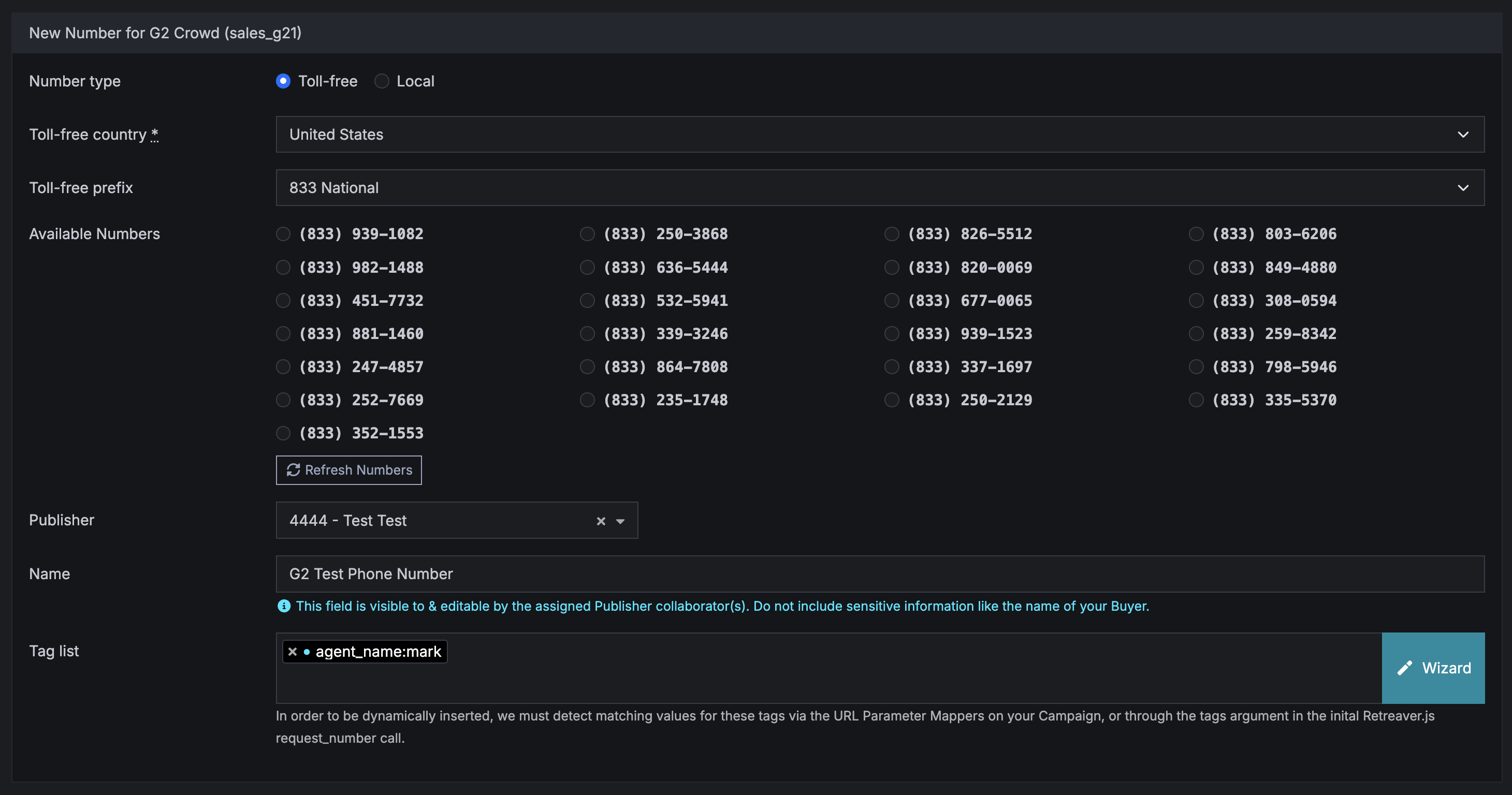
Phone numbers are the foundation of your call tracking setup. Each number you add acts as a unique tracking line capturing where calls come from, routing them to the right destination, and being a source of data you need to optimize performance.
This article walks through everything you can configure when setting up a tracking number.
Local vs Toll-free Numbers
When creating a new number, you’ll first choose between a local or toll-free number.
- Local numbers use a geographic area code tied to a specific region (e.g., a campaign targeting callers in Chicago would use a 312 or 773 area code).
- Toll-free numbers use nationally recognized prefixes like 800, 888, 877, etc. They’re ideal for national campaigns, TV ads, or anywhere you want to project a broad, professional presence.
See our guide on Local and Toll-free Numbers.
Dynamic Numbers with Number Pools
See our guide on Number Pools
A static tracking number is the one you configure on the campaign: every visitor sees the same digits, which is simple to publish but does not change with traffic source, URL parameters, or session. A number pool works with Retreaver.js on your landing page to dynamically assign numbers as people arrive - so each impression can map to the right tags and attribution - then recycle those numbers when a lease ends or a call finishes, instead of provisioning a new static number for every combination you want to track.
SIP Numbers
See our guide on adding SIP Numbers. SIP is primarily used for outbound numbers pointing to a Buyer’s PBX, which is distinct from Retreaver Numbers which are used via Campaigns in your marketing material.
Numbers Belong to Campaigns
Every tracking number is created inside a Campaign. The campaign is the parent that defines the default behavior for all numbers within it - things like how calls are routed, what greeting callers hear, what counts as a conversion, and what webhooks fire.
This means you don’t need to configure every number from scratch. When you add a new number to a campaign, it automatically inherits all of the campaign’s settings and starts working right away.
You can have many numbers inside a single campaign, each pointing to a different publisher, market, or ad placement, all sharing the same campaign-level configuration.
Assigning a Publisher (Source)
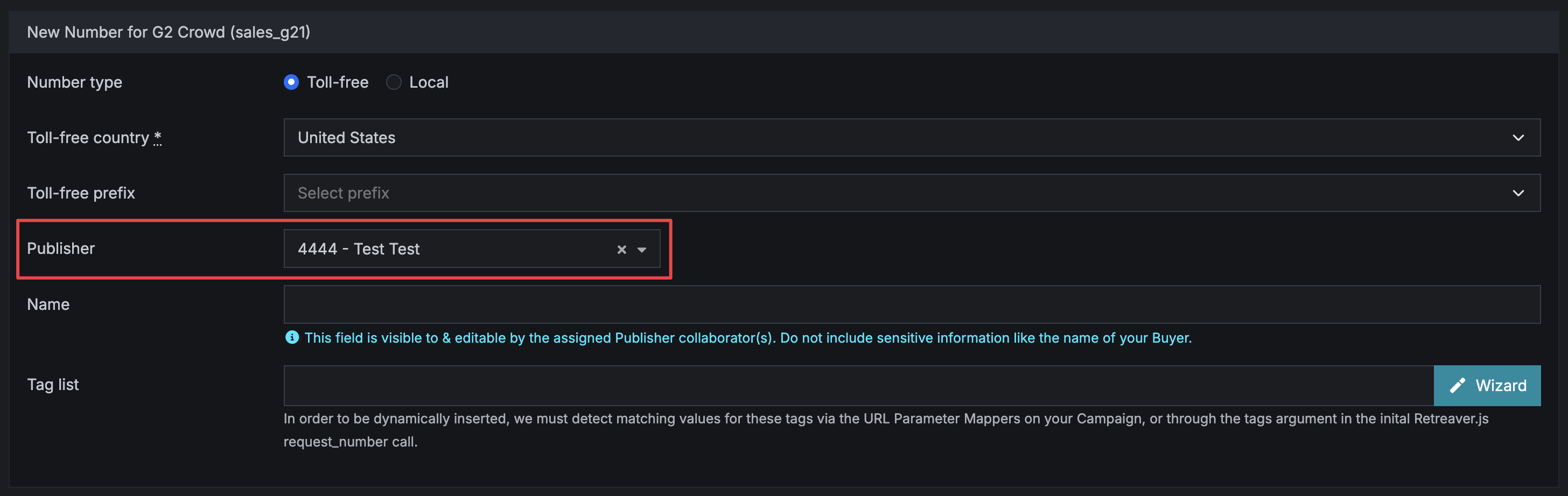
Each number can optionally be assigned to a Publisher (also called Source or Affiliate). A Publisher represents a traffic partner, media buyer, or affiliate who is driving calls through that number.
Assigning a Publisher to a number lets you:
- Attribute call traffic - back to the specific partner who generated it
- Report on Publisher performance - call volume, conversion rate, call quality by partner
- Control access - Publishers have a scoped view of their own numbers and performance data, without seeing data from other partners
If you have multiple partners each promoting your offer, you’d typically give each one their own tracking number and assign it to the corresponding Publisher. This makes it easy to see exactly who is driving results.
Tags: Adding Context to Every Call
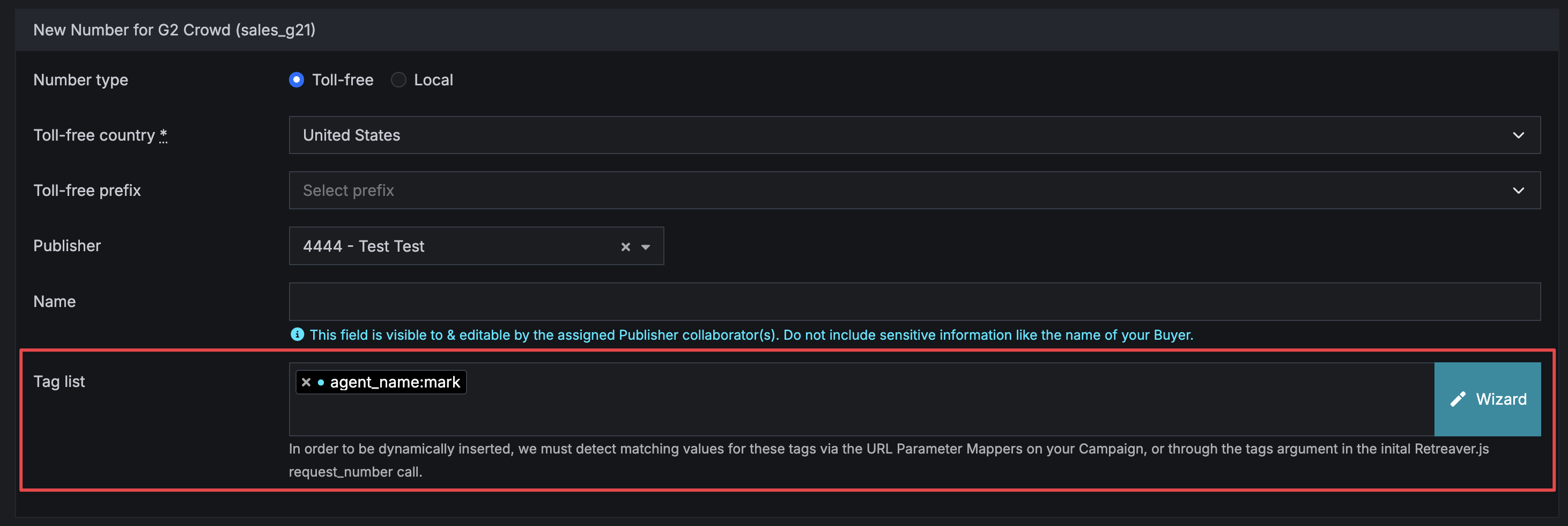
Tags let you attach custom metadata to a number. That metadata travels with every call the number receives and can be used in reporting, webhooks, and routing logic.
Think of tags as key-value labels, for example:
channel = tvagent_name = simon
Why use tags?
- Routing conditions — route calls differently based on tag values attached to the number
- Reporting segmentation — slice performance data by any tag value (e.g., compare all calls where
channel = tvvs.channel = radio) - Webhook payloads — tags are available as replacement tokens in your webhook and pixel configurations, so you can pass custom data to your analytics or CRM
Tags are set when you create or edit a number and apply to every call that comes through it. If you need to track specific attributes about the context of a number, tags are the right tool.
Campaign defaults vs Number-specific overrides
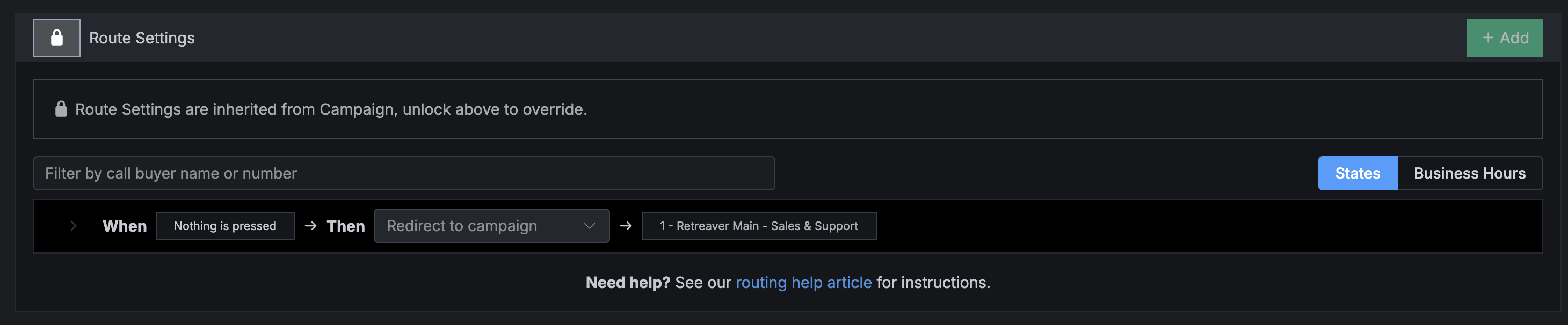
By default, every number defers to its parent Campaign for four key settings:
| Setting | What it controls |
|---|---|
| Route Settings | How calls are distributed to targets (call endpoints/buyers), IVR menus, and routing logic |
| Prompts | The greeting and recorded audio a caller hears when they dial in |
| Conversion Criteria | What actions count as a successful conversion |
| Webhooks | Which HTTP requests fire during a call, and when |
This inheritance model is intentional. When you update the campaign, every number under it picks up the change automatically, which is the default behaviour.
Unlocking a Number for Custom Settings
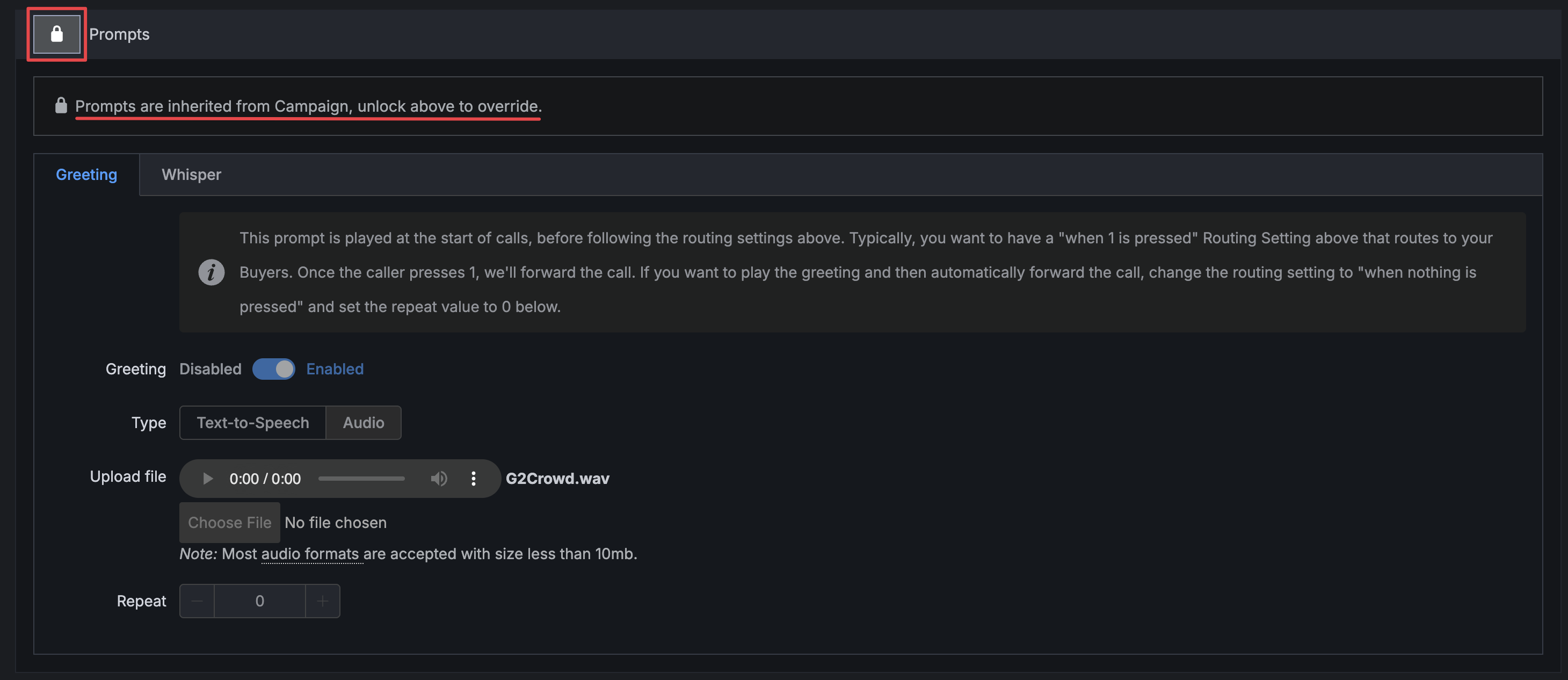
Sometimes you need a specific number to behave differently from the rest of the campaign — without touching the campaign itself. For each of the four settings above, there is a lock/unlock toggle in the number’s settings.
When a setting is locked, the number uses the campaign’s configuration. When you unlock it, you can define custom rules that apply only to that number.
Example: A high-volume TV ad buy
Suppose your campaign runs across several channels: digital, radio, and a TV placement that’s getting significant spend. The TV number is driving a large volume of calls, and you want to:
- Route those calls to a dedicated team of agents who handle TV callers
- Play a greeting that references the specific TV offer
- Fire a separate webhook to your media analytics platform
Rather than changing the campaign (which would affect every other number), you unlock just those settings on the TV number and configure them independently. The rest of your numbers continue inheriting from the campaign, unchanged.
This gives you surgical control where you need it, while keeping the rest of your setup clean and centralized.
Business Hours
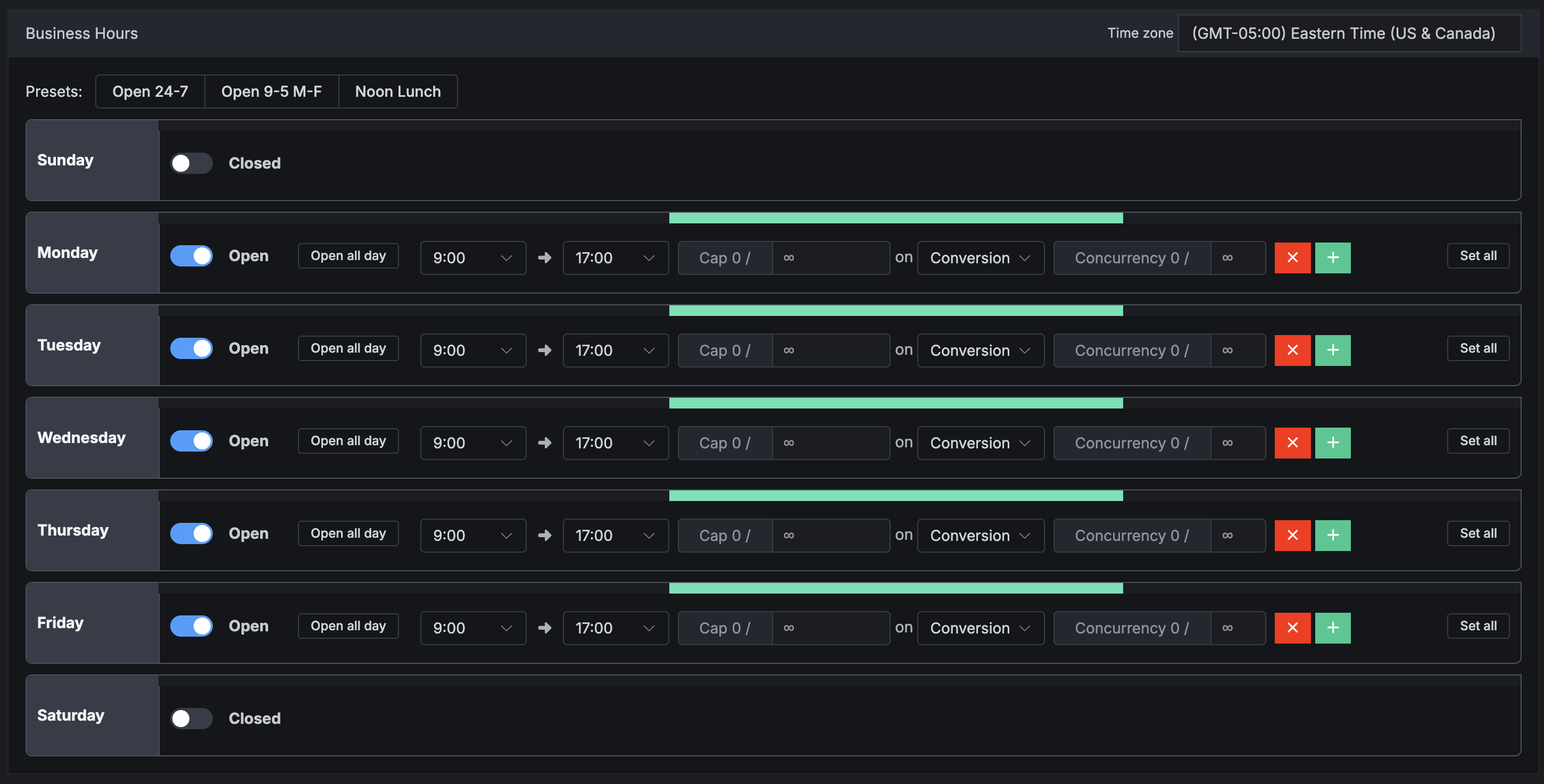
Business hours let you define when a number is actively receiving calls. If a call comes in outside of your configured hours, it can be handled differently - such as playing an after-hours message or routing to voicemail.
You can configure:
- Days and times the number is open
- Timezone the schedule is based on (required when business hours are active)
- Holiday closures — mark specific dates as closed regardless of the regular schedule
Business hours are useful when your call center has limited staffing windows, or when you’re running a promotion with a defined end date and want to stop routing calls automatically after it’s over.
Set Caps on Numbers with Business Hours
See our guide on Number Caps to limit the maximum number of calls for a particular block of time during the day or for the entire day.
Sub IDs
Some lead tracking systems attribute calls by both an affiliate ID and sub-affiliate (or sub-source) IDs. Retreaver supports the same idea: you still assign a Publisher (call source) on the number, and you can add a sub_id tag to distinguish a sub-affiliate or sub-source within that publisher’s traffic.
Adding a Sub ID to a Static Number
- In the left menu, open the Numbers page and edit the number you want (or create a new one). In the tag list field, use the tag Wizard to add a
sub_id. - In the wizard, open the Text tab, then choose the
sub_idkey from the drop-down. - Enter the Value for the sub-source you are tracking, click Add, then Done.
- Confirm the new
sub_idtag appears in the list, then click Update Number.
Note
The sub_id tag is treated specially in Retreaver: it surfaces on the number and in the call log so you can drill into performance at sub-affiliate granularity.
Delete Numbers
When a campaign ends and you no longer need a tracking number, you should release it so you are not charged for an unused line.
Release Numbers
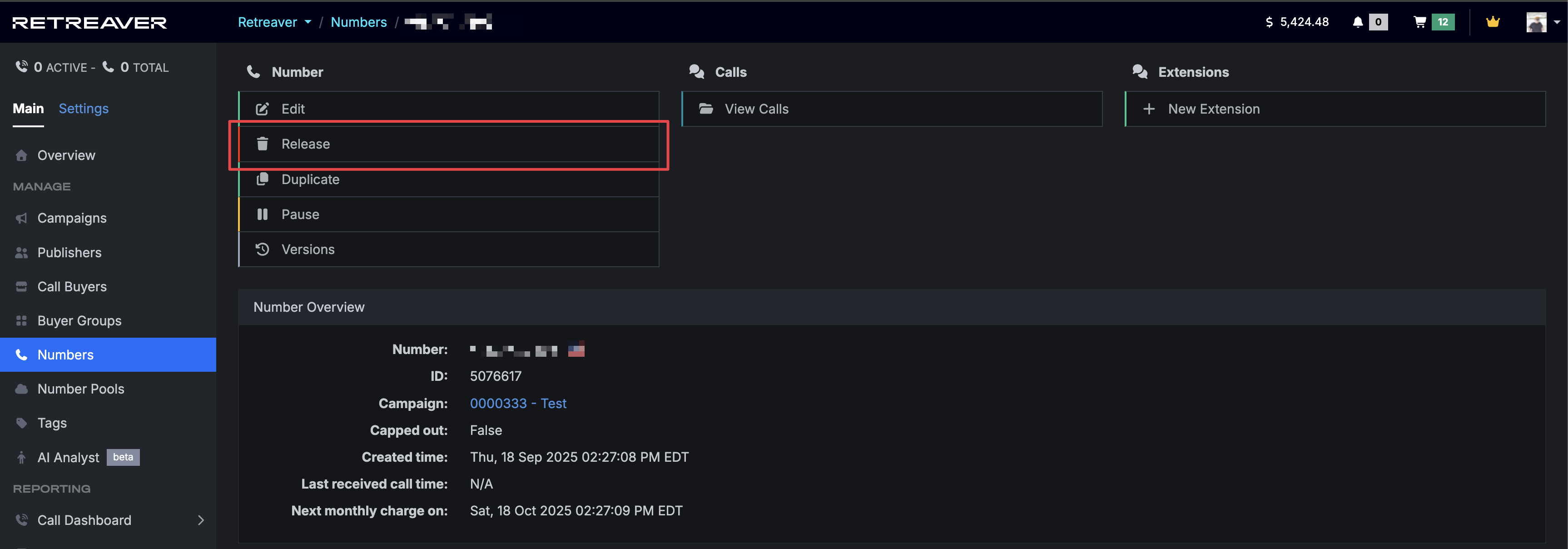
In Retreaver, numbers are not deleted in the permanent sense—they are released so they can be recycled for future use. After release, a number is held out of circulation for a cooling-off period before it may become available again.
To release a single number, go to Numbers, open the number you want to stop using, and use Delete (this action releases the number).
Bulk Release Numbers
Releasing numbers one at a time is fine for a handful of lines. If you need to release many numbers at once, use bulk release instead:
- Go to the Upcoming Charges tab in your Payments view.
- Select the checkbox on the left for each number to release, or click Select All.
- Click Release Selected Numbers and confirm.
In Summary
A tracking number is more than just a phone number it’s a configurable instrument that connects your advertising to your call data. Here’s a quick recap of what you can set up on each number:
- Number type and prefix - local area code or toll-free, by country and region
- Campaign - the parent that provides default settings
- Publisher (Source) - the partner driving traffic through that number
- Tags - custom metadata for reporting, routing, and webhooks
- Route settings, prompts, conversions, and webhooks - inherited from the campaign by default, unlockable for per-number customization
- Business hours - define when the number is open and how off-hours calls are handled
- Releasing numbers - when you are done with a line, release it (individually or in bulk) to avoid ongoing charges
Most numbers will work well with campaign defaults. Overrides are there when you need them for high-priority placements, unique traffic sources, or specific testing scenarios.
Help us improve this article or request new support guides.