
MCP Authentication and Switching Companies
The Retreaver MCP server never asks you for an API key. Your assistant sends you to Retreaver, you sign in as yourself, you approve what it may do, and it receives a short-lived token in the background.
That gives you three guarantees:
- The connection acts as you, with your own permissions.
- The connection is bound to exactly one company.
- The access expires on its own, and can be cut off at any time.
The one rule: one connection, one company
Retreaver accounts routinely reach several companies. In the web portal you move between them with the company switcher. The company name dropdown in the top breadcrumb bar. Switching companies typically there follows you across sessions, including on the mobile app.
The MCP does not work that way, on purpose.
When you approve a connection, Retreaver bakes in the company you are currently signed into. Not a company the assistant picks. Not a company it can pass as an argument later. The one your browser session was on at the moment you clicked Approve.
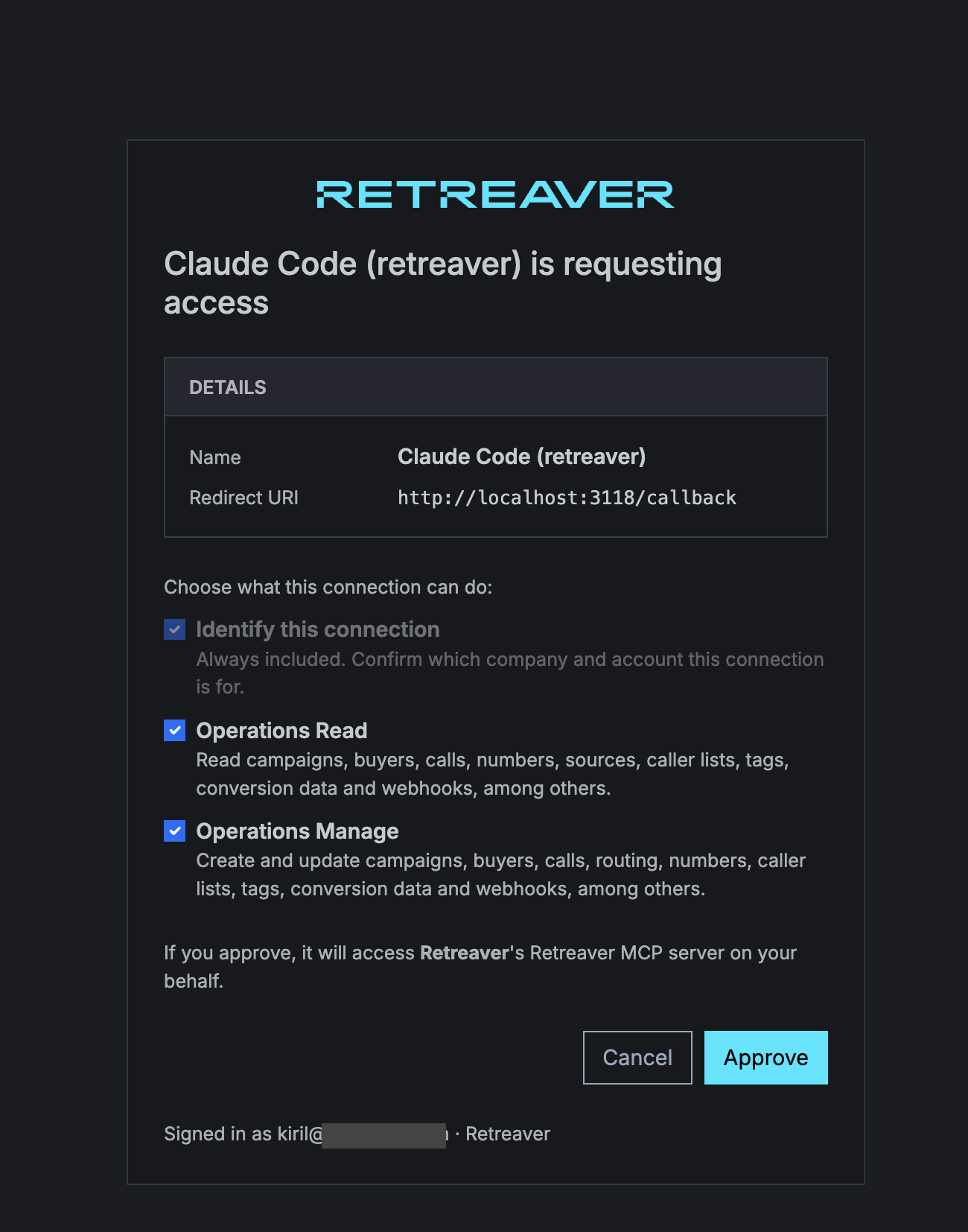
The consent screen does not offer a company picker. It tells you which company you’re about to connect:
If you approve, it will access {company name}’s Retreaver MCP server on your behalf.
That name also appears in the footer, next to the email you’re signed in as.
Important
Read the company name on the consent screen before you approve. If it’s the wrong company, click Cancel, switch company in Retreaver, and start the connection again.
From then on, every tool call runs against that company and only that company. There is no tool that changes companies. Switching company in the Browser Platform after you’ve connected does nothing to the MCP — the assistant stays on the company you approved, even if you’ve moved elsewhere in the UI.
This is the safeguard that makes the MCP safe to use on an account that manages other people’s traffic. It’s also the thing that surprises people most.
What happens when you connect
-
Your client asks for access. It registers itself with Retreaver automatically and opens a Retreaver page in your browser.
-
You sign in as yourself — the same email and password you use for the Browser Platform. If you’re already signed in, you skip straight to step 3.
-
You approve the connection. The consent screen names the app that’s asking, shows the access levels you’re granting, and names the company the connection will act on.
-
Your client receives a token automatically. Nothing is displayed for you to copy, and nothing is stored in your assistant’s chat history.
Who is allowed to connect
The consent screen only issues a grant if all of this is true:
| Requirement | Why |
|---|---|
| You’re an owner, superuser, or Retreaver admin on the company | These are the roles that can hand an account to an application. Collaborators can’t. |
| You’re signed in with a normal browser session | An API key or a bearer token can’t create an MCP connection — only a person at a browser can. |
| You’re not in an admin “become” session | Retreaver admins can’t mint a connection while impersonating another user. Leave the become session and connect as yourself. |
Your role travels with the connection. The assistant can never do something in Retreaver that you couldn’t do yourself in the Browser Platform — fields you aren’t allowed to write are ignored, and actions you aren’t allowed to take are refused.
If you lose owner or superuser access on that company, the connection stops working on the next request — not at the next renewal.
Access levels
The consent screen offers three access levels. Each one builds on the one above it, so you don’t grant read and manage separately — granting manage includes read.
| On the consent screen | Scope | What it allows | Example request |
|---|---|---|---|
| Identify this connection | mcp:basic |
Confirm which company and account the connection is for, and search the tool catalog. No account data is read or changed. Always included. | “What company am I connected to, and what can you do?” |
| Operations Read | mcp:operations:read |
Read campaigns, buyers, sources, numbers, caller lists, tags, IVR prompts, conversion groups, webhooks, and call reporting. Nothing is modified. | “Show me the routing settings and active buyers for the Auto Insurance campaign.” |
| Operations Manage | mcp:operations:manage |
Everything in read, plus create, update, and delete — add a buyer, change a cap, adjust routing, configure a webhook, upload a caller list. | “Add a buyer called Sunrise Insurance and cap it at 50 concurrent calls.” |
Tip
Connect read-only the first time. You’ll learn what the assistant is good at without giving it the ability to change anything. Re-authenticate with manage access when you’re ready.
A connection that only holds Identify can tell you what it could do but
can’t look up a single campaign. If your assistant keeps saying it isn’t allowed
to read something, check what you approved with account.whoami (below).
Check what you’re connected to
Ask your assistant:
“Which Retreaver company am I connected to, and what can I do?”
That runs the account.whoami tool, which reads the connection itself:
{
  "company": { "id": 47291, "name": "Advance Client Solutions LLC" },
  "user":    { "name": "Jane Operator", "email": "jane@example.com" },
  "role":    "owner",
  "scopes":  ["mcp:basic", "mcp:operations:read", "mcp:operations:manage"]
}company is the account every tool will act on. scopes is exactly what this
connection may do. Make this the first thing you ask in any session where the
answer matters.
Working with a different company
Because the company is fixed at sign-in, changing it means signing in again. Three steps:
1. Switch company in Retreaver
Open the Browser Platform and use the company switcher in the top-left breadcrumb bar to move to the company you want. (If you’re new to managing several accounts, see How to manage multiple client accounts in Retreaver.)
This is the step people skip. The consent screen reads your browser session — whatever company that session is on is the company the new connection gets.
2. Re-authenticate in your assistant
In Claude Code, run /mcp, choose retreaver, and pick Re-authenticate:

Choose Browser Login and approve the connection. In Claude Desktop, Claude on the web, or ChatGPT, disconnect and reconnect the Retreaver connector in your settings.
The previous company’s access simply lapses. A connection is never pointed at two companies at once.
3. Verify before you act
Ask “which company am I connected to?” again. The answer should name the company you just switched to. If it still names the old one, your browser session hadn’t switched before you approved — repeat from step 1.
Tip
Managing several companies at once? Most clients let you add the same URL
more than once under different names — retreaver-acme, retreaver-globex —
and authorize each one while signed into a different company:
claude mcp add --transport http retreaver-acme https://ai.retreaver.com/mcp
claude mcp add --transport http retreaver-globex https://ai.retreaver.com/mcpAuthorize them one at a time, switching company in Retreaver in between, and
confirm each with account.whoami before you rely on it. The names then tell
you and your assistant which account is which.
How long access lasts
- Access tokens last about 15 minutes. Your client renews them silently; you’ll never see this happen.
- The renewal credential lasts up to 30 days. After that your client asks you to sign in again. A connection you set up and forgot about doesn’t stay live forever.
- A long session can hit a call cap. Start a fresh chat and it continues; protocol chatter (listing tools, pinging) doesn’t count.
- Your role is re-checked on every request. If you lose access on that company, the connection stops immediately.
- Tokens are bound to this server. A token issued for Retreaver’s MCP endpoint can’t be replayed against anything else.
Disconnecting
Remove the Retreaver server or connector in your assistant:
claude mcp remove retreaverIn Claude Desktop, Claude on the web, or ChatGPT, delete the Retreaver connector under Connectors / Plugins. Removing it revokes the client’s access; anything still outstanding expires on its own shortly after.
If you believe a connection was approved by mistake — the wrong company, or more access than you meant to grant — remove it from the client and reconnect. If you can’t reach the client, contact Retreaver support and we’ll cut the grant off from our side.
Troubleshooting
| What you see | What it means | What to do |
|---|---|---|
| “Only an admin, owner, or superuser on this company can connect it to an MCP client.” | Your role on the company you’re currently signed into is too low. | Switch to a company where you’re an owner or superuser, or ask an owner to connect it. |
| “You must be signed in with a normal web session to connect an MCP client.” | You’re not signed into retreaver.com in that browser, or the client tried an API key. | Sign in at retreaver.com in the same browser, then retry. |
| “You’re signed in as another user through an admin (‘become’) session.” | You’re impersonating another user. | Return to your own account and connect again. |
| The assistant names the wrong company | The browser session was on a different company when you approved. | Switch company, re-authenticate, verify with account.whoami. |
| You switched company in Retreaver but the assistant didn’t follow | Expected. The MCP does not follow the company switcher. | Re-authenticate while signed into the company you want. |
| The assistant says it isn’t allowed to read or change something | The connection holds a narrower access level than the request needs. | Re-authenticate and tick the access level you need on the consent screen. |
| Everything stops working at once | Your role on that company changed, or the connection expired. | Re-authenticate. If it fails, check your access in the Browser Platform. |
Related
- Installing MCP Server — connect your assistant.
- How to manage multiple client accounts in Retreaver — the company switcher.
Help us improve this article or request new support guides.