
How to Track Calls as Goals in Google Analytics
Overview
To gain insight into the marketing that is converting best, it’s important to fully track the journey of a visitor from Ad to click to call to converted outcome. Retreaver webhooks are capable of triggering various Google Analytics events, which can be used to create customized reports inside of the Google Analytics platform using data gathered from Retreaver call engagements.
Brief Overview of the Google Analytics Integration
- Visitor goes to your ad and clicks through to your landing page.
- They hit a landing page with a tracking template that is configured to provide URL parameters using data such as search keywords & google click ids.
- When the lead calls the displayed Retreaver tracking number, an event can be triggered to track whether or not the call was initiated, connected or converted.
- Inside of Google Analytics, each event is associated with a Goal.
- Completed Goals can then be configured to trigger conversions in Google Ads.
This process will offer you an insight into which Ads (and keywords) converted best.
Getting Started: Configuring Retreaver Parameter Mappers
To get started, you will need to configure your Retreaver campaign to scan for the Google click ID and keyword presented in the URL parameters that your landing page will provide.
Head into your Campaign overview page -> Retreaver JS Settings -> Parameter Mappers to edit your campaign parameter mapping settings.
View our Parameter Mapping article for more information on pulling values from visitor URL’s.
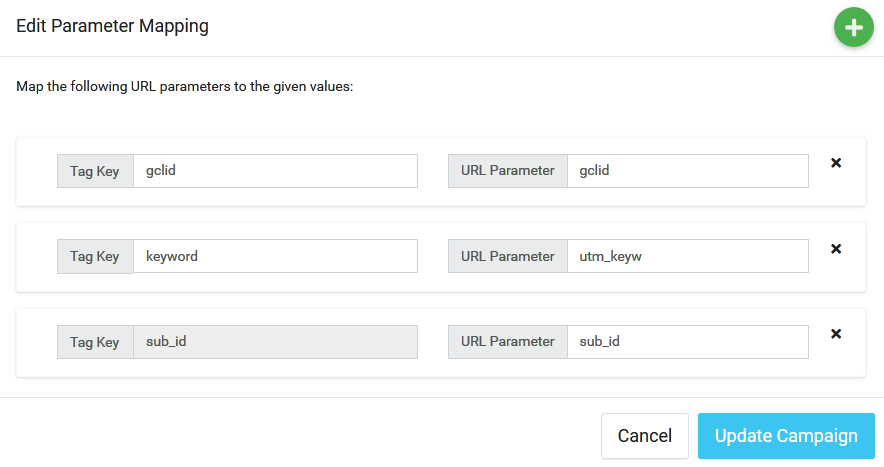
You will need to add a gclid and keyword parameter mapper in Retreaver. Ensure your adwords also includes a parameter for gclid and keyword in your tracking template.
Typically the value-track parameters to add to your tracking template are:
?utm_source=adwords&glcid={gclid}&keyword={keyword}
To enable auto-tagging of parameters to urls using adwords see: Tag Your AdWords Final URLs
Creating Campaign Webhooks to Track Events Back to Google Analytics
With Retreaver it’s possible to send multiple events for a single call to Google Analytics using Webhooks.
View our webhooks article for more information on how to pass data to third parties from the Retreaver platform.
For example:
Using the Webhook: Start: When a call Comes in
https://www.google-analytics.com/collect?v=1&tid=UA-XXXXXXXXX-X&cid=YYYY&t=event&ec=Call&ea=Call+Started&el=Call+Started
Using the Webhook: Answered: When a handler answers call
https://www.google-analytics.com/collect?v=1&tid=UA-XXXXXXXXX-X&cid=YYYY&t=event&ec=Call&ea=Call+Answered&el=Call+Answered
Using the Webhook: Conversion: If call converted
https://www.google-analytics.com/collect?v=1&tid=UA-XXXXXXXXX-X&cid=YYYY&t=event&ec=Call&ea=Call+Converted&el=Call+Converted&e=##
Google Analytics Webhook Parameters
For each Webhook, assign parameters as follows (for all parameters available click here).
For more information about replacement tokens, view our How to use Tags and operators guide.
| Parameter | Description |
|---|---|
| v | The Protocol version. The value should be 1. |
| tid | The tracking ID / web property ID in UA-XXXX-Y format. Accessible using the [google_analytics_tracking_id] replacement token. For Mobile-Only engagements, you will need to hardcode this value instead using the Tracking ID of your media property. |
| cid | Client ID. Anonymously identifies a page view instance. Accessible using the [google_analytics_client_id] replacement token. For Mobile-Only engagements, you can use the [call_uuid] replacement token value instead to uniquely identify engagements. |
| t | Type. Use event. |
| ec | Event Category. We suggest using Call or Calls. |
| ea | Event Action. We suggest using an action aligned to the call status. I.e. Call+Started. Note the spaces must be escaped with a + or %20. |
| el | Optional. Event Label. For use in custom Reporting. |
| ev | Optional. Event Value. Must be an integer (Google limitation). This will track the value of the conversion from the call into Google Analytics. We recommend using a [revenue] replacement token. |
| gclid | Optional. Google Click ID. Needs to be passed to your landing page via the adwords tracking template. This is needed to match the ad conversion back to the ad. Place into the webhook using a [gclid] replacement token. |
| cs | Optional. Source. This should align to your [source_id] or [affiliate_id] values. |
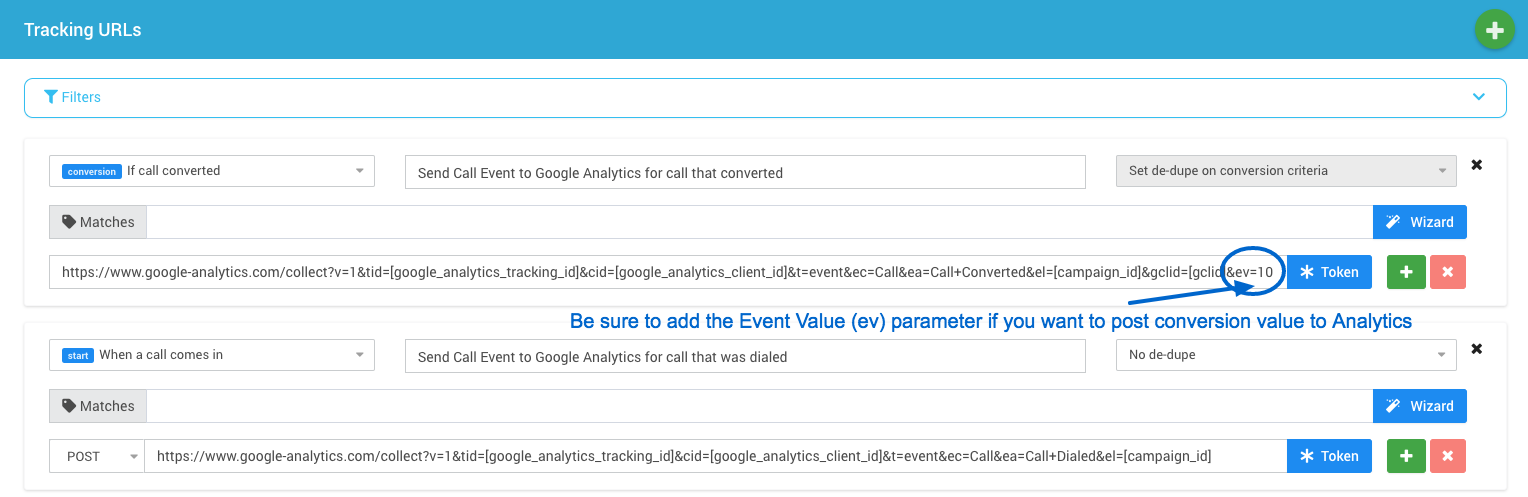
Examples of Google Analytics Webhooks placed on the Retreaver campaign level.
Ultimately, use any event category, action and label you like. For simplicity, we’ve kept the category as “Call” and the action and label the same as each other.
For Events relating to conversions, the Webhook needs to also append &gclid=[gclid] at the end. This will be used to map conversions in Google Analytics to Adwords.
Testing & Viewing Events on Google Analytics
Either place a call through the campaign that will trigger each event, or use the “Test Fire” button in Retreaver to send a call to Google Analytics. This will help you check that the events are being registered correctly.
Navigate to Behaviour -> Events > Top Events in your Google Analytics, then Add a Secondary Dimension for Event Action. This table will now show you the different types of events that were sent to Google Analytics from Retreaver.
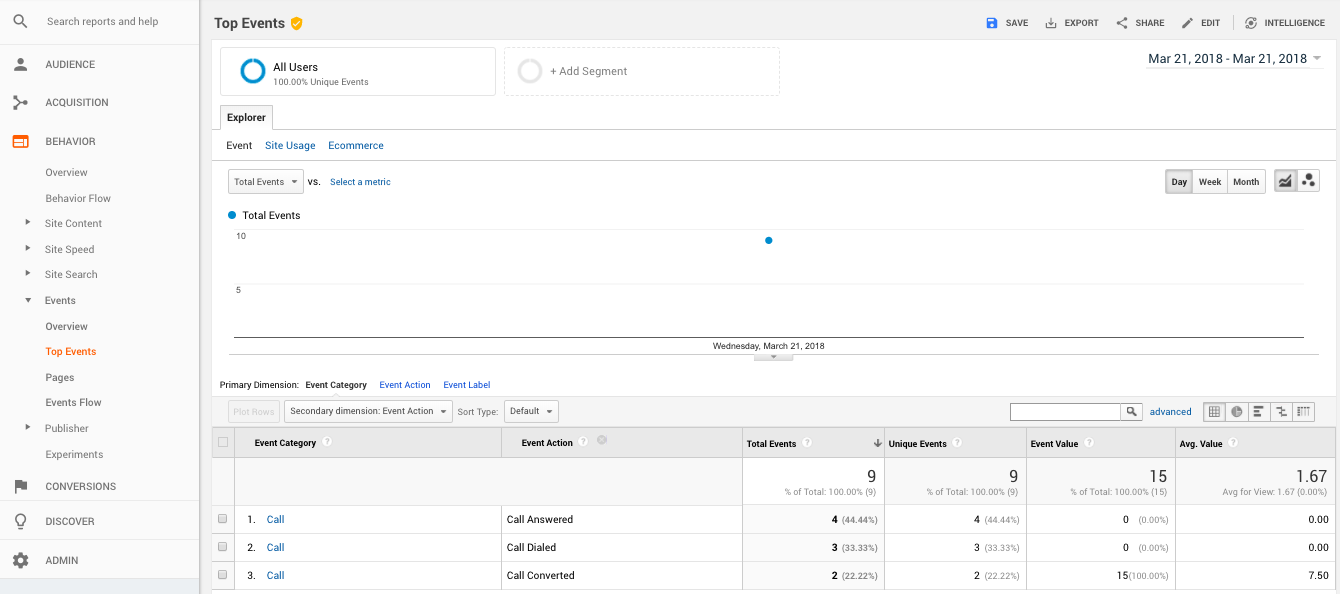
Creating Goals Inside of Google Analytics
Navigate to the Admin page, then head to Goals under the View column:
If this is your first created goal, you will be asked to set up your first goal, otherwise click on the “New Goal” button instead - then follow along with steps below:
-
Select the Custom option for Goal Setup, then press continue.
-
Next, give your goal a name and select the Event as the Type of Goal, then press continue.
-
Set the Category, Action and Label to match what you used in your Webhook, remembering to replace any escaped characters with their actual spaces or values. For example,
Call+Answeredin the Webhook becomesCall Answeredin the goal details. Then click Save.
Your goals are now ready to go!
Complete a few test calls to confirm that you see the conversion information in the Goal view page successfully: Navigate to the overview page from: Conversions > Goals > Overview.
Tracking Call Conversions in Google Ads
Once your Google Analytics goals are set up, you can also send Retreaver call conversions directly into Google Ads to measure which campaigns, ads, and keywords drive phone calls.
Which Google Ads Conversion Type Should You Use?
If Retreaver is sending conversions to Google Ads, use an imported/offline conversion workflow — not a website conversion that requires adding the Google tag to your site.
Use imported/offline conversions when:
- Retreaver determines whether a call qualifies as a conversion
- You want to upload conversions based on call events such as call duration, tags, revenue, or qualified calls
- You want attribution back to Google Ads clicks, campaigns, and keywords
Warning
If Google Ads keeps prompting you to install code on your site, you are likely selecting a website conversion type instead of the import/offline-style workflow needed for Retreaver-based call qualification.
How to Set Up Google Ads Conversion Tracking
-
Connect Google Ads to Retreaver using the native integration under your account settings. See How to Integrate Retreaver with Google Ads.
-
Decide what counts as a conversion — choose the call event Retreaver should report, such as:
- Any answered call
- Calls longer than a minimum duration
- Calls with a specific tag
- Calls marked as qualified or sold
-
Create a conversion action in Google Ads appropriate for offline/imported conversions.
-
Map Retreaver call events to the Google Ads conversion action. Typical examples:
- Static number calls from ads → send when the call is qualified
- Landing page calls from a number pool → send when the session is tied to a Google Ads click and the call meets your rules
-
Test the setup — run a test call and confirm the call is attributed correctly in Retreaver, meets your conversion conditions, and appears in Google Ads after processing time.
Google Ads Conversion Tracking Tips
- Google Ads frequently changes its interface, so menu names and button locations may differ.
- For landing page tracking, ensure your number pool is properly capturing Google Ads visitor attribution.
- For Mobile-Only engagements using static numbers, you will need to hardcode your tracking ID values rather than using replacement tokens.
Additional Resources from Google
Help us improve this article or request new support guides.