
How to export Calls as CSV and view as Excel spreadsheets
Retreaver supports exporting data as CSV files in a few ways:
- Export the current Call Log table (including all the applied filters) as CSV by pressing “Export” in the table
- Scheduled reports via “Custom Reports” section
Watch a demo video of How to export Calls to CSV / Excel
Exporting Call Log (beta) table
In the new Call Log dashboard, scroll to your table and find the “CSV Export” button above the table, on the top-right.
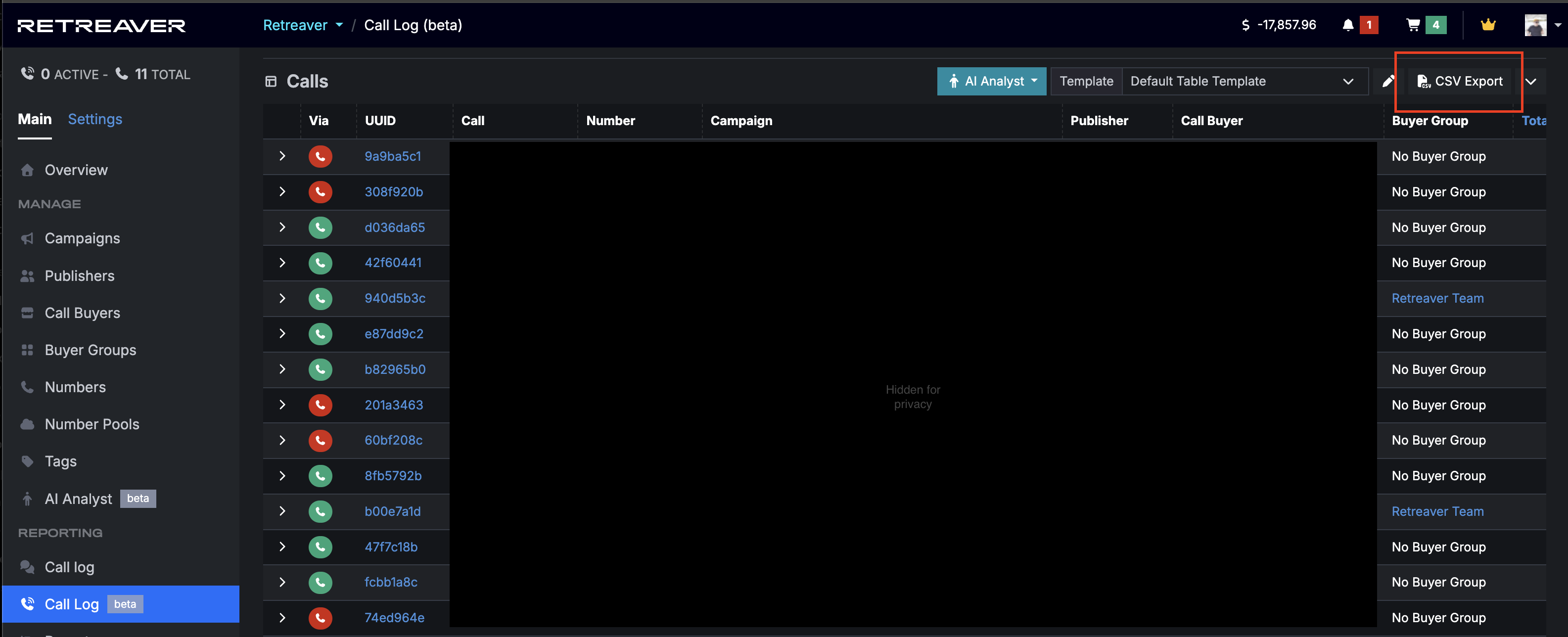
Once Retreaver finishes exporting (this may take a minute), this will save a .csv file in your browser. See your browsers download section to find it.
Exporting Call Log table
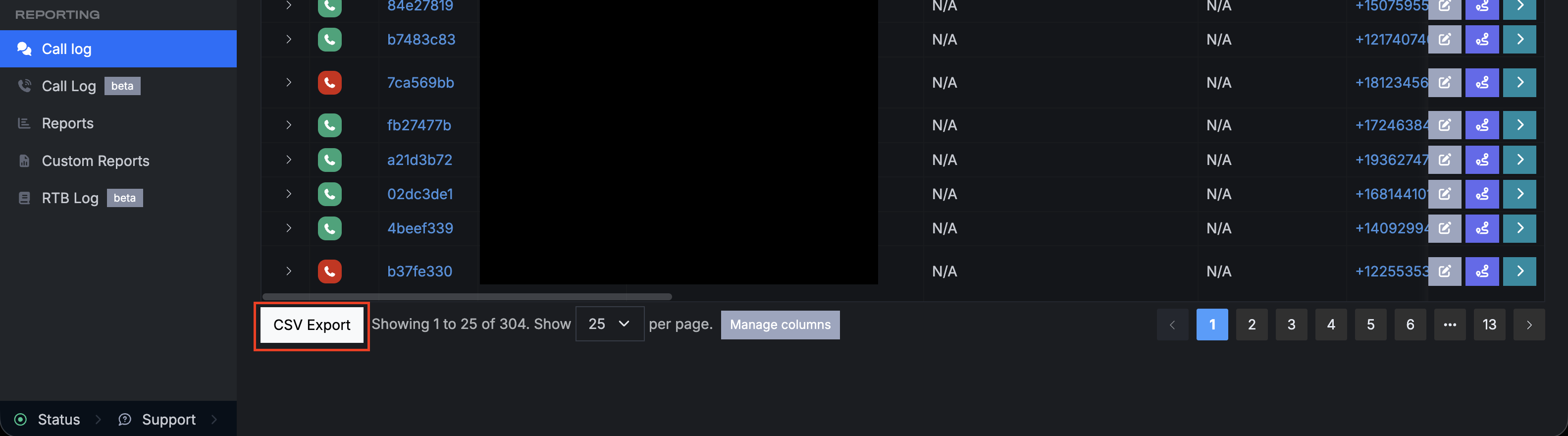
On our original Call Log table the export button is at the bottom of the table.
Viewing CSV file in Excel or Google docs
This .csv file can then be opened in any spreadsheet viewer, such as Excel or Google Docs.
See Microsofts help guide on How to Import or export text (.txt or .csv) files in Excel
For Google Docs, see this guide Import CSV in Google Sheets
Schedule recurring Call reports
Visit “Custom Reports” and click “New Report”
See our full article on scheduling Call Reports for more details
Help us improve this article or request new support guides.