
Buyer Groups
You may find yourself managing a large number of geographically dispersed Buyers (your call routing destinations). We’ve made it easy to manage them by organizing them into Buyer Groups. A buyer group can contain several buyers you use often across campaigns, without adding each one manually every time.
Buyer groups also support simuldialing their members: Retreaver dials every member at once and connects the call to whoever picks up first.
Note
Terminology in this guide: We use the names Buyer and Buyer Group, which are the same as Contact Handlers and Handler Groups when Performance Marketing Edition is turned off in the store. See Terminology.
Creating a buyer group
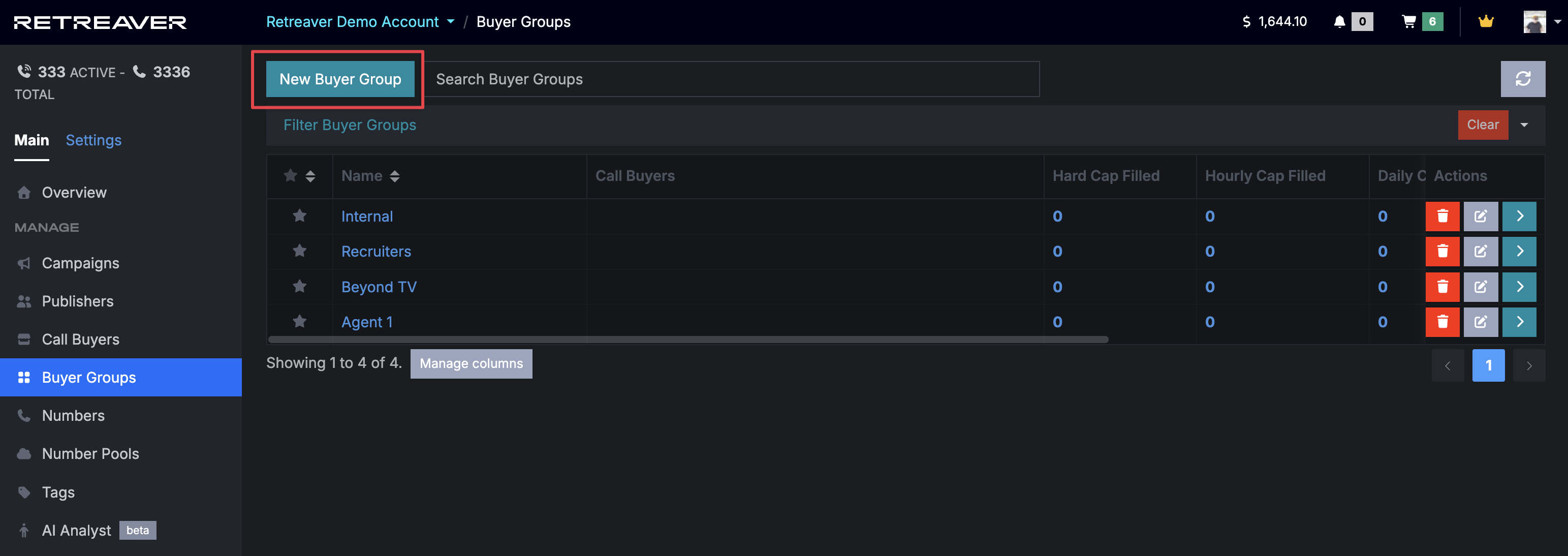
- Open Buyers → Buyer Groups. Then choose New Buyer Group.
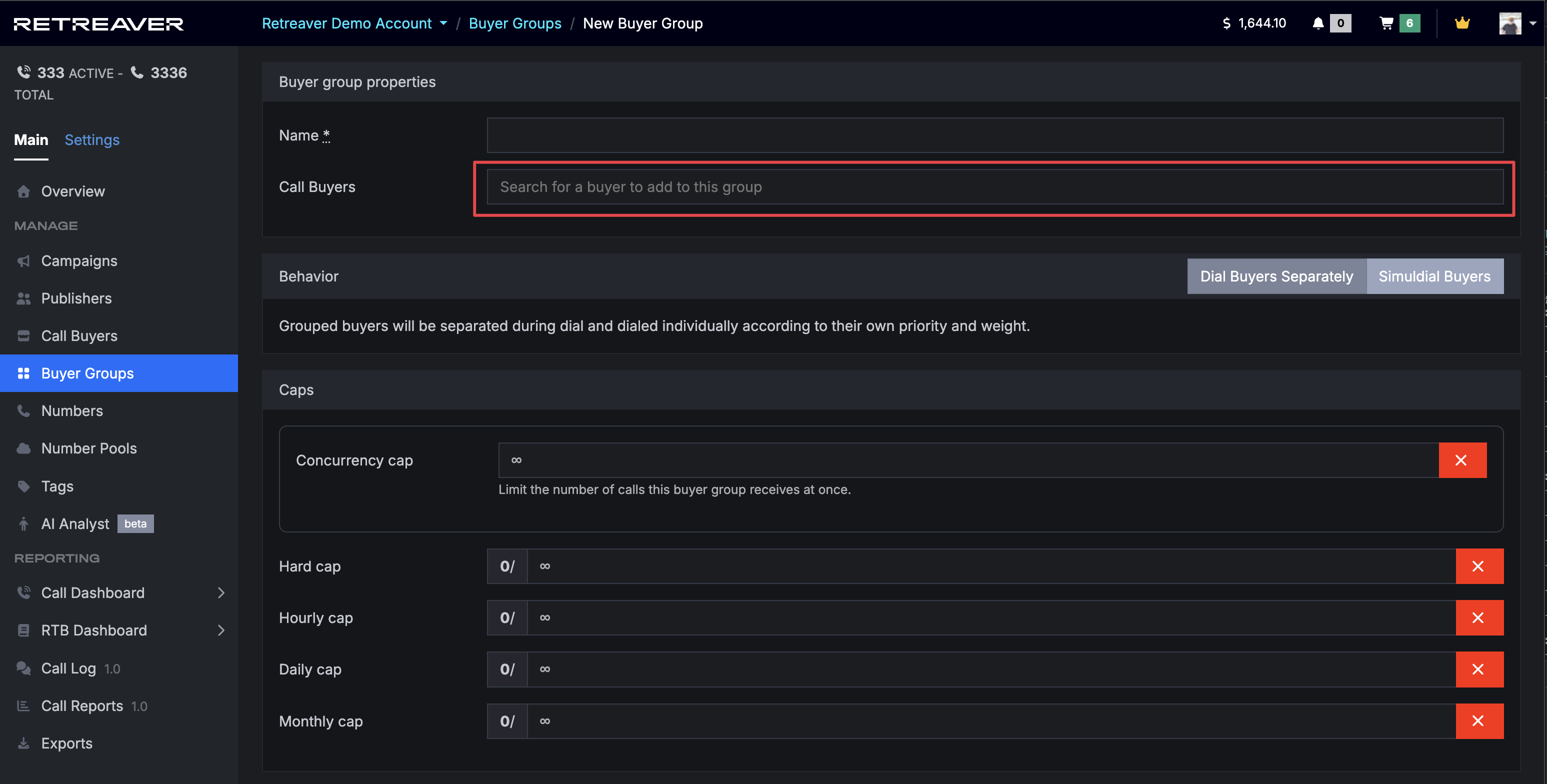
- In the buyer field, add the buyers you want in this group.
- Groups help whenever several buyers belong on a campaign. For routing, the group behaves like any other dial target—it is a container that simplifies setup. Groups also have their own daily, monthly, and hard caps. Calls that count toward a buyer’s caps also count toward caps on any group that buyer belongs to. Set a cap on the group; when it is hit, no member of the group receives more calls.
- Edit the campaign where you want the group, start typing the group name, select it, and click Update Campaign.
Pause, remove, and update Buyers in a Group
Once you’ve created a buyer group you can now manage the buyers on the buyer group profile page
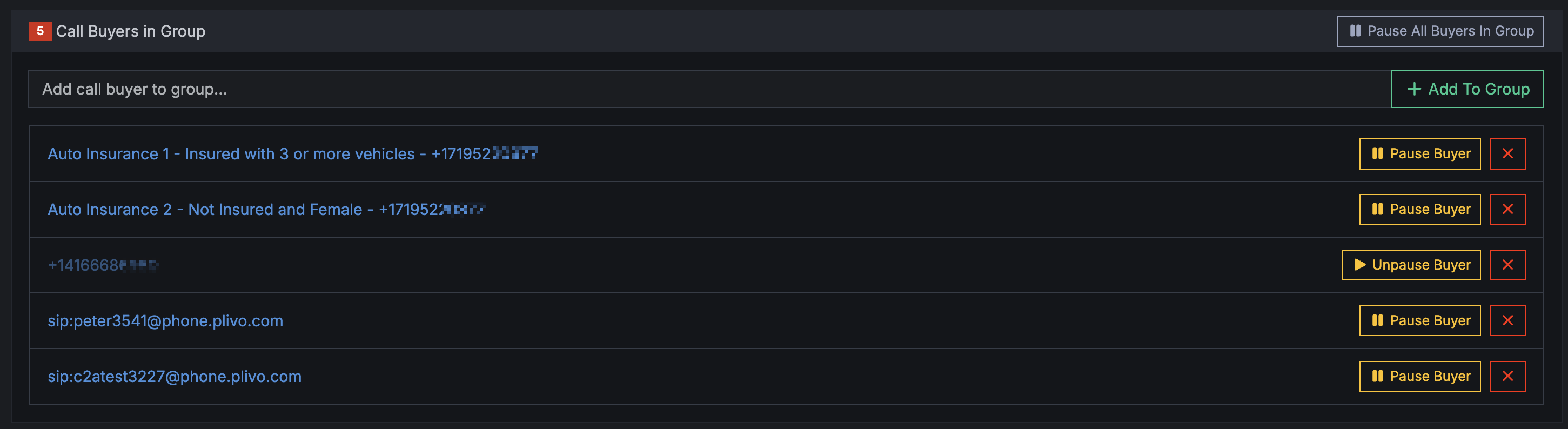
- Pause buyer in Group (Note: this will fully pause the Buyer itself) or Pause All Buyers at once
- Add new buyers using the select box at the top
- Remove buyers from group by clicking the red [x]
Buyer groups in Route Settings
In Route Settings, if you add a group to a route, you have the option to unlock the group which lets you set custom priorities and weights per buyer in the group. Overriding the default priority/weights set on the individual Buyer pages.
Warning
Buyers added to the group later are still added to routing automatically, in an unlocked state.
Configuring a buyer group to simuldial
Turn on simuldial for the group using the Simuldial Buyers toggle under the Behaviour section on the buyer group edit page. On a campaign, calls that hit this group dial every buyer in the group at once; the first to answer gets the call.

Configuring a buyer group to simuldial.
Splitting group business hours and caps
Splitting business hours
When buyers have staggered hours, create one buyer per shift, add them to a group, then attach those buyer groups (or the buyers) to campaigns as needed.
Splitting call caps
Set caps on the group and leave individual buyers at unlimited (or very high) caps where you want the group total to be the limit. When the group cap is reached, no member receives further calls.
You can still cap specific buyers by editing each buyer—for example, a group cap of 100 calls with one member limited to 20.
Dedupe as a company
Grouping buyers lets Retreaver treat the set as one company for deduplication. Enable it on the group with the property Dedupe as a company.
For dedupe-as-a-company to apply, route calls to the group as a whole, not to individual buyers as separate targets.
Here is an example of a routing setting where the call is routed to the whole group. Note the grey Group.
If the call is routed to individual buyers, dedupe-as-a-company does not apply, even when those buyers share a group.
Same buyers shown individually—they are treated as separate routing targets.
One buyer can belong to many groups. Dialing a buyer directly does not count as routing through a group. For example, if Bid Target is in Buyer group 1 and Buyer group 2 but the campaign dials only Bid Target, Retreaver does not treat the call as having gone through either group, so Dedupe as a company does not run for those groups.
Help us improve this article or request new support guides.