
Installing MCP Server
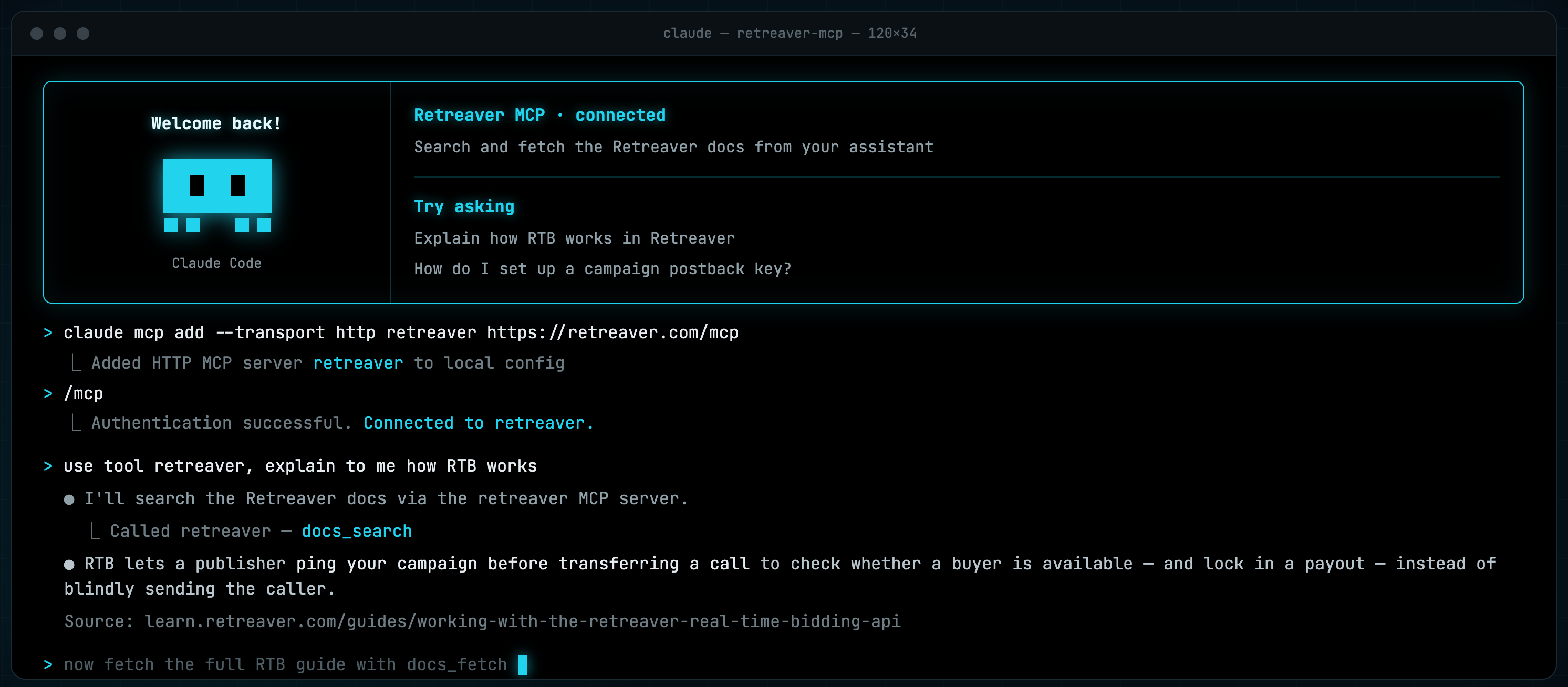
The Retreaver MCP server lets an AI assistant work in your Retreaver account on your behalf. Reading campaigns, buyers, caller lists, and call reporting, and (if you allow it) making changes.
The endpoint is the same for every client:
https://ai.retreaver.com/mcp
It speaks MCP over streamable HTTP and authenticates with OAuth. There is no key to generate, paste, or rotate.
Note
Not in the app directories yet. Retreaver isn’t listed in Claude’s Connectors Directory or ChatGPT’s plugin directory. Add it yourself as a custom connector using the URL above. Once it’s connected, it behaves like any other connector. We plan to publish plugins on these platforms soon.
Warning
First release - do not put it on the critical path yet. We’re shipping to this constantly and may take it down briefly, without much notice, to fix or improve it. Kick the tires and automate the nice-to-haves. Don’t build a mission-critical flow on it just yet.
Before you start
- You’re an owner, superuser, or Retreaver admin on the company you want to connect. Collaborators can’t create an MCP connection.
- You’re already switched into that company in Retreaver. The connection binds to whichever company you’re signed into when you click Approve — the consent screen does not ask you to pick one. If you manage several companies, switch first. See MCP Authentication.
- Your AI assistant supports remote MCP servers. Claude, ChatGPT, Cursor, VS Code, Codex, and most current clients do.
Set up your client
Client menu labels move around. These steps were verified in August 2026. If a screen has moved, look for Connectors (Claude) or Plugins / Developer mode (ChatGPT).
Claude Code
One command:
claude mcp add --transport http retreaver https://ai.retreaver.com/mcpAdd --scope user if you want Retreaver in every project, not just the current
one:
claude mcp add --transport http retreaver --scope user https://ai.retreaver.com/mcpThen start Claude Code and run /mcp. Pick retreaver, choose
Authenticate, and finish the sign-in in your browser.
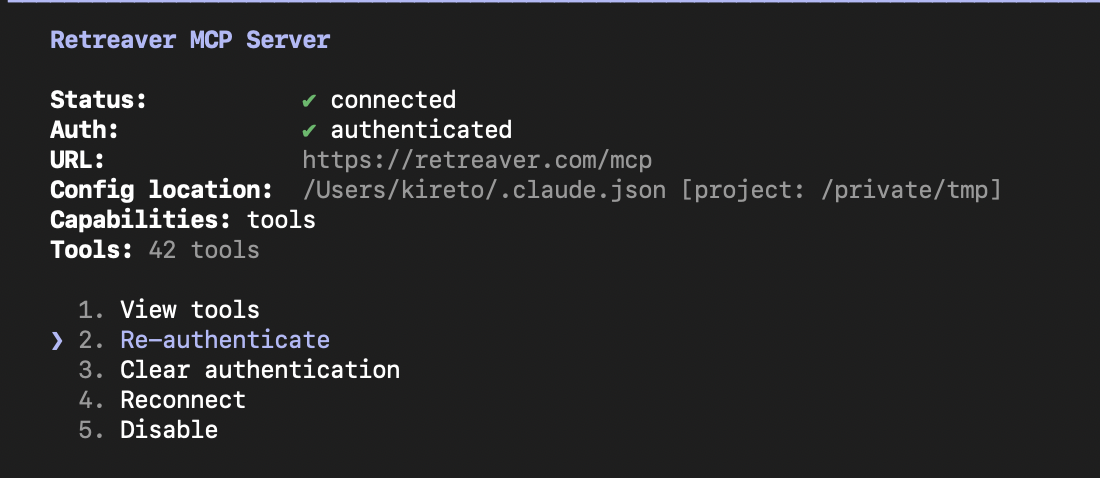
claude mcp list shows the connection state — ✔ Connected means you’re done.
Claude Desktop, Claude on the web, and Cowork
Custom connectors work on Free, Pro, Max, Team, and Enterprise. Free plans allow one custom connector.
Free, Pro, and Max
- Open Customize → Connectors (or claude.ai/settings/connectors).
- Click + → Add custom connector.
- Name it Retreaver and paste the server URL:
Leave Advanced settings empty — Retreaver registers the client automatically.
https://ai.retreaver.com/mcpSwipe horizontally for full code - Click Add, then Connect, and complete the Retreaver sign-in.
- In a chat, use + → Connectors and enable Retreaver for that conversation.
Team and Enterprise
An Owner adds the connector once; each member then connects as themselves.
- Owner: Organization settings → Connectors → Add → Custom → Web, paste
https://ai.retreaver.com/mcp, click Add. - Each member: Customize → Connectors, find Retreaver (it usually has a Custom label), click Connect, and complete the Retreaver sign-in.
The connector is shared. The access is per person, bound to the company that person is signed into when they approve.
ChatGPT
Custom MCP connectors are developer-mode apps on ChatGPT for the web (Plus, Pro, Business, Enterprise, and Edu). They are not listed in ChatGPT’s plugin directory.
- Go to Settings → Security and login and turn on Developer mode. On Business/Enterprise an admin may need to allow this first (Workspace settings → Permissions & Roles).
- Go to Settings → Plugins (or chatgpt.com/plugins) and click the + button to create a developer-mode app.
- Name it Retreaver. Paste the MCP server URL:
Choose OAuth as the authentication method.
https://ai.retreaver.com/mcpSwipe horizontally for full code - Create the app and complete the Retreaver sign-in when prompted.
- Open a new chat, choose Developer mode from the + menu, enable Retreaver, and ask your first question.
Write tools in ChatGPT ask for confirmation before they run. Start with a read-only Retreaver grant anyway — see MCP Authentication.
Cursor
Add the server to ~/.cursor/mcp.json (or the project’s .cursor/mcp.json):
{
  "mcpServers": {
    "retreaver": {
      "url": "https://ai.retreaver.com/mcp"
    }
  }
}Then open Settings → MCP and click Connect (or Login) next to Retreaver to authorize it.
VS Code
Add the server to the workspace .vscode/mcp.json:
{
  "servers": {
    "retreaver": {
      "type": "http",
      "url": "https://ai.retreaver.com/mcp"
    }
  }
}VS Code prompts you to sign in the first time the server is used. You can also use Command Palette → MCP: Add Server → HTTP and paste the same URL.
Codex
codex mcp add retreaver --url https://ai.retreaver.com/mcpThen run codex mcp login retreaver and complete the browser sign-in.
Any other MCP client
Most clients take a name and a URL:
{
  "mcpServers": {
    "retreaver": {
      "url": "https://ai.retreaver.com/mcp"
    }
  }
}If your client asks for a transport, choose streamable HTTP (some clients
spell it http, others streamable-http). If it asks for an authentication
method, choose OAuth — Retreaver registers your client automatically.
If your client only supports local (stdio) servers, bridge to the remote endpoint:
npx -y mcp-remote https://ai.retreaver.com/mcpThat’s the pattern Windsurf, Zed, and similar editors use.
Confirm it worked
Ask your assistant:
“Which Retreaver company am I connected to, and what can I do?”
That runs account.whoami, which reports the company the connection is bound
to, who you’re acting as, your role, and the access level you approved:
{
  "company": { "id": 47291, "name": "Advance Client Solutions LLC" },
  "user":    { "name": "Jane Operator", "email": "jane@example.com" },
  "role":    "owner",
  "scopes":  ["mcp:basic", "mcp:operations:read", "mcp:operations:manage"]
}Read the company name before you ask for anything else — especially if you manage more than one. That line is which account the assistant is about to act on.
Try your first questions
Start with reads. They’re safe, and they show you what the assistant can see:
- “How many calls came in yesterday, broken down by buyer?”
- “Show me the routing settings and active buyers for the Auto Insurance campaign.”
- “List my paused buyers.”
When you’re ready to change something, ask for a preview first:
“Add a buyer called Sunrise Insurance to the Auto Insurance campaign and cap it at 50 concurrent calls — show me a dry run first.”
More ideas in MCP Use Cases.
Troubleshooting
| What you see | What it means | What to do |
|---|---|---|
| “Only an admin, owner, or superuser on this company can connect it to an MCP client.” | Your role on the company you’re currently signed into is too low. | Switch to a company where you’re an owner or superuser, or ask an owner to grant you access. |
| “You must be signed in with a normal web session to connect an MCP client.” | You aren’t signed into retreaver.com in that browser, or the client tried to authenticate with an API key. | Sign in at retreaver.com in the same browser, then retry. |
| “You’re signed in as another user through an admin (‘become’) session.” | Retreaver admins can’t mint a connection while impersonating someone. | Leave the become session and connect as yourself. |
| The assistant reports the wrong company | The connection was approved while you were switched into a different company. | Switch company in Retreaver, then re-authenticate. See MCP Authentication. |
| “MCP is temporarily disabled” (HTTP 503) | We’ve taken the server down briefly — see the warning at the top of this page. | Try again in a few minutes. |
tool_call_limit_exceeded |
A single long session hit the per-connection call cap. | Start a fresh chat with your assistant. |
| The assistant doesn’t know about a tool you read about | Assistants load the tool list when a session starts and hold it for that session. | Start a new session — it reconnects and picks up everything new. |
Next steps
- MCP Authentication and Switching Companies — one connection maps to one company, who can connect, and how to switch.
- MCP Use Cases — prompts that work well.
Help us improve this article or request new support guides.