
RTB Dashboard
The RTB Dashboard is where you analyze reservation activity before a call enters Retreaver. It shows the requests coming through the Real-Time Bidding API, including whether each request was reserved, expired, rejected, or could not find an available target.
Utilizing Retreaver’s RTB Dashboard & RTB Log
The RTB Log is the event-level view of those requests. While the dashboard helps you identify trends, the RTB Log helps you investigate individual reservations, caller numbers, postback keys, publishers, campaigns, and buyer responses.
This guide explains how to use the RTB Dashboard and RTB Log to troubleshoot delivery issues, identify publisher-side problems, verify buyer availability, and optimize reservation performance.
RTB Dashboard
The RTB Dashboard shows inbound reservation activity from RTB-enabled campaigns. This is the best place to understand what happened before a call connected, including whether Retreaver found an eligible route, whether the publisher delivered the call, or whether the request failed due to targeting, buyer availability, or routing rules.
Important
The RTB Dashboard is different from the Call Dashboard. The RTB Dashboard shows reservation activity before a call enters Retreaver. The Call Dashboard and Call Log show actual calls that entered Retreaver.
RTB Log vs. Call Log
The RTB Log and Call Log show different stages of the call flow.
| Log | What it shows |
|---|---|
| RTB Log | Ping and reservation activity, including requests that may never become calls |
| Call Log | Actual calls that entered Retreaver |
A publisher can send an RTB request and receive a reservation, but if they never route the caller to the reserved number, that activity appears in the RTB Log but not in the Call Log.
This is one of the most important differences when troubleshooting “missing calls.”
Important
If an RTB was reserved but no call appears in the Call Log, the most likely issue is that the publisher did not send the reserved call into Retreaver.
Filter & Date Range
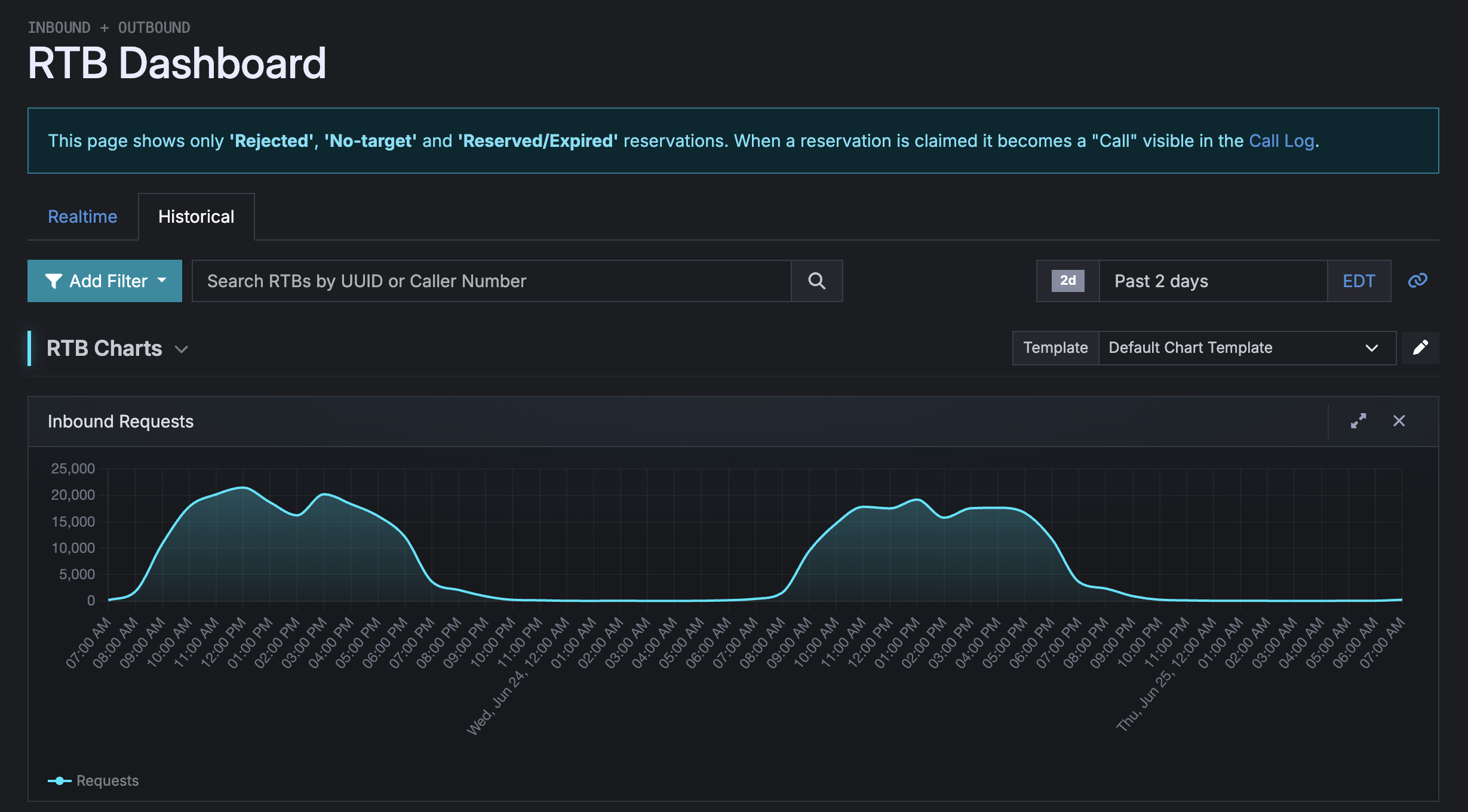
Every RTB chart, drilldown, and log row follows the date range and filters at the top of the page.
- Realtime tab — live RTB activity as requests come in.
- Historical tab — past RTB activity based on the selected date range.
- Add Filter — filter by campaign, publisher, call buyer, postback key, status, caller location, tags, payout, and more.
- Search RTBs by UUID or Caller Number — quickly locate a specific reservation request.
- Date range picker — choose common ranges like past 1 hour, past 6 hours, past 1 day, past 2 days, today, yesterday, month to date, or a custom range.
- Time zone indicator — shows which time zone the data is being viewed in, such as
EDT.
Important
Filters apply to every widget on the page, including RTB Charts, RTB Drilldown, and RTB Log. If the data looks empty or incomplete, check the active filters and date range first.
Common RTB Statuses
RTB statuses explain what happened to each reservation request.
| Status | What it means |
|---|---|
| Reserved | Retreaver found an eligible route and held a slot for the publisher to send the call |
| Expired | A reservation was created, but the publisher did not send the call before the reservation window expired |
| No-target | No eligible buyer or route was available for the request |
| Rejected | The request was rejected based on targeting, filters, buyer rules, endpoint response, or campaign configuration |
| Claimed | The reservation was successfully claimed and became an actual call |
A Reserved status does not always mean a call was received. It means the opportunity was accepted and a slot was held.
An Expired status usually means the publisher received the reservation but did not complete the handoff by sending the call into Retreaver.
A No-target status usually means Retreaver could not find an available buyer based on business hours, geo targeting, filters, caps, tags, or routing rules.
RTB Charts — Inbound Requests
The Inbound Requests chart shows RTB request volume across the selected date range.
Use this chart to identify:
- Spikes in inbound RTB activity
- Drops in publisher traffic
- High ping volume that is not converting into calls
- Time periods where requests increased but calls did not
- Daypart patterns in RTB traffic
The chart is especially useful when comparing publisher activity against actual call volume. If RTB volume is high but call volume is low, check for expired reservations or publisher handoff issues.
Use this chart to answer: “Are publishers sending requests, and are those requests turning into calls?”
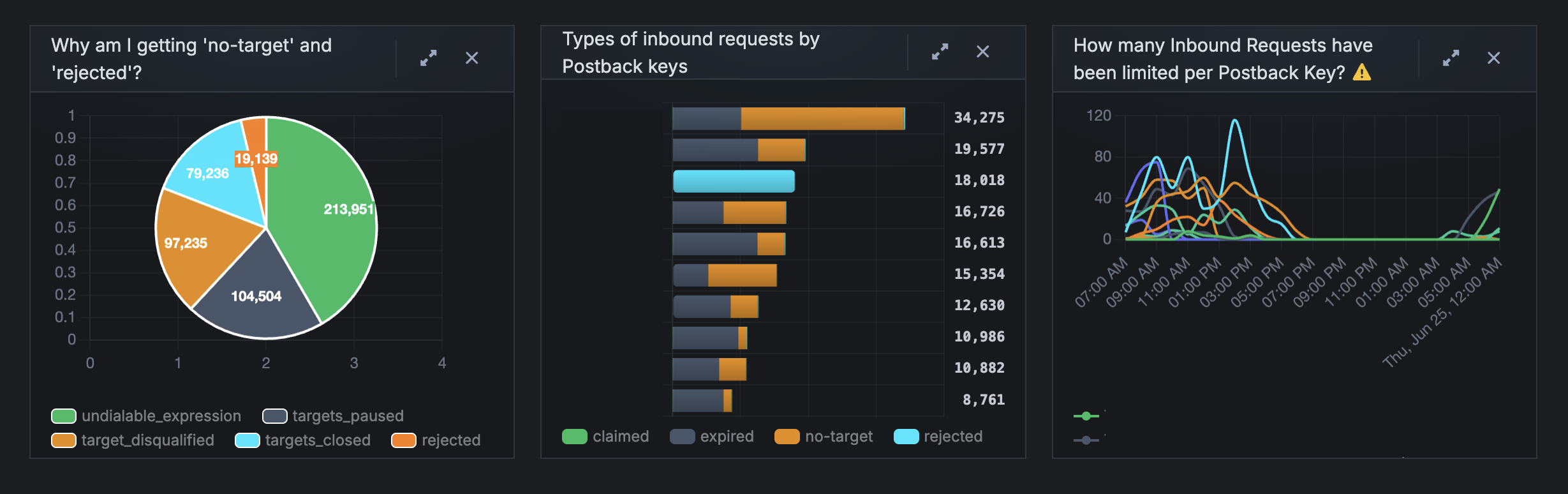
Why am I getting 'no-target' and 'rejected'?
This chart breaks down the reasons RTB requests are not finding a successful path.
Common reasons may include:
- undialable_expression — the caller number did not match the campaign’s dialable rules or targeting logic.
- target_disqualified — a buyer was available but did not match the caller profile, such as state, ZIP, tags, or other filters.
- targets_closed — eligible buyers were closed due to business hours, caps, schedules, or availability rules.
- targets_paused — buyers were paused manually or by configuration.
- rejected — the request was rejected by a buyer endpoint, webhook, or campaign rule.
Important
If undialable_expression is high, the issue is often upstream traffic quality. If targets_closed is high, the issue is usually buyer availability or capacity.
Types of inbound requests by Postback Keys
This chart breaks down RTB request outcomes by Postback Key.
Each postback key represents a publisher integration endpoint. Reviewing activity by postback key helps identify which traffic sources are producing healthy reservations and which are causing issues.
Common outcomes include:
- claimed — the reservation became a call.
- expired — the reservation was created, but the publisher did not send the call.
- no-target — no eligible buyer was available.
- rejected — the request was rejected.
Important
If one postback key has a high number of expired reservations, that publisher may not be routing reserved calls correctly. If one postback key has a high number of no-target requests, that publisher may be sending traffic that does not match your buyer coverage.
How many Inbound Requests have been limited per Postback Key?
This chart shows how many inbound requests have been limited per postback key.
High limited counts may indicate:
- Duplicate ping activity
- Repeated requests for the same caller
- Publisher-side retry logic creating excess pings
- Traffic volume exceeding expected limits
- Low-quality or mismatched traffic being sent repeatedly
Use this widget to identify publisher integrations that may need review.
Pair this chart with the Postback Key breakdown to see whether a publisher is generating high volume, high limits, high no-targets, or high expired reservations.
RTB Drilldown
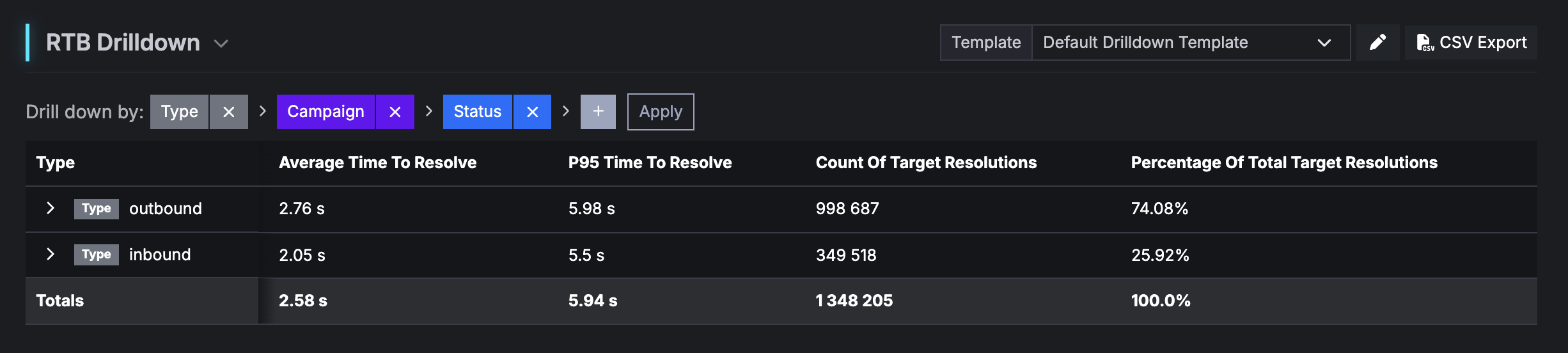
The RTB Drilldown lets you build a nested report using multiple levels. This is one of the best tools for identifying exactly where RTB issues are coming from.
You can drill down by:
- Type
- Campaign
- Status
- Publisher
- Call Buyer
- Postback Key
- Caller Number
- Caller State
- Caller City
- Caller ZIP
- Caller Country
- Daily
- Hourly
- Day Of Week
- Hour Of Day
- Tag
How to add or remove drilldown levels:
- Locate the Drill down by: row.
- Click the + button.
- Select the level you want to add.
- Click Apply.
- Remove any level by clicking the × on the chip.
A useful default workflow is:
Type → Campaign → Status
This quickly shows which campaigns are producing inbound RTB requests and whether those requests are being reserved, expired, rejected, or returning no-target.
Another useful workflow is:
Publisher → Postback Key → Status
This helps identify which publisher integrations are producing the most issues.
Important
Use drilldowns to move from a general problem to a specific source. Instead of saying “we have too many expired RTBs,” you can identify the exact publisher, campaign, or postback key causing the issue.
RTB Log
The RTB Log is the detailed event-level table at the bottom of the RTB Dashboard. Each row represents an individual RTB reservation request.
Common columns include:
| Column | What it means |
|---|---|
| Call | The call ID if the reservation became a call |
| UUID | The unique reservation ID |
| Postback Key | The publisher integration endpoint used for the RTB request |
| Caller Number | The caller number included in the request |
| Publisher | The publisher associated with the request |
| Inbound Number | The number reserved for the publisher to send the call to |
| Campaign | The campaign associated with the request |
Use the RTB Log when investigating a specific reservation, caller number, UUID, publisher, campaign, or postback key.
The RTB Log is especially useful when a publisher says they sent traffic, but you do not see matching calls in the Call Log.
Important
If the RTB Log shows a reservation but the Call Log does not show a matching call, the reservation likely expired because the publisher did not send the caller into Retreaver.
Templates & CSV Export
The RTB Dashboard supports reusable templates and CSV exports.
Templates allow you to save custom dashboard views, including selected drilldown levels, hidden or reordered columns, and preferred layouts.
Examples of useful RTB templates:
Publisher_Health_DailyPostback_Key_AuditNo_Target_ReviewExpired_RTB_ReportCampaign_RTB_Performance
CSV Export allows you to export the current drilldown or RTB Log view.
The export reflects the filters, date range, columns, and drilldown levels currently applied.
Use CSV exports when you need to:
- Share data with a publisher
- Review RTB performance offline
- Send a report to a buyer or internal stakeholder
- Compare RTB activity against Call Log activity
- Audit expired, rejected, or no-target reservations
Troubleshooting RTB Issues
The RTB Dashboard is most useful when you use it as a troubleshooting workflow. Start with the high-level charts, then move into drilldowns and the RTB Log to isolate the source of the issue.
If you see many expired RTBs
An expired RTB means Retreaver created a reservation, but the publisher did not send the call before the reservation window expired.
This usually points to a publisher-side handoff issue.
Check whether:
- The publisher is routing calls to the reserved number
- The publisher is using the reservation response correctly
- The caller is dropping before transfer
- The publisher system is delaying the call
- The reservation window is expiring before the caller is sent
- The same caller or UUID appears repeatedly without a matching call
- The publisher is sending pings but not completing the call transfer
Important
High expired RTBs usually mean Retreaver accepted the opportunity, but the publisher did not complete the handoff.
If you see many no-target RTBs
A no-target RTB means Retreaver could not find an eligible buyer or route for the request.
Start by checking buyer availability.
Confirm that:
- Buyer business hours are open
- Geo targeting matches the caller
- Required tags or filters are present
- Buyer caps have not been reached
- Buyer concurrency is available
- The buyer is assigned to the correct campaign
- The buyer is enabled
- The buyer endpoint or webhook is responding correctly
- The buyer’s direct phone line is working
If a direct test call to the buyer goes to voicemail or fails, the issue is likely on the buyer side, not in Retreaver.
Important
No-target does not always mean the campaign is broken. It often means the caller did not match any available buyer at that moment.
If a buyer is not receiving calls
A buyer may be configured correctly but still receive few or no calls if they are too low in the routing waterfall or have restrictive settings.
Review the buyer’s:
- Campaign assignment
- Business hours
- Geo targeting
- Tags and filters
- Caps
- Concurrency
- Endpoint or webhook response
- Direct phone line
- Priority
- Weight
Routing priority and weight can significantly affect delivery.
Avoid unusual priority values like:
-10- inconsistent priority numbering
Use a clear ascending priority structure instead:
- Priority 1
- Priority 2
- Priority 3
A buyer with the correct filters but low priority may receive very little traffic if higher-priority buyers are taking most of the available volume.
If test calls are not appearing in the Call Log
If you are testing and cannot find your call in the Call Log, check your filters first.
Make sure to:
- Reset active filters
- Expand the date range
- Search by caller number
- Search by UUID
- Confirm the correct campaign is selected
- Confirm the correct time zone is selected
- Check whether the RTB expired before becoming a call
A narrow date range or active filter is one of the most common reasons calls appear to be missing.
Important
If the activity appears in the RTB Log but not in the Call Log, the call may never have entered Retreaver.
If calls are blocked by number-level business hours
Business hours can be applied at different levels, including the tracking number level.
If the tracking number itself has business hours applied, calls outside those hours may not pass through as expected.
When testing:
- Open the tracking number.
- Review the number-level business hours.
- Confirm the number is open during your test window.
- If appropriate, set the number to 24/7 while troubleshooting.
- Test again and review both the RTB Log and Call Log.
Number-level business hours can prevent calls from passing through even when the campaign or buyer appears available.
Practical RTB Workflows
Workflow: Investigate reserved RTBs that did not become calls
Use this workflow when a publisher says they sent traffic, but the Call Log does not show matching calls.
- Open the RTB Dashboard.
- Select the correct date range.
- Search by caller number or UUID.
- Check whether the request was Reserved or Expired.
- Open the Call Log in a separate tab.
- Search for the same caller number or call UUID.
- If the RTB exists but no call exists, the publisher likely did not send the call into Retreaver.
- Share the RTB details with the publisher so they can confirm their routing and handoff logic.
Workflow: Diagnose high no-target volume
Use this workflow when RTB requests are returning no-target.
- Open the RTB Dashboard.
- Set the date range to the affected period.
- Add a drilldown: Type → Campaign → Status.
- Identify which campaigns have the highest no-target volume.
- Add another drilldown level for Publisher or Postback Key.
- Review whether no-targets are concentrated around one source.
- Check buyer availability, business hours, caps, geo targeting, required tags, and routing priority.
- Test the buyer’s direct phone line if needed.
Workflow: Audit publisher RTB quality
Use this workflow to evaluate whether publisher traffic is matching your buyer coverage.
- Open the RTB Dashboard.
- Drill down by Publisher → Postback Key → Status.
- Review the ratio of claimed, expired, no-target, and rejected requests.
- Identify publishers with high expired or no-target volume.
- Compare their RTB activity against actual calls in the Call Log.
- Export the results as a CSV if you need to share the data.
- Follow up with the publisher if they are sending mismatched traffic or failing to complete reserved calls.
Workflow: Review buyer delivery issues
Use this workflow when a buyer says they are not receiving enough calls.
- Open the RTB Dashboard.
- Filter by the affected campaign.
- Drill down by Call Buyer → Status.
- Review whether requests are being rejected, no-targeted, or routed elsewhere.
- Check the buyer’s business hours, caps, filters, geo coverage, and endpoint response.
- Review routing priority and weight.
- Confirm whether higher-priority buyers are taking the available volume.
- Run a direct test call to confirm the buyer line is active.
Optimization Checklist
Use this checklist when reviewing RTB performance:
- Are RTB requests being reserved but not turning into calls?
- Are many reservations expiring?
- Are no-target results concentrated around one campaign?
- Are no-target results concentrated around one publisher or postback key?
- Are buyers open during the traffic window?
- Are buyer caps or concurrency limits being reached?
- Are geo targeting rules too restrictive?
- Are required tags or filters missing?
- Are buyer endpoints or webhooks responding correctly?
- Are buyer phone lines active and answering?
- Is the publisher correctly sending calls after receiving a reservation?
- Are Call Log filters hiding calls that actually entered Retreaver?
- Is routing priority or weight preventing certain buyers from receiving traffic?
- Are number-level business hours blocking calls during testing?
Key Takeaways
The RTB Dashboard shows what happens before a call enters Retreaver.
The RTB Log shows individual reservation requests.
The Call Log shows actual calls that entered Retreaver.
If an RTB was reserved but no call appears in the Call Log, the publisher likely did not send the reserved call into Retreaver.
If an RTB returns no-target, review buyer availability, targeting, filters, caps, business hours, routing priority, and buyer endpoint behavior.
If a buyer is configured correctly but not receiving traffic, review priority, weight, caps, and whether other buyers are taking the available volume first.
Use the RTB Dashboard to find the trend. Use the RTB Drilldown to isolate the source. Use the RTB Log to investigate the individual reservation.
Help us improve this article or request new support guides.