
New Webhook: After AI Analysis Completed
What’s new
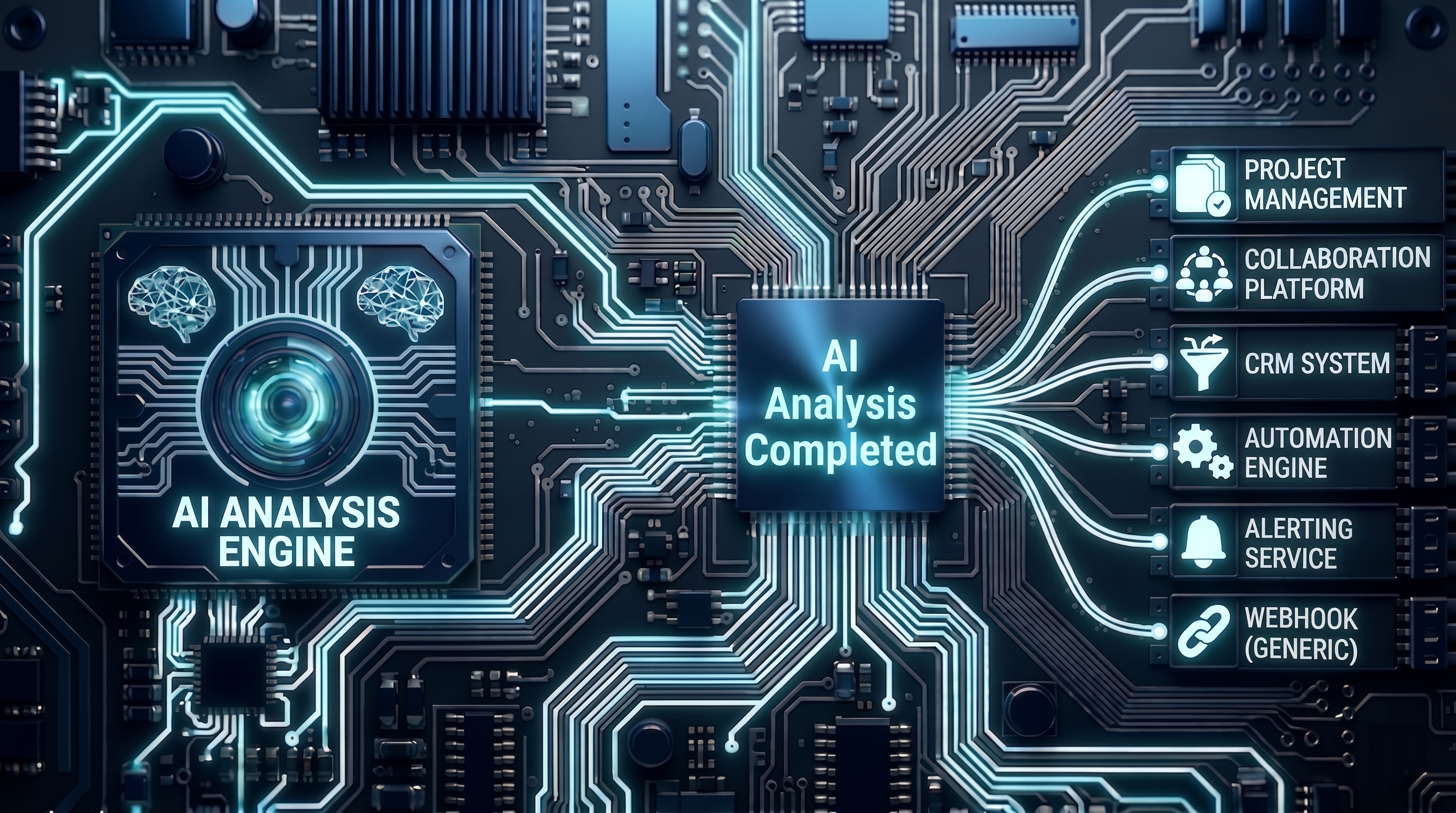
There’s a new webhook timer trigger: After AI Analysis.
It fires only after the AI Analyst has finished processing a call, so you can reliably run downstream automations with the final AI results available.
Why
Teams often want to push AI-enriched call outcomes to external systems (CRMs, spreadsheets, internal tools) — but only once the AI outputs are ready.
How to use it
- Go to Webhooks
- Create a new webhook
- Set the trigger group to After AI Analysis
- Add your webhook URL (GET/POST as usual)
- Include replacement tokens for AI results if needed
Common AI replacement tokens
- Disposition
[disposition_positive_outcome][disposition_stage_reached][disposition_disposition_code][disposition_primary_loss_reason][disposition_termination_reason][disposition_transfer_outcome][disposition_summary]
- Intent
[intent_primary_topic][intent_summary]
- AI tag prompts
- Any tag key is replaceable once it exists on the call (example: if your tag key is
ai_topic, use[ai_topic])
- Any tag key is replaceable once it exists on the call (example: if your tag key is
What to expect
- The webhook fires after AI Analyst completes (not during the call, and not as part of normal “during call” webhook rounds).
- It’s ideal for “final state” integrations: CRM updates, alerts, QA workflows, and analytics pipelines.
Learn more in our AI Analyst guide.
Help us improve this article or request new support guides.
On this page