
Change history for Webhooks and Postback Keys

Change history for Webhooks and Postback Keys
Retreaver now keeps a change history for your Webhooks and Postback Keys. Whenever someone edits one of these records, the change is recorded so you can see exactly what changed, when it happened and who made the update.
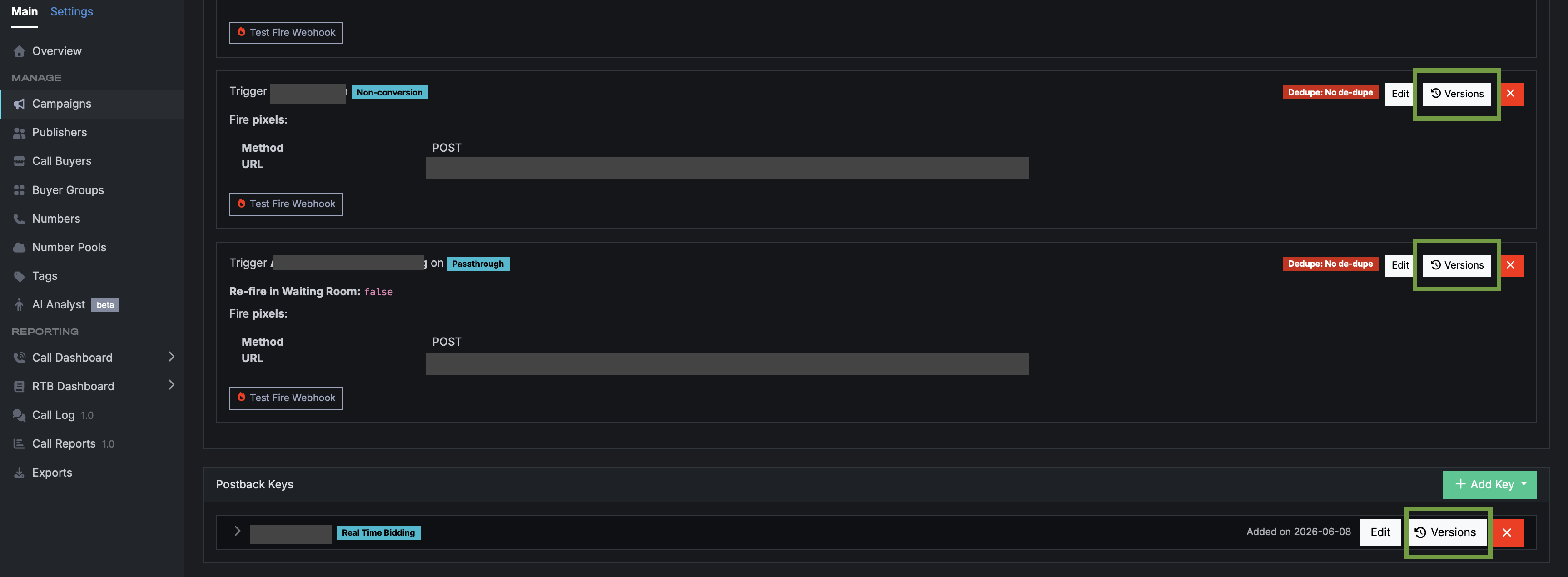
A new Versions action on each row opens that history in one click. The same changes also appear on the Versions page of the parent campaign, buyer, buyer group or publisher.
This history is visible to company owners and superusers.
Why this matters
Webhooks and Postback Keys sit in the critical path of your campaigns. A single edit — a changed URL, a different action, or an adjusted timing field can quietly change how calls are posted, how integrations behave or how partners are paid.
Until now, there was no record of those edits.
What’s new
Every user-made change to a Webhook or Postback Key is now recorded as a version. Each row now includes a Versions action alongside Edit and Delete.
Opening Versions shows the record’s history, including:
- What changed — the fields that were modified and the related campaign, buyer, buyer group, or publisher the change affected.
- When — the timestamp of each change.
- Who — the user who made the change, linked to their profile or collaborator record where available.
How to use it
You can reach this history in two ways:
- Open it directly from the record’s Versions action.
- View it in context from the Versions page of the parent campaign, buyer, buyer group, or publisher.
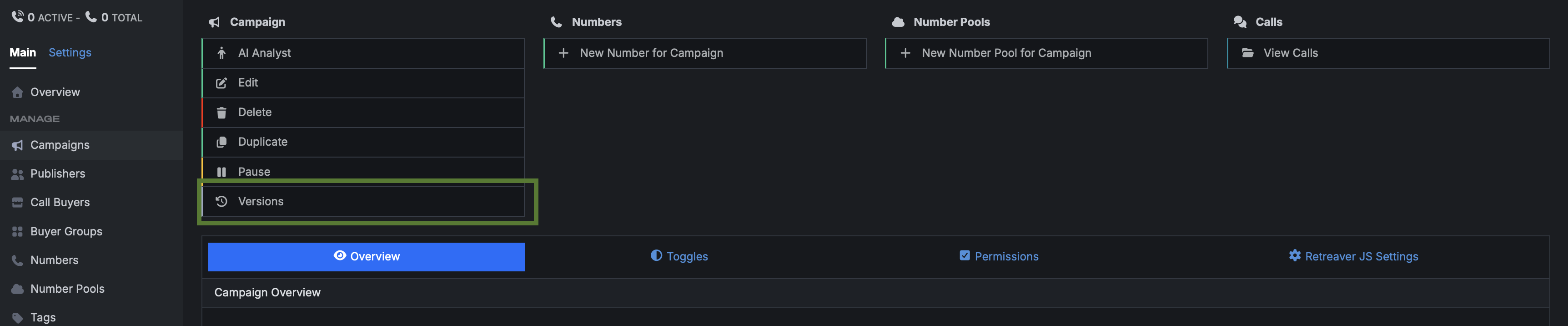
Because each change is anchored to its parent, edits to Webhooks and Postback Keys roll up into that parent’s history alongside the parent’s own changes. This gives you a single, consolidated audit trail for the whole record.
A breadcrumb trail links every entry back to its parent, so you always know the context of the change.
Notes
Only changes made after this release are recorded. Edits made before this release will not appear in the history.
Next step
Open any Webhook or Postback Key and click Versions to see its history.
The next time a record behaves differently than expected, check its history first. The answer may be right there.
Help us improve this article or request new support guides.
Previous
The All-New Overview Dashboard
Next
Give your publishers exactly the tags they need — and nothing more