
Set Press 1 To Accept and Press 1 Too Slow per Buyer
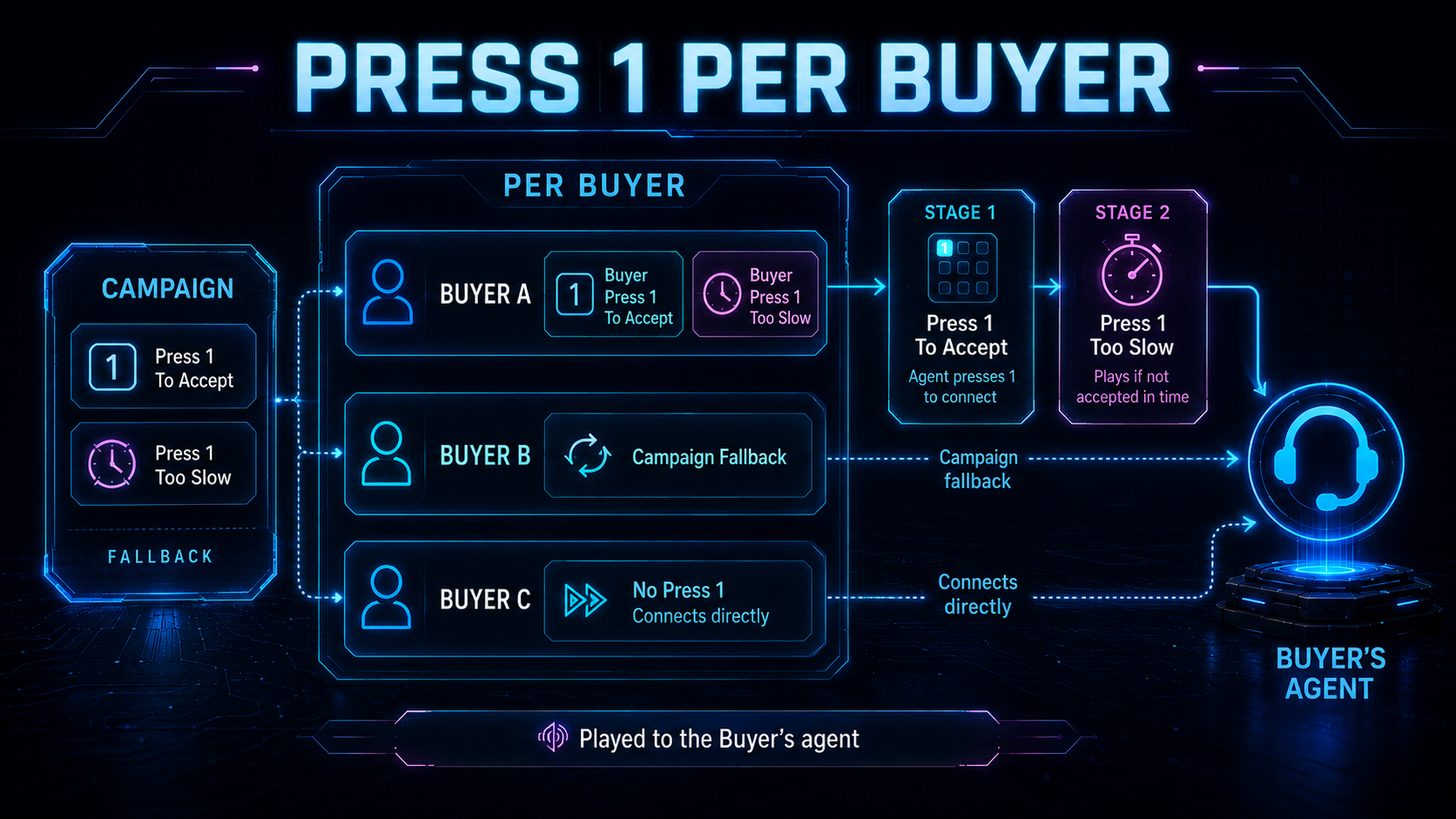
You can now configure Press 1 To Accept and Press 1 Too Slow on an individual Buyer. Both are played to the Buyer’s agent when a call is delivered - one asks the agent to press 1 to accept, the other plays if they don’t accept in time and a Buyer’s own versions now take the place of the campaign’s for that Buyer. This lets each Buyer decide how its agents accept calls, on the same campaign.
Why this matters
Buyers handle their inbound calls differently. Some want their agents to actively confirm each call by pressing 1 before they’re connected, others take calls straight through. And the message an agent hears, both the accept prompt and the “you were too slow” fallback, is often specific to that Buyer’s team.
Per‑Buyer control lets each Buyer set its own accept step and wording, while Buyers that don’t need their own continue to use the campaign’s.
What’s new
Two Buyer‑facing prompts can now be set on an individual Buyer, alongside the existing per‑Buyer Whisper:
- Press 1 To Accept — played to the Buyer’s agent when the call is delivered. The agent must press 1 to accept and be connected to the caller.
- Press 1 Too Slow — played to the agent if they don’t press 1 in time, or, on a simultaneous dial, if another Buyer accepted first.
When a Buyer has its own version, it plays in place of the campaign’s for that Buyer. When it doesn’t, the campaign’s still applies.
Before
These prompts came from the campaign, so every Buyer a call could reach shared the same accept prompt and the same “too slow” message. Whether agents had to press 1 was decided the same way for the whole call.
Now
Each Buyer can carry its own Press 1 To Accept and Press 1 Too Slow. The accept step is decided per Buyer: one Buyer’s agents can be required to press 1 (hearing that Buyer’s prompt), while another Buyer on the same campaign takes calls straight through.
How to use it
- Open the Buyer you want to configure.
- Go to its Prompts section.
- Add a Press 1 To Accept prompt (text‑to‑speech or an audio file) if you want that Buyer’s agents to confirm calls. Optionally add a Press 1 Too Slow prompt for the fallback message.
- Save. Calls delivered to this Buyer now use these prompts in place of the campaign’s.
Notes and caveats
- Campaign‑level Press 1 To Accept and Press 1 Too Slow still work and remain the fallback for any Buyer that doesn’t set its own.
- Nothing changes for existing calls until you add one of these prompts to a Buyer.
- These prompts play to the Buyer’s agent, not the caller.
- Press 1 To Accept changes the call flow, not just the audio. Adding it to a Buyer means that Buyer’s agents must press 1 to accept. If they don’t in time, the call ends and Press 1 Too Slow plays. Add it only when you want that accept step.
- Which prompt wins: a Buyer’s own prompt is used first. If the Buyer has none, the campaign’s applies, if neither is set, there’s no press‑1 step.
- Simultaneous (ring‑all) dials: each Buyer’s leg decides independently. A Buyer with Press 1 To Accept is asked to press 1. The first Buyer to accept wins and any Buyer that was beaten hears its own Press 1 Too Slow.
- A Buyer’s prompt applies only to that Buyer and doesn’t change the campaign default for others.
- Both prompts are played to the Buyer’s agent, not to the caller and contain no caller data.
- Mixing accept steps in a ring‑all: if some Buyers dialed together have Press 1 To Accept and others don’t, the Buyers without it connect immediately. There’s no key for them to press, so they will usually win the race before a Buyer whose agent still has to press 1. In other words, adding the accept step to only some Buyers in a simultaneous dial tends to hand the call to the ones without it. If you want the accept step to actually gate who wins, apply Press 1 To Accept consistently across the Buyers dialed together.
- Per‑Buyer prompts are rolling out in stages. If these prompts aren’t available on your Buyers yet, contact Retreaver support to have them enabled for your account.
Help us improve this article or request new support guides.