
Set Business Hours per Publisher
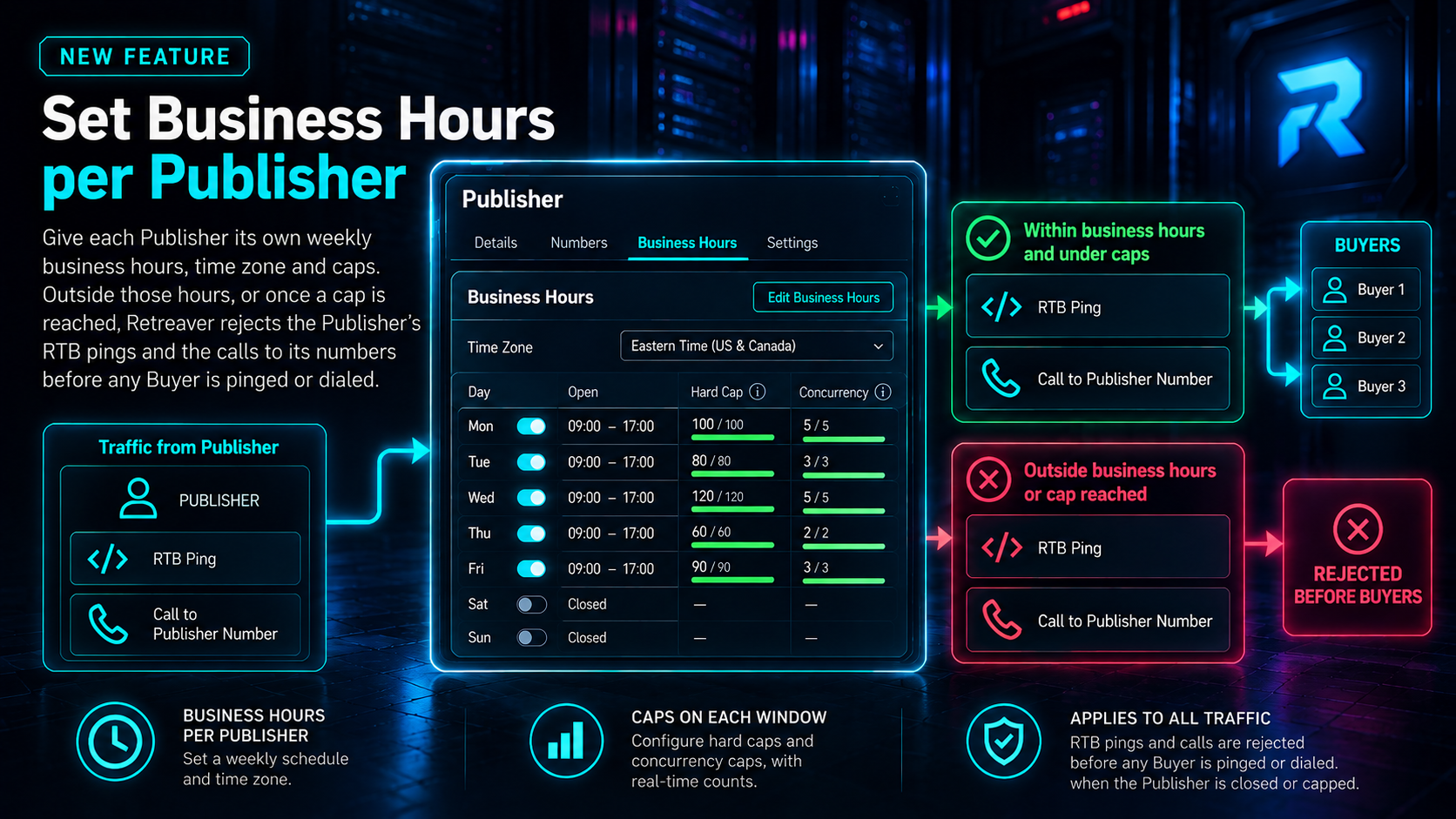
You can now give each Publisher its own weekly business hours a time zone and caps on those hours. Outside the hours or once a cap is reached, Retreaver rejects the Publisher’s RTB pings and the calls to its numbers before any Buyer is pinged or dialed.
What’s new
- A Business Hours card on every Publisher’s page, with an Edit Business Hours button. The card shows each day’s time windows and for each window, its hard cap and concurrency cap with their current counts.
- A time zone per Publisher. Hours are always read in the Publisher’s own time zone, not yours or the caller’s.
- Caps on each time window:
- Hard cap: how many calls the window may take. It counts a call when it connects or when it converts, as set by the window’s Cap Trigger and resets at the start of each week in the Publisher’s time zone.
- Concurrency cap: how many of the Publisher’s calls may be live at once while the window is open. It is available on accounts that have concurrency caps on business hours enabled.
- A new check on incoming traffic. When the Publisher is closed or the current window’s hard cap or concurrency cap is reached:
- RTB pings attributed to the Publisher are answered with
"status": "rejected". A ping is attributed to the Publisher when its RTB key is tied to the Publisher, when it names the Publisher (affiliate_id,publisher_idorsource_id), or when it names no Publisher but its inbound number belongs to one. - Inbound calls to the Publisher’s numbers are rejected before routing. The caller hears a busy signal or your greeting followed by a hang-up if the call plays one.
- The call’s debug log says why: “Publisher [name] is closed, ending the call.”, “Publisher [name] is capped, ending the call.” or “Publisher [name] is currently simulcapped …”.
- RTB pings attributed to the Publisher are answered with
- RTB reservations count toward a Publisher’s hard cap the same way they count toward a Number’s: when the reservation is confirmed, or on the first request if the RTB key has Add to caps on status ‘reserved’ turned on.
- A Publisher Closed notice on the page of each Number whose Publisher is closed, so it’s clear why that number’s calls are rejected even when the number’s own hours are open.
How to use it
- Open Publishers and select a Publisher.
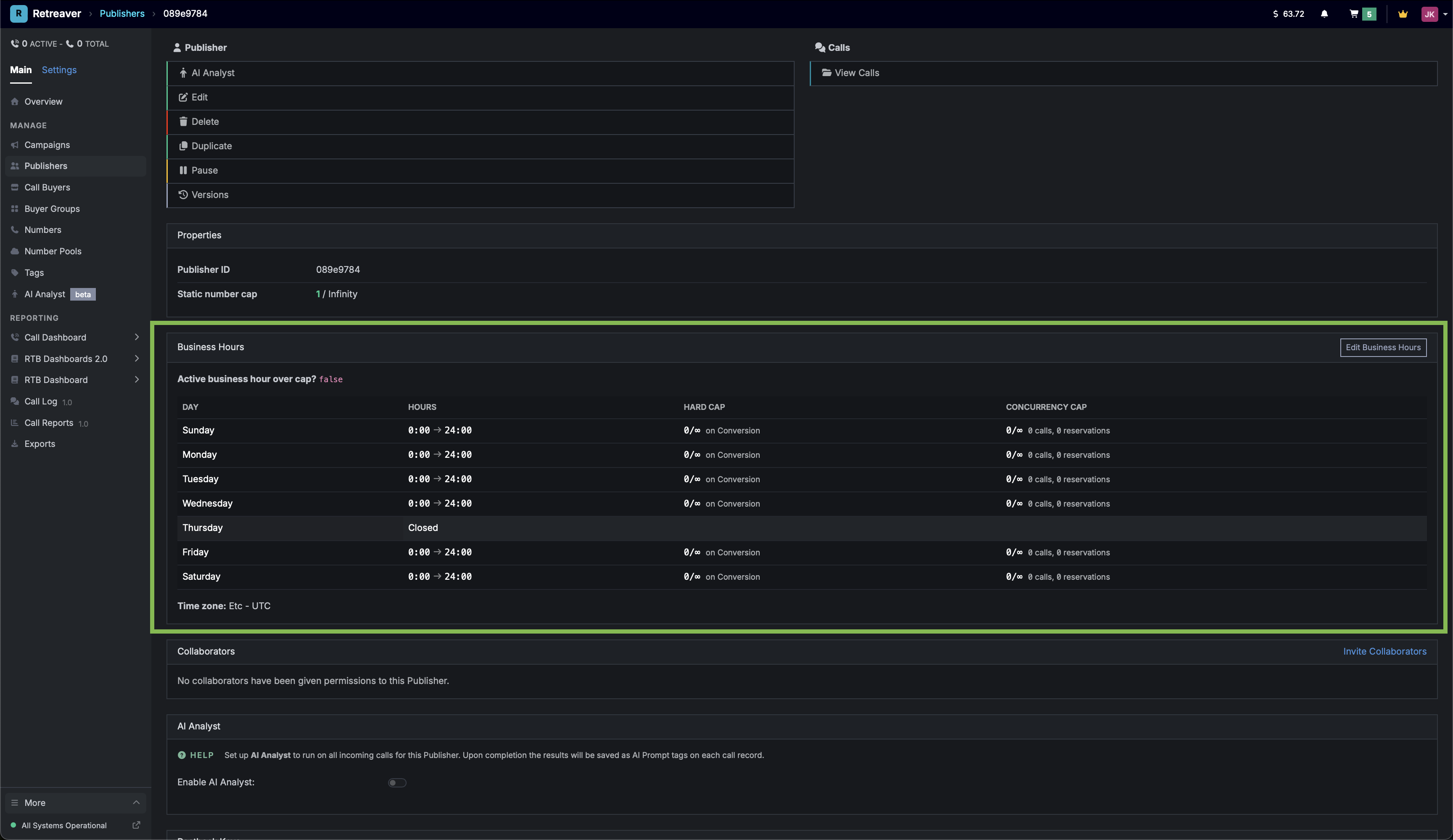
- On the Business Hours card, click Edit Business Hours.
- Pick a preset (Open 24-7, Open 9-5 M-F or Noon Lunch) or set each day yourself: switch a day off to close it or give it one or more time windows.
- To cap a window, enter a hard cap next to it and choose its Cap Trigger. An empty cap means no cap. If your account has concurrency caps on business hours, you can also enter a concurrency cap.
- Choose the Business Hours Time Zone.
- Click Save Business Hours.
The new schedule and caps apply from the next ping or call.
Through the Retreaver MCP server
affiliates.read returns each Publisher’s time_zone and business_hours with their row IDs and affiliates.manage accepts both. You can ask your AI assistant, for example, to “close Acme Leads on Sundays” and it can update that day’s row. Caps are set in the app.
Migration notes
- Existing Publishers keep taking traffic around the clock until someone sets their hours. Each one starts with the open week, 0:00 to 24:00 every day and no caps.
- Existing Publishers start in UTC. Check the time zone the first time you set their hours.
- New Publishers start open every day, 0:00 to 24:00, with no caps, in the time zone of the user who created them, in the app. Publishers created any other way, for example while adding a number, start in UTC.
Permissions and access
- Superusers can view and edit a Publisher’s hours and caps on its page and its hours through the API and MCP. Read-only superusers get the Business Hours card, as on a Buyer’s page.
- Publisher collaborators can’t see a Publisher’s hours or caps and don’t see the Publisher Closed or Publisher Paused notices.
- Media Buyer collaborators don’t get the Business Hours card on a Publisher’s page.
Notes and caveats
- Retreaver still receives the pings. A closed or capped Publisher’s pings are answered right away and never reach a Buyer.
- The RTB response doesn’t say why. A ping rejected because the Publisher is closed or capped receives the same response as other rejections. The specific reason can be found in the call’s debug log.
- Hard caps reset weekly, not daily. A cap on Monday’s window counts that window’s calls until the reset at the start of the next week. To cap each day, set a cap on each day’s window.
- A concurrency cap counts all of the Publisher’s live calls, across all its numbers and campaigns.
- A window can’t cross midnight. Split an overnight window across two days, for example Friday 20:00 to 24:00 and Saturday 0:00 to 2:00.
- Each Publisher has a weekly schedule, with optional caps on each time window. Existing Publishers start open every day, 0:00 to 24:00, with no caps, so nothing changes for them until you set their hours.
Next step
Open one of your Publishers, click Edit Business Hours on its Business Hours card and set the hours and caps you agreed with that Publisher.
Help us improve this article or request new support guides.