# Buyer Level Suppression Guide
### **Retreaver Buyer Level Suppression Guide**
Retreaver’s buyer level suppression function allows users to block specific caller ID's from being routed through a specific buyer/call handler profile. This allows a Retreaver user to prevent undesired customers from being sent to a buyer by applying a client’s suppression list at only the buyer/call handler level.
---
#### **Step 1: Prepare Number Suppression List**
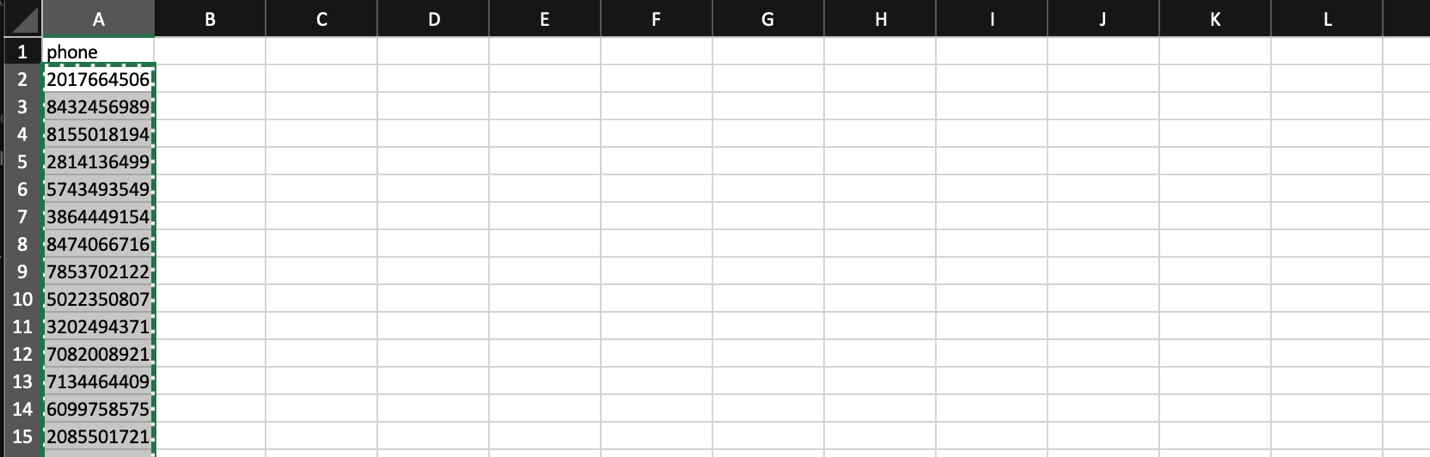
Open your file containing the suppressed numbers list and copy the numbers.
Note numbers should be 10 digits long without any formatting.
***Remove any country code prefixes from the list ( +10123456789 )***.
 #### **Step 2: Paste Suppression List into "ConvertCSV" tool**
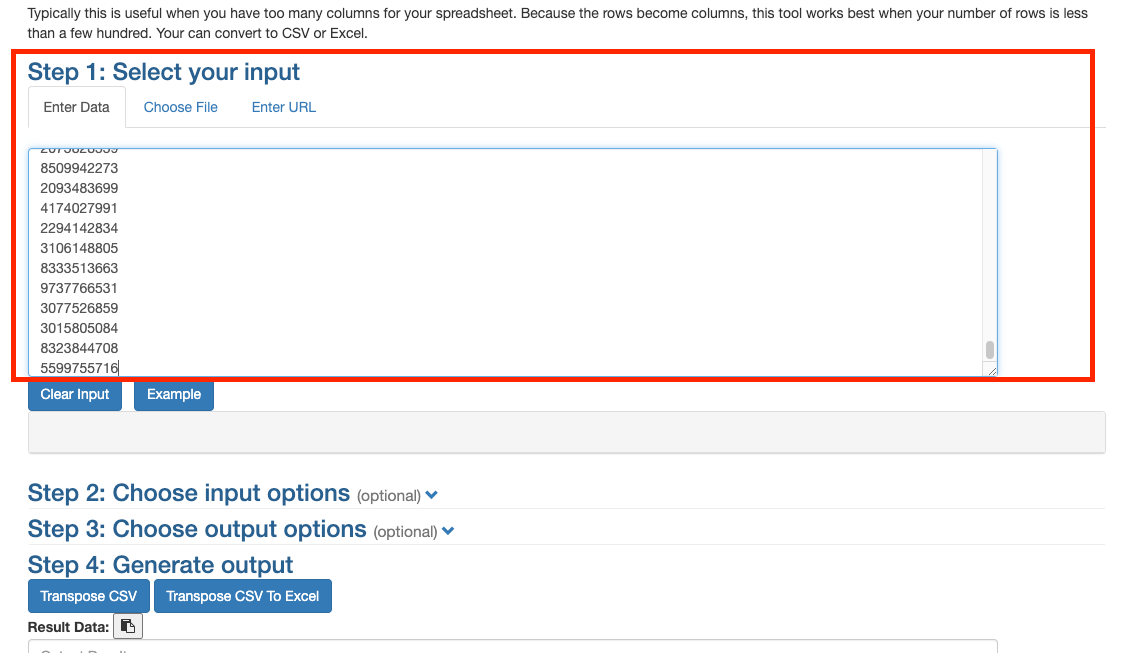
Head to "[ConvertCSV.com](https://www.convertcsv.com/transpose-csv.htm)" \[ [https://www.convertcsv.com/transpose-csv.htm](https://www.convertcsv.com/transpose-csv.htm) \] to transpose your list, this free online tool will help you process the list into a format that Retreaver tags can accept. Paste your numbers into the Step 1 input box:
#### **Step 2: Paste Suppression List into "ConvertCSV" tool**
Head to "[ConvertCSV.com](https://www.convertcsv.com/transpose-csv.htm)" \[ [https://www.convertcsv.com/transpose-csv.htm](https://www.convertcsv.com/transpose-csv.htm) \] to transpose your list, this free online tool will help you process the list into a format that Retreaver tags can accept. Paste your numbers into the Step 1 input box:
 #### **Step 3: Select Field Separator**
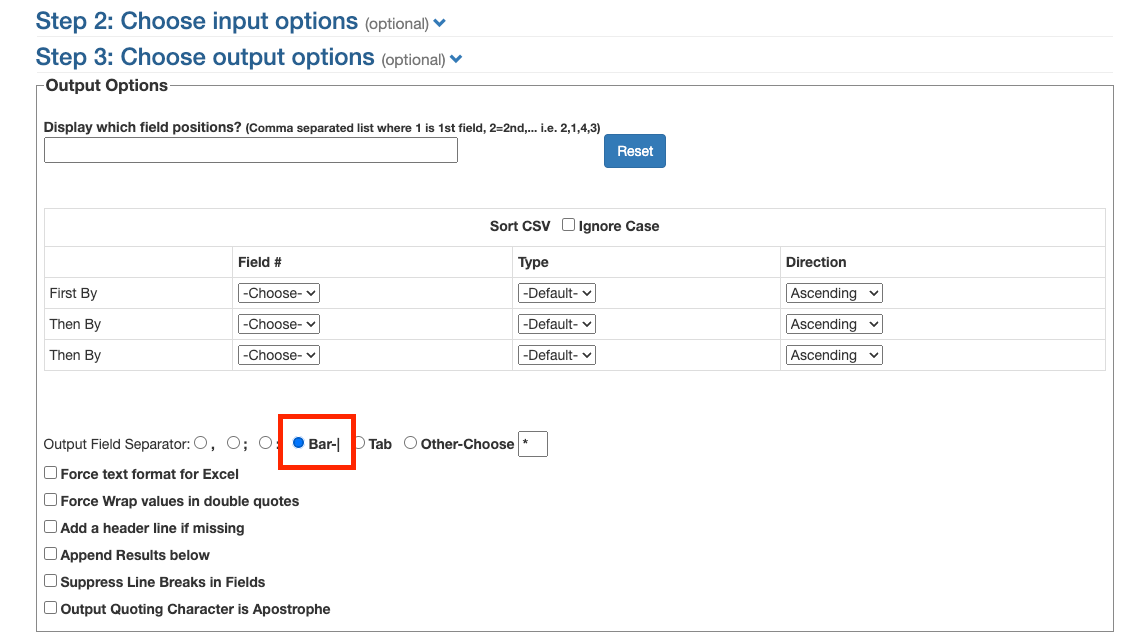
While in the webpage, scroll to the section titled “Step 3”. You might have to click on the down arrow to open up additional step 3 options and click on the “Bar | “ option. This will combine all your numbers listed in step 1, using a bar character to connect them.
#### **Step 3: Select Field Separator**
While in the webpage, scroll to the section titled “Step 3”. You might have to click on the down arrow to open up additional step 3 options and click on the “Bar | “ option. This will combine all your numbers listed in step 1, using a bar character to connect them.
 #### **Step 4: Transpose CSV**
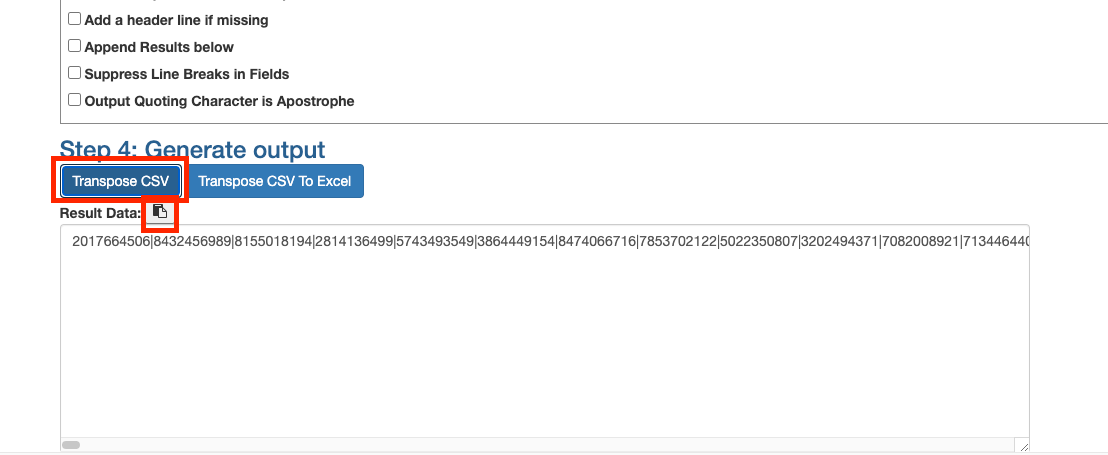
Within the Step 4 section, click on the “**Transpose CSV**” option. Once completed, click on the clipboard option to copy the resulting transposed CSV text.
#### **Step 4: Transpose CSV**
Within the Step 4 section, click on the “**Transpose CSV**” option. Once completed, click on the clipboard option to copy the resulting transposed CSV text.
 #### **Step 5: Edit Retreaver Buyer**
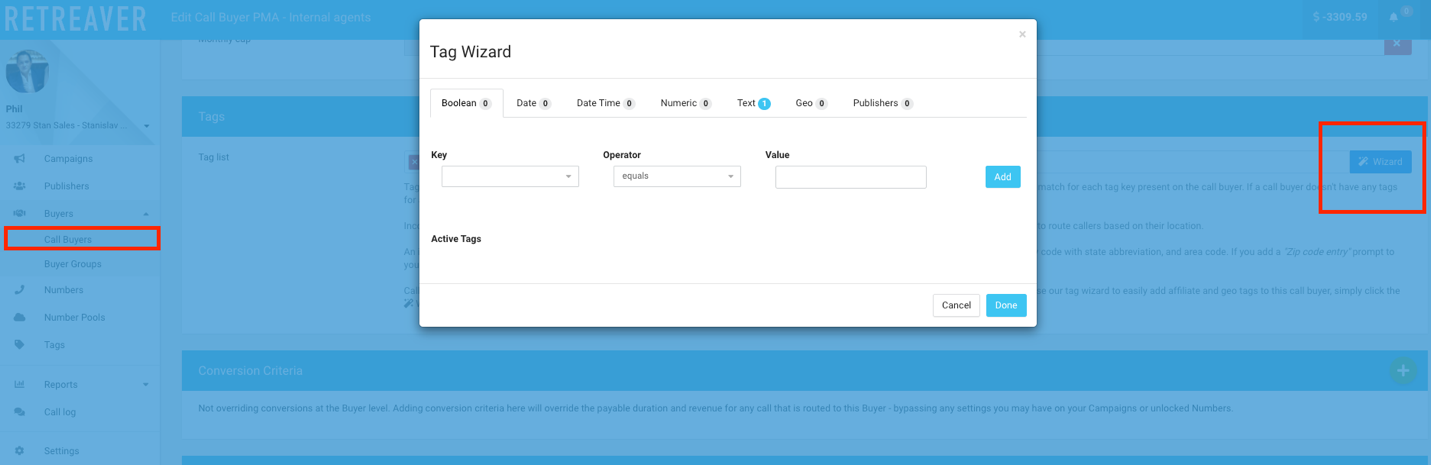
Return to Retreaver and head to the buyer edit screen of the profile that requires buyer level suppression. Scroll down to the ***tag wizard*** to modify the buyer tags.
#### **Step 5: Edit Retreaver Buyer**
Return to Retreaver and head to the buyer edit screen of the profile that requires buyer level suppression. Scroll down to the ***tag wizard*** to modify the buyer tags.
 #### **Step 6: Tag Retreaver Buyer using Text Tag**
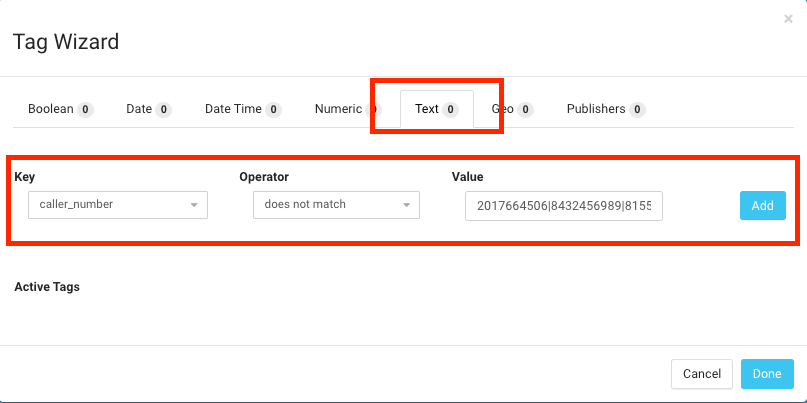
***6A)*** Click on the Text option within the Wizard section, and type “caller\_number” as the key, click on the key name to confirm your selection.
***6B)*** Once completed, change the tag operator to “Does not Match”.
***6C)*** Lastly paste the copied data from step 4 into the value field, depending on the size of your suppression list this action could take a few seconds. Click on the value you pasted to confirm your selection then press add and done to complete your changes.
#### **Step 6: Tag Retreaver Buyer using Text Tag**
***6A)*** Click on the Text option within the Wizard section, and type “caller\_number” as the key, click on the key name to confirm your selection.
***6B)*** Once completed, change the tag operator to “Does not Match”.
***6C)*** Lastly paste the copied data from step 4 into the value field, depending on the size of your suppression list this action could take a few seconds. Click on the value you pasted to confirm your selection then press add and done to complete your changes.
 #### **Step 7: Update Retreaver Buyer**
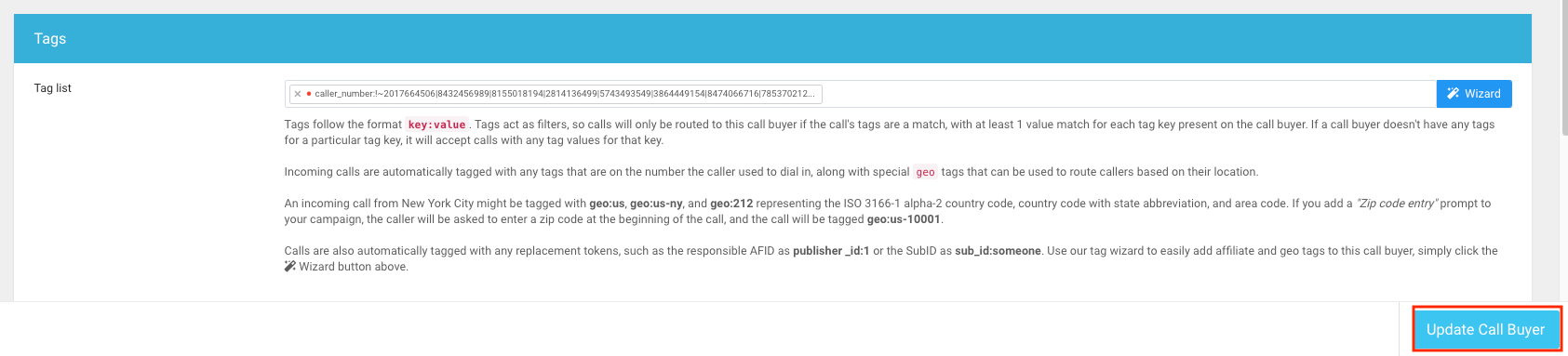
Click on "Update Call buyer" to confirm your changes and complete the buyer level suppression process.
#### **Step 7: Update Retreaver Buyer**
Click on "Update Call buyer" to confirm your changes and complete the buyer level suppression process.